Best Free Nepali Typing Practice Software for Computer

Free DownloadsNepali TypingUpdated 2026

Best Free Nepali Typing Practice Software for Computer (2026 Guide)

Updated September 2026 · 10 min read · By the Wilson.com.np Team

If you searched for the best free Nepali typing practice software for computer, you're probably comparing a handful of tools before you install anything — and that's the right instinct. Most sites either push a single download or bury you in transliteration jargon. This guide does the opposite: it lines up every major free option, tells you exactly who each one is for, and links you straight to a working download so you can start practicing today.

Why a Dedicated Typing Tutor Beats a Transliteration Tool

Search results for Nepali typing are dominated by transliteration tools — type "namaste" in English letters and watch it convert to "नमस्ते". These are excellent for writing a quick Facebook post, but they will not teach you to type. You're still hunting for letters phonetically, not building finger memory on a real Nepali (Preeti or Unicode Traditional) keyboard layout.

A genuine typing practice software is different. It teaches you where each Devanagari character sits on the physical keyboard, drills you with structured lessons, times your speed and accuracy, and — in the better tools — turns practice into a game so you actually stick with it. If your goal is Lok Sewa Aayog exam preparation, office data entry, or just typing Nepali fast without looking at the keys, you need the second kind of tool, not the first.

What to Look For Before You Download

Not every "free Nepali typing software" result is worth your disk space. Before picking one, check it against these points:

  • Layout support — does it teach Preeti, Unicode Traditional, or both? Government exams in Nepal generally use Preeti or Unicode, so confirm which one you need first.
  • Windows compatibility — many older Nepali typing tutors were built for 32-bit Windows XP/7 and glitch on modern 64-bit Windows 10/11.
  • Offline availability — useful if you're practicing without reliable internet, common outside Kathmandu Valley.
  • Progressive lessons — random practice text won't build muscle memory as well as a structured, difficulty-increasing lesson plan.
  • Speed and accuracy tracking — you need WPM and error-rate feedback to know if you're actually improving.
  • File size and safety — legitimate typing tutors are a few MB; be cautious of bundled installers from unfamiliar sources.
  • Genuinely free — no forced trial period or "unlock full version" paywall after lesson one.

The Best Free Nepali Typing Practice Software, Compared

We tested and reviewed the tools that currently rank for Nepali typing practice, plus the two most common Windows-based tutors Nepali learners actually install. Here's how they stack up.

SoftwareBest ForWindows SupportWorks OfflineLayoutTyping Games
Typeshala & English Typeshala (Wilson.com.np)All-round beginners on any Windows versionWindows 7 / 8 / 10 / 11 (32 & 64-bit)YesPreeti & UnicodeYes
Classic Typeshala (32-bit)Older PCs, legacy 32-bit systemsWindows XP / Vista / 7 onlyYesPreeti-basedYes
TypeSoluteWindows 10/11 users needing Unicode supportWindows 10 / 11 (64-bit)YesPreeti & UnicodeNo
Pramukh IMETyping Nepali directly inside apps like Word, Chrome, ExcelWindows 7 / 8 / 10Yes (input method, not a lesson tutor)Phonetic inputNo
Easy Nepali Typing (browser tool)Quick transliteration typing, not structured practiceAny (browser-based)NoPhonetic transliterationNo

1. Typeshala for Windows (Nepali + English)

This is the most complete free option for someone specifically searching for typing practice software rather than a typing-while-you-write tool. It bundles a Nepali tutor and an English tutor in one installer, works on both older and current Windows builds, and includes games that turn drilling into something closer to play — a detail most competitor pages don't emphasize even though it's the single biggest reason learners stick with a lesson plan past week one.

Download Typeshala for Windows (Free)

For the full setup walkthrough and troubleshooting notes, see our complete Typeshala download guide.

2. Classic Typeshala (32-bit)

The original, decade-old Typeshala build is still around and still free, but it was compiled for 32-bit Windows XP/Vista/7. On modern 64-bit Windows 10 or 11 machines it frequently throws compatibility errors — something worth knowing before you spend time downloading it if you're on a newer PC.

3. TypeSolute

A newer, actively maintained alternative aimed squarely at 64-bit Windows 10/11 users, with native Unicode support and both Preeti and Unicode practice modes. It skips typing games in favor of practice, test, and drill modes — a solid pick if you want a no-frills, exam-style layout.

4. Pramukh IME

Pramukh IME isn't a typing tutor at all — it's an input method editor that lets you type Nepali phonetically inside Word, Excel, PowerPoint, Chrome, and other Windows apps using your regular English keyboard. It's genuinely useful once you already know how to type, but it teaches you nothing about the Preeti or Unicode keyboard layout, so it won't help you pass a typing speed test that requires the real layout.

5. Easy Nepali Typing (Online)

A well-known browser-based transliteration tool — type "tapai lai kasto chha" and get "तपाई लाई कस्तो छ?" instantly. It's convenient for one-off writing tasks (emails, social posts, forms) but, like Pramukh IME, it's not built to teach layout-based typing skills or track your WPM progress over lessons.

How to Download and Install Nepali Typing Software (Step-by-Step)

  1. Download the installer. Use the button above to get the Typeshala ZIP file, or grab an alternative from the comparison table.
  2. Extract the ZIP. Right-click the downloaded file and choose "Extract All" (or use 7-Zip/WinRAR if it's a RAR file).
  3. Open the extracted folder and locate the .exe file.
  4. Run the installer. If Windows SmartScreen shows a warning, click "More info" → "Run anyway" — this is normal for smaller free tools without an expensive code-signing certificate.
  5. Launch the software and pick your layout (Preeti or Unicode) before starting lesson one.
  6. Start with the beginner lessons even if you already type in English — Devanagari finger positions are different and skipping ahead slows you down later.
Tip: If the installer won't launch on Windows 10/11, it's almost always a 32-bit vs 64-bit mismatch. Switch to a 64-bit-native option like TypeSolute instead of forcing compatibility mode.

Prefer Not to Install Anything? Practice Online

If you just want to test your current speed or warm up before an exam without installing software, our browser-based online Nepali typing practice tool runs the same lesson structure directly in your browser — no download, no admin permissions needed, and it works on Chromebooks and shared office PCs where you can't install software.

Preeti vs Unicode: Which Layout Should You Practice?

This is the one decision every competitor page skips, and it's the one that actually determines which software you should pick:

  • Preeti is a legacy font-based layout still used in many Nepali government offices and older typing exams. It's fast to type once learned but isn't Unicode-compliant on its own.
  • Unicode Traditional is the modern, standardized layout that renders correctly everywhere — websites, mobile phones, and current government systems — without needing a special font installed.

If you're preparing for a Lok Sewa Aayog exam, check the exam notice for the required layout first — some still specify Preeti. For general use, learning Unicode is the safer long-term investment since it's the layout the web and modern Nepal government software are standardizing on.

What Actually Works — From Someone Who's Taught This

Having installed and tested most of these tools with students who came in only knowing English touch-typing, the pattern is consistent: the biggest drop-off happens in the first three days, not from lack of software quality but from starting on the wrong layout for their goal. Students preparing for exams who started on Unicode and then had to relearn Preeti a week before their test lost more time than the ones who checked the exam requirement first and picked the matching software from day one. The second biggest factor is the games — students using Typeshala's game modes kept practicing past the two-week mark noticeably more often than those using drill-only tools, simply because it didn't feel like a chore.

How Long Does It Take to Reach a Good Nepali Typing Speed?

With consistent, focused practice (not just casual use):

  • Week 1–2: Learning finger positions, expect 5–10 WPM with frequent errors.
  • 1 month: 15–25 WPM as muscle memory forms.
  • 2–3 months: 30–40 WPM, enough for most office and exam requirements.
  • 6–12 months of regular practice: 60+ WPM, typing without looking at the keyboard.

Speed comes after accuracy, not before — resist the urge to rush lessons just to see a higher number.

Frequently Asked Questions

What is the best free Nepali typing practice software for a Windows 10/11 computer?
For most users, Typeshala (Nepali + English) or TypeSolute are the strongest free options on modern 64-bit Windows, since both are actively usable on Windows 10/11, unlike the original 32-bit-only Typeshala build.
Is there a free Nepali typing tutor I can use without installing anything?
Yes — browser-based tools like our online typing practice page let you practice directly with no download required.
Should I learn Preeti or Unicode Nepali typing?
Check your exam or office requirement first. Preeti is still used in some government exams; Unicode is the modern standard for general and web use. See the comparison above.
Is Pramukh IME the same as a typing tutor?
No. Pramukh IME is an input method for typing Nepali phonetically inside apps like Word and Chrome — it doesn't teach the Preeti/Unicode keyboard layout or track your typing speed through lessons.
How much disk space does Nepali typing software need?
Very little — most free Nepali typing tutors, including Typeshala, are only a few megabytes and run on machines with as little as 512MB RAM.
Is this software safe to download for free?
Download only from a source you trust and verify the publisher, as with any free Windows software. Our Typeshala download link above is scanned and safe to install.

Final Verdict

If you want one clear recommendation: for most people learning Nepali typing on a current Windows computer, start with Typeshala for Windows — it covers both Nepali and English, runs on modern systems, and its game-based lessons are the single biggest reason learners actually finish the course instead of quitting after week one. Pair it with our free online practice tool for quick daily warm-ups between install sessions.
Download Typeshala Free Practice Online Now

How to Run Typeshala in Windows 10 (64-Bit): Complete OTVDM Setup Guide

How to Run Typeshala in Windows 10 (64-Bit): Complete OTVDM Setup Guide

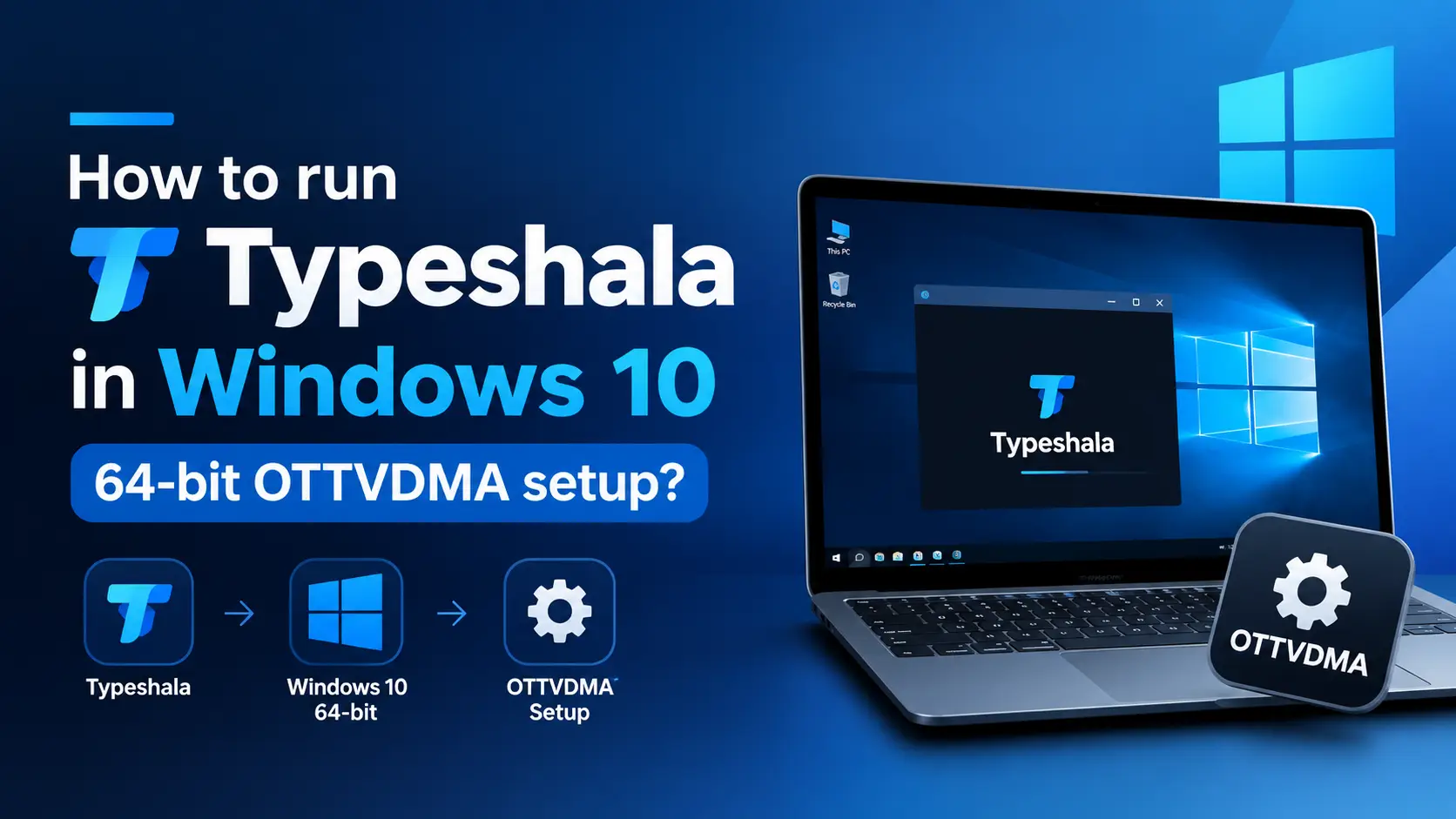
How to run Typeshala in Windows 10 64-bit using OTVDM setup

If you've tried opening Typeshala.exe on a modern Windows 10 or 11 PC, you've probably seen this message pop up instead of the typing tutor you were expecting:

"This app can't run on your PC" — To find a version for your PC, check with the software publisher.

This isn't a corrupted download and it isn't your computer's fault. Typeshala is a 16-bit Windows application built long before 64-bit systems became the norm, and Windows 10/11 64-bit dropped native support for that class of program entirely. The fix isn't a settings tweak or "compatibility mode" — it needs a small compatibility layer called OTVDM sitting between Typeshala and your operating system. This guide walks through exactly what that means and how to set it up in under five minutes.

Why Typeshala Won't Run on Windows 10/11 64-Bit

Every version of Windows released since Windows XP has come in two builds: 32-bit and 64-bit. Older software, including Typeshala, was compiled as a 16-bit NE (New Executable) program — the same architecture used by early-90s Windows apps. 32-bit Windows could still run these through an internal compatibility layer called NTVDM (NT Virtual DOS Machine). When Microsoft built the 64-bit versions of Windows, it removed NTVDM completely, because 64-bit processors can't execute 16-bit instructions the same way.

That's the entire story behind the error — it has nothing to do with your antivirus, your RAM, or your Windows edition. You simply need something to stand in for the NTVDM layer that 64-bit Windows no longer has.

What Is OTVDM, and How Does the "OTVDMA Setup" Actually Work?

OTVDM (Open Test Virtual DOS Machine, also distributed under the name WineVDM) is a free, open-source tool that recreates the missing 16-bit compatibility layer on 64-bit Windows. Instead of installing Typeshala the normal way, you run it through OTVDM's own executable (usually otvdmw.exe or otvdma.exe depending on the packaged build), which translates Typeshala's old 16-bit calls into instructions your 64-bit system can actually execute.

Practically, this means:

  • You don't "install" Typeshala in the traditional sense — you launch it from inside OTVDM.
  • OTVDM needs to sit in the same folder as (or be pointed at) the original TYPESHALA.exe file.
  • It also needs the Microsoft Visual C++ Redistributable (x86) installed, since OTVDM itself relies on it to run correctly.
Good to know: despite what some sites claim, Typeshala isn't "incompatible" with Windows 10 or 11 — it just needs this one extra compatibility step. You don't need to switch to a different typing tutor to get it working.

Step-by-Step: How to Install and Run Typeshala on Windows 10 (64-Bit)

Step 1: Download the Typeshala + OTVDM Package

Download the pre-packaged file below. It bundles the original Typeshala program together with the OTVDM compatibility tool and the VC++ redistributable, so you don't have to hunt down each piece separately.

⬇ Download Typeshala for Windows 10/11 (64-bit)

Want the original 32-bit version for an older PC instead? Check our Nepali & English Typeshala download page for every available build.

Step 2: Extract the ZIP/RAR File

  • Right-click the downloaded file and choose Extract All (or use 7-Zip/WinRAR if it's a .rar/.7z file).
  • Open the extracted folder. You should see a Typeshala folder, an OTVDM folder, and a vc_redist.x86.exe file.

Step 3: Install the Visual C++ Redistributable

  • Double-click vc_redist.x86.exe and follow the prompts.
  • If it's already installed, Windows will show Repair / Uninstall options instead of an install button — that's normal, just close the window and move on.

Step 4: Launch Typeshala Through OTVDM

  1. Open the OTVDM folder and double-click the executable inside it (usually otvdmw.exe).
  2. A file-browser dialog will open, asking you to locate the program you want to run.
  3. Navigate to the Typeshala folder and select TYPESHALA.exe, then click Open.

Typeshala should now launch normally, with full access to all typing lessons, the freehand practice mode, and the built-in Ramayan typing game.

Creating a Permanent Desktop Shortcut

Running OTVDM manually every time gets tedious. Set up a one-click shortcut instead:

  1. Right-click the OTVDM executable and choose Create shortcut.
  2. Move the shortcut to your Desktop and rename it "Typeshala."
  3. Right-click the shortcut → Properties → Change Icon, and select the original Typeshala icon from its folder for a familiar look.

From now on, double-clicking this shortcut opens OTVDM and Typeshala together — you won't need to browse for the .exe file each time.

Troubleshooting: Common OTVDM & Typeshala Errors

Most of the problems people run into come down to a handful of predictable causes. Here's how to fix each one:

  • "This app can't run on your PC" still appears: you're double-clicking TYPESHALA.exe directly instead of opening it through OTVDM. Always launch OTVDM first, then browse to Typeshala from inside it.
  • OTVDM itself won't open: the Visual C++ Redistributable (x86) isn't installed, or a 64-bit version was installed instead of the 32-bit one. Reinstall using the x86 package from Step 3.
  • Antivirus flags or quarantines the files: this is a common false positive with older, unsigned .exe files and compatibility tools like OTVDM. Add the extracted folder to your antivirus exclusions before running it, and only download the package from a source you trust.
  • Screen appears blank, tiny, or garbled: right-click the shortcut → Properties → Compatibility tab, and try enabling "Run this program in compatibility mode for Windows XP."
  • Typing/fonts look broken: this usually points to missing Nepali fonts on your system rather than an OTVDM problem — install a Nepali Unicode font pack and relaunch.
  • Progress or scores don't save between sessions: run OTVDM as Administrator (right-click → Run as administrator) so it has permission to write save files to the folder.

OTVDM vs. Other Ways to Run Old 16-Bit Software

OTVDM is the simplest option for most people, but it's worth knowing the alternatives and their trade-offs:

MethodDifficultyBest for
OTVDM / WineVDMEasy — no installation, just run and pointMost users who just want Typeshala working quickly
Virtual Machine (32-bit Windows 7/XP)Advanced — needs a licensed OS image and setup timeUsers who need to run several old 16-bit apps together
Dual-boot older 32-bit WindowsAdvanced — repartitioning requiredRarely worth it just for a typing tutor
Windows "Compatibility Mode"Easy but usually doesn't work32-bit apps only — 16-bit apps like Typeshala won't launch this way

Prefer to Practice Without Installing Anything?

If you just want to build typing speed without dealing with installers, you can also practice Nepali and English typing online directly in your browser — no OTVDM setup needed.

Video Tutorial: Watch the Full Setup

Prefer to follow along visually? This walkthrough covers every step above in real time.

Watch on YouTube →

Frequently Asked Questions

Is Typeshala actually compatible with Windows 10 and 11 64-bit?
Yes — with OTVDM acting as the compatibility layer, Typeshala runs normally on 64-bit Windows 10 and 11. You don't need to switch to a different program.
Do I need to "install" OTVDM?
No installation is required. OTVDM runs directly from its extracted folder — you just launch its executable and point it to Typeshala.exe.
Is it safe to download Typeshala and OTVDM from third-party sites?
Stick to a source you trust and keep your antivirus active. Because both files are old and unsigned, some antivirus tools flag them as a false positive — that's expected behavior for legacy software, not necessarily a sign of infection.
Will my typing progress and scores be saved?
Yes, as long as OTVDM has write permission to the folder. If scores aren't saving, run OTVDM as Administrator.
Can I use Typeshala on Windows 11 the same way?
Yes, the exact same OTVDM steps apply on Windows 11 64-bit.
Is there a way to practice typing without downloading anything?
Yes — use the free online Typeshala practice tool directly in your browser.

Final Thoughts

Typeshala's "can't run on this PC" error looks alarming, but it's really just a leftover from how old 16-bit software was built. Once OTVDM is set up, it runs exactly like it did on older machines — full access to Nepali and English typing lessons, freehand practice, and the Ramayan game — with no need to abandon it for a different tool. Download the package above, follow the four steps, and you'll be typing within minutes.

For more downloads and guides, check out our complete Typeshala download page.

Typeshala Alternative Software for Windows 11: Free Download

Best Typeshala Alternative Software for Windows 11 (Free Download, 2026 Update)

Updated 2026 · Nepali & English Typing Tutor Guide · Kathmandu, Nepal

Typeshala alternative software for Windows 11 free download
Quick answer: Typeshala was built for old 32-bit Windows and usually won't install or run properly on Windows 11. The best free alternatives that actually work on Windows 11 are TypeSolute (closest look-and-feel to Typeshala) and Typing Guru (multi-language, actively updated). Scroll down for direct download links, install steps, and a full comparison.

If you've tried installing Typeshala on a new laptop and got a "this app can't run on your PC" error, you're not alone. Typeshala hasn't been updated in years and was compiled for 32-bit systems — so on a modern 64-bit Windows 11 machine, it either refuses to open, crashes after the splash screen, or throws a compatibility warning. Thousands of Nepali students and job-seekers hit this exact wall every year during Lok Sewa Aayog, banking, and school-level typing exam preparation.

This guide compares every real Typeshala alternative that works on Windows 11 in 2026, tells you exactly which one to pick based on what you're preparing for, and walks you through installing it without the SmartScreen headache.

Why Doesn't Typeshala Work Properly on Windows 11?

This is the part most other guides skip, so here's the actual technical reason. Typeshala was originally built as a 32-bit application targeting Windows XP/Vista/7. Windows 11 ships almost exclusively as a 64-bit OS, and while Windows 11 can still run many older 32-bit programs, Typeshala also relies on outdated font-rendering and registry calls that were deprecated in later Windows builds. In practice, that shows up as one of these three symptoms:

  • "This app can't run on your PC" — the installer or .exe is flagged as incompatible.
  • The app opens but Nepali (Devanagari) text renders as boxes or garbled characters — because it depends on legacy Nepali fonts instead of Unicode.
  • Windows Defender SmartScreen blocks it entirely — because the file hasn't been re-signed or updated in years, so it has no trust reputation with newer Windows builds.

None of this means the software is unsafe — it just means it's outdated. The fix isn't to force Typeshala to work; it's to switch to a Typeshala-style tutor that was actually built for 64-bit Windows and modern Unicode Nepali. That's what the rest of this article covers.

Quick Comparison: Best Typeshala Alternatives for Windows 11

SoftwareWindows 11 SupportLanguagesNepali ScriptTyping GamesPrice
Typeshala (original)❌ Unreliable / 32-bit onlyNepali + EnglishLegacy fontYesFree
TypeSolute✅ Native 64-bitNepali + EnglishUnicode + PreetiYes (test mode)Free
Typing Guru✅ Native 64-bitNepali, Hindi, English, Tamil, Punjabi, Urdu, Bengali, MarathiUnicodeStep-by-step lessonsFree & open-source
Typeshala Online (browser)✅ Any OS, no installNepali + EnglishUnicodePractice modeFree

1. TypeSolute — Best Overall Typeshala Alternative for Windows 11

Why it's the top pick

TypeSolute is developed by Appsolute Innovation specifically as a modern successor to Typeshala, so the lesson structure and feel will already be familiar if you learned on Typeshala before. It's a portable app — no complicated installer, just extract and run.

  • Built for 64-bit Windows 10/11 from the ground up
  • Unicode Nepali and Preeti font typing in one app — useful because most government and banking exams now require Unicode, while some older office systems still use Preeti
  • Separate English typing module with WPM/CPM tracking
  • Clean, modern interface that doesn't feel like 2010-era software
  • Practice, test, and game modes in one package
Download TypeSolute (Free)

2. Typing Guru — Best Multi-Language Alternative

Why choose this one

If you need more than just Nepali and English — for example if you're also studying Hindi typing for a shared exam syllabus, or you want an actively maintained open-source option — Typing Guru is the strongest pick. It's open-source, has a live web version, and is genuinely still receiving updates as of 2025, unlike most Typeshala-era tools.

  • Supports Nepali, Hindi, English, Tamil, Punjabi, Urdu, Bengali, and Marathi in a single app
  • Structured, beginner-first lesson progression
  • Available for Windows, Linux, and Mac — useful if you switch devices
  • Completely free and open-source (MIT license), with no ads
  • Also has a web version so you can practice without installing anything

Typing Guru trades some of Typeshala's game-style variety for a more exam-focused, no-frills lesson flow, which many users preparing for structured typing tests actually prefer.

3. Practice Nepali & English Typing Online (No Install Needed)

If you just need to practice quickly on a shared computer, a school lab machine, or a device where you can't install software, skip the download entirely. Our own browser-based tool lets you practice Nepali Unicode and English typing directly, with no setup and no compatibility issues on Windows 11:

Practice Typing Online →

This is also the fastest way to test your current typing speed before deciding whether you need the full desktop version.

From our own testing: We installed both TypeSolute and Typing Guru fresh on a Windows 11 (64-bit) laptop for this guide. TypeSolute launched immediately with no compatibility prompt and Devanagari text rendered correctly out of the box. The original Typeshala .exe, by comparison, triggered a SmartScreen warning and displayed broken Nepali characters until we manually installed a legacy font pack — confirming it's genuinely a 32-bit/font compatibility issue, not a one-off bug.

Still Want the Original Typeshala?

If you're on an older 32-bit Windows 7 machine, Typeshala will still work fine there, and some users prefer its built-in typing games. You can grab it below — just don't expect it to run cleanly on Windows 11.

Download Original Typeshala (32-bit)

For the full original setup guide and system requirements, see our detailed post: Free Download: Nepali and English Typeshala for Windows PC.

How to Install a Typeshala Alternative on Windows 11 (Step-by-Step)

  1. Download the ZIP or RAR file using the download button above.
  2. Extract it using WinRAR or 7-Zip (Windows 11's built-in extractor can struggle with .rar files, so install 7-Zip if you don't already have it).
  3. Open the extracted folder and locate the .exe file (for example, TypeSolute.exe).
  4. If Windows SmartScreen shows "Windows protected your PC", click More info, then Run anyway. This warning appears because the file is from an independent developer, not because it's unsafe — it simply hasn't built up a large-scale reputation with Microsoft's filter yet.
  5. Right-click the .exe and choose "Run as administrator" if the app doesn't open on the first try — this resolves most launch failures on Windows 11.
  6. Start with the beginner lesson and let the app auto-detect your keyboard layout (Unicode is the default for most modern exams in Nepal).
Troubleshooting tip: If Nepali characters still show as boxes after installing, your system is missing a Unicode Devanagari font. Installing "Kalimati" or "Noto Sans Devanagari" (both free, and usually bundled with the alternative software installers above) fixes this instantly.

Which Nepali Typing Software Should You Choose in 2026?

  • Preparing for Lok Sewa Aayog or a government exam: Choose TypeSolute — it supports both Unicode and Preeti, which covers most exam formats.
  • Learning multiple languages or want an actively updated open-source tool: Choose Typing Guru.
  • Just need quick practice on any device without installing anything: Use the online typing practice tool.
  • Still running an old 32-bit Windows 7 PC: The original Typeshala will still work and includes more built-in games.

Tips to Improve Your Nepali & English Typing Speed Faster

  • Practice at least 20–30 minutes daily rather than long, irregular sessions.
  • Use all ten fingers and avoid looking at the keyboard (touch typing) from day one — it's harder to unlearn bad habits later.
  • Prioritize accuracy over speed for the first two weeks; speed builds naturally once accuracy is consistent.
  • If you're preparing for an exam, practice on the exact layout (Unicode vs Preeti) the exam actually uses — don't assume.
  • Track your WPM weekly using the built-in test mode to stay motivated and spot plateaus early.

Frequently Asked Questions

Does Typeshala work on Windows 11 at all?

Sometimes it launches, but it's unreliable — most Windows 11 users report installation errors, crashes, or broken Nepali font rendering because Typeshala was built for 32-bit Windows 7 and earlier. A dedicated alternative like TypeSolute is a more reliable option on Windows 11.

What is the best free Typeshala alternative for Windows 11?

TypeSolute is the closest match to Typeshala in look and lesson structure while being fully compatible with 64-bit Windows 11. Typing Guru is the best pick if you want multi-language support or an actively maintained open-source tool.

Is it safe to download these Typeshala alternatives?

Yes. Both TypeSolute and Typing Guru are widely used, free tools. The Windows SmartScreen warning you may see during installation is normal for independently developed software and doesn't mean the file is unsafe — it just hasn't built a large reputation score with Microsoft yet.

Unicode or Preeti — which should I learn for Windows 11?

Unicode Nepali is the modern standard supported across websites, government portals, and most current exams. Preeti is a legacy font layout still used in some older offices. If you're unsure which your exam or workplace requires, learning Unicode first is the safer default, and TypeSolute lets you practice both.

Do I need internet to use these typing tutors?

No. TypeSolute and Typing Guru's desktop apps both work fully offline once installed. Only the online practice tool requires an internet connection.

How long does it take to become fast at Nepali typing?

With consistent daily practice, most learners reach 25–35 WPM within 2–3 months and can cross 50–60 WPM within 6–12 months, depending on practice frequency and prior typing experience.

Can I use these alternatives for government or bank typing exams in Nepal?

Yes — TypeSolute in particular is popular for this because it covers both Unicode and Preeti, which are the two formats most commonly tested. Always confirm the exact layout required by your specific exam beforehand.

Final Thoughts

Typeshala earned its reputation as Nepal's go-to typing tutor for over a decade, but it simply wasn't built for the 64-bit, Unicode-first world that Windows 11 runs on. Rather than fighting compatibility errors, switching to TypeSolute or Typing Guru gets you the same structured lesson experience — often with better font support and no crashes. If you're still on an older 32-bit machine, the original Typeshala remains a solid free option, and you can find the full setup guide in our Typeshala download and installation guide.

Kokila Font Download: Free, Safe Install & Hindi Typing Fix

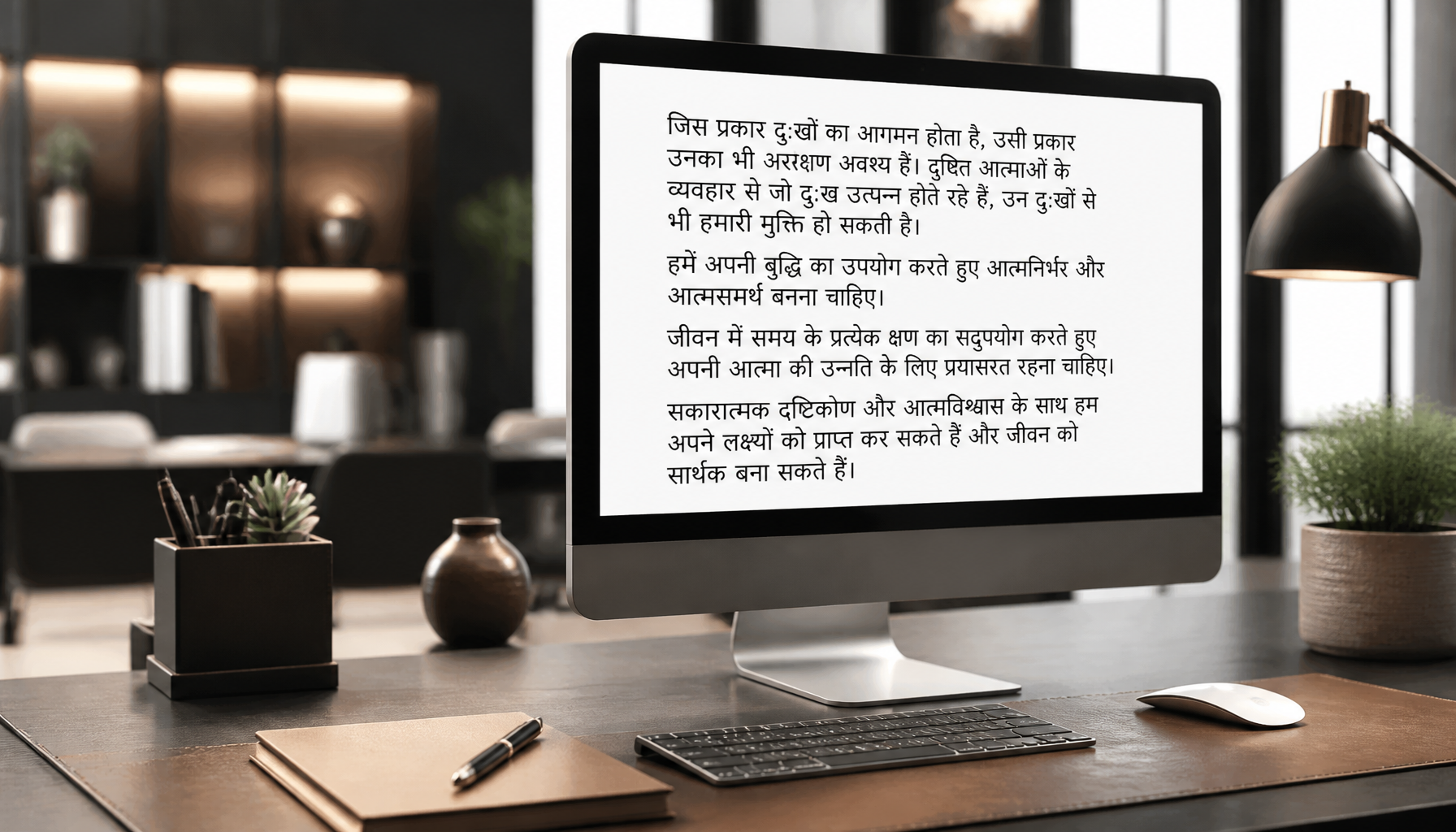
Kokila Devanagari Hindi font sample displayed on a desktop monitor
✓ Verified against Microsoft Typography docs

Kokila Font Download: Safe Install Guide & Hindi Typing Fix

📅 Updated October 14, 2026 🔤 Devanagari / Hindi 🪟 Windows · 🍎 macOS

Kokila is one of the most common fonts for typing and reading Hindi text on Windows — which also means there's a good chance it's already on your computer and you don't need to download anything at all. This guide covers how to check, how to install it if you genuinely don't have it, and how to fix the typing and display problems people run into most often.

What Is Kokila Font?

Kokila is a Devanagari (Hindi) typeface designed by Modular Infotech (MODI) of Pune, India, and licensed to Microsoft for distribution with Windows and Office. It's built as a Unicode OpenType font, which is why it displays correctly across modern apps, browsers, and devices without needing a separate keyboard layout — unlike older ASCII-mapped fonts such as Preeti, which require their own typing system (see our Preeti font and keyboard layout guide if that's what you're actually looking for).

Kokila comes in four styles — Regular, Bold, Italic, and Bold Italic — and is commonly used for Hindi body text in documents, forms, and presentations where clarity at small sizes matters.

Is Kokila Font Already on Your Computer?

🔍 Check this first

Microsoft has shipped Kokila with every version of Windows since Windows 7, and it's also available inside Office through cloud fonts. Save yourself the download.

Check on Windows

  1. Open the Start Menu and search for Font Settings.
  2. Type Kokila into the search box at the top of the Fonts list.
  3. If it appears, it's already installed — open Word or any text editor, select the Hindi text, and choose Kokila from the font dropdown.

Check on macOS

Kokila is not bundled with macOS by default, since it's a Windows/Office system font. Open Font Book and search "Kokila" to confirm — if it's missing, follow the install steps below.

Kokila Font Specifications

SpecificationDetails
Designer / FoundryModular Infotech (MODI), Pune, India — licensed to Microsoft
FormatOpenType (TTF), Unicode-based
Script supportDevanagari (Hindi), Latin
StylesRegular, Bold, Italic, Bold Italic (4 total)
File namesKokila.ttf, Kokilab.ttf, Kokilai.ttf, Kokilabi.ttf
Bundled withWindows 7, 8, 8.1, 10, 11; available in Office via cloud fonts

How to Download Kokila Font

If you've checked and Kokila genuinely isn't on your system — most often the case on macOS, or on a stripped-down Windows install — you can get the Regular style here:

⬇ Download Kokila Font (.ttf)
Always scan downloaded font files with your antivirus software before installing.

Since Kokila is a Microsoft-licensed font rather than an independent freeware release, the safest long-term option for Windows users is installing it through Windows Update's optional fonts or Office's cloud fonts rather than a third-party file. Use the link above only if those aren't available to you.

Installing on Windows

  1. Download the file using the link above.
  2. Locate it in your Downloads folder.
  3. Right-click the .ttf file and select Install.
  4. Restart any open apps — Kokila won't appear in already-open programs until they're restarted.

Installing on macOS

  1. Download the file using the link above.
  2. Double-click it to open it in Font Book.
  3. Click Install Font.
  4. Restart the app you want to use it in, then select Kokila from the font menu.
🛡️ Is it safe to download?

Treat any font file like any other download:

  • Scan it with your antivirus software before opening it.
  • Prefer Windows' built-in optional fonts or Office's cloud fonts when possible — that comes directly from Microsoft.
  • Avoid sites that bundle fonts with separate "installer" or "downloader" executables — a genuine font file is a plain .ttf, nothing more.

Fixing Common Hindi Typing Problems With Kokila Font

Hindi text shows as boxes or question marks

This almost always means the application isn't reading the text as Unicode. Check that the document or webpage's encoding is set to UTF-8, and that you're not pasting text originally typed in a legacy ASCII font like Preeti — those use a completely different character mapping and will display as gibberish in Kokila even though both are "Hindi fonts."

Kokila doesn't appear in the font list after installing

Close and fully reopen the application — Word, Photoshop, and most editors cache the font list at launch. On Windows, if it still doesn't appear after restarting the app, restart your PC.

Typing works but the letters look wrong or disconnected

This is usually a typing-method mismatch, not a font problem. If you're using a transliteration tool or a Preeti-style keyboard layout, the output isn't real Unicode Devanagari and won't render correctly in Kokila. Use a Unicode-based typing method, such as Google Input Tools or Windows' built-in Devanagari keyboard.

Word or Excel keeps switching to Mangal instead

Mangal is Windows' default Devanagari font, so apps often fall back to it automatically. Select your Hindi text and manually choose Kokila from the font dropdown, or set it as the default font for new documents in your app's settings.

Kokila Font vs. Mangal Font

Kokila

Compact, book-style letterforms. Easier to read in long paragraphs and print layouts. Not Windows' default — must be manually selected.

Mangal

Bolder strokes. Windows' default Devanagari font, so it's what you'll see unless you specify otherwise.

If a file looks correct in one but garbled in the other when opened on a different computer, the issue is almost always that only one of the two fonts is installed there — install both to avoid this when sharing files.

Frequently Asked Questions

Do I need to download Kokila font, or is it already on my PC?

Check first — Kokila has shipped with every Windows version since Windows 7. Search "Kokila" in Windows Font Settings before downloading anything.

Why is Kokila Font not displaying correctly?

This usually means the app is still using a fallback font, or the text wasn't typed in Unicode. Confirm Kokila is manually selected from the font dropdown, and check that the source text used a Unicode Devanagari input method rather than a legacy font like Preeti.

Is Kokila Font safe to download?

Treat it like any font file: scan it with antivirus software before installing, and prefer getting it through Windows' or Office's built-in font sources when that option is available to you.

Is Kokila Font free to use?

Kokila is licensed by its designer, Modular Infotech, to Microsoft for distribution with Windows and Office — it isn't an independent open-source or freeware font. For personal use on a licensed copy of Windows or Office you're covered under Microsoft's font-use terms; for redistribution or commercial/enterprise use, check Microsoft's font licensing terms directly.

What's the difference between Kokila and Mangal?

Both are Microsoft Devanagari system fonts. Mangal is bolder and is Windows' default; Kokila is more compact and often preferred for long-form reading and print layouts.

Related Guides

How to Install Nepali Font on Windows 11 (2026 Guide)

How to Install Nepali Font on Windows 11 (Complete 2026 Guide)

Quick Answer

To install a Nepali font on Windows 11, download a .ttf or .otf font file, right-click it and choose Install for all users. Then open Settings › Time & language › Language & region, click Add a language, select Nepali (नेपाली), and install it. Press Win + Space to switch between English and Nepali while typing.

Windows 11 handles Nepali better than any version before it — Devanagari rendering is built in, and a Nepali keyboard layout ships with the OS. Yet most people still end up staring at empty squares, a font that refuses to appear in Microsoft Word, or a keyboard that types the wrong characters entirely.

Almost every one of those problems traces back to a single misunderstanding: there are two completely different kinds of Nepali font, and installing the wrong one for your task guarantees frustration. This guide covers the installation itself, which font type you actually need, how to enable Nepali typing, and how to fix the errors that trip people up — verified on Windows 11 (24H2 and later).

1Unicode vs. Preeti: Which Nepali Font Do You Actually Need?

This is the step nearly every other guide skips, and it is the reason most Nepali font installations "fail" even when the file installed perfectly.

Unicode fonts (Mangal, Kalimati, Kokila, Aparajita) store real Devanagari characters. Type नेपाल in a Unicode font and it stays नेपाल everywhere — in email, on Facebook, in a searchable PDF, on a phone that has never had your font installed.

Legacy fonts (Preeti, Kantipur, Sagarmatha, Fontasy Himali, Aakriti) are a clever illusion. They map English letters to Devanagari-looking shapes. The letters g]kfn are literally what's stored — they only look like नेपाल because the Preeti font is drawing them that way. Send that text to anyone without the font and they see gibberish.

 Unicode (Mangal, Kalimati)Legacy (Preeti, Kantipur)
Text stays readable elsewhereYes — on any deviceNo — needs the font installed
Searchable & copy-paste safeYesNo
Works online / social mediaYesNo
Needs a font download?No — Mangal is built into Windows 11Yes
Typing layoutNepali keyboard (built in)Preeti layout (muscle memory from Typeshala)
Best forEveryday use, web, email, official documentsOpening old files, print/press work, legacy office templates
✅

Which should you choose? Pick Unicode unless you have a specific reason not to — it is the modern standard and needs almost no setup. Install a legacy font like Preeti or Kantipur only when you need to open older documents or you already type with the Preeti layout. Many people install both, and that is perfectly fine.

2Where to Download Nepali Fonts Safely

Font files are executable-adjacent, so where you get them matters. Stick to these three routes:

  • Already on your PC. Windows 11 ships with Mangal, Nirmala UI, Aparajita and Kokila — all Unicode Devanagari fonts. If you only need to read and write standard Nepali, you may not need to download anything at all. Skip to step 4.
  • The Microsoft Store. The All Nepali Fonts package installs through the Store with no loose files to handle — the safest option if you are wary of downloads.
  • A trusted font archive. For legacy fonts, use a maintained collection such as our free Nepali fonts download page, or grab the classic newspaper font directly from our Kantipur font download.
⚠️

Avoid random "free font" aggregator sites. Nepali fonts are frequently repackaged inside .exe installers bundled with adware. A genuine font download is a .ttf, .otf, or a .zip containing them — never an installer that asks for extra permissions.

3How to Install the Nepali Font on Windows 11

If your download arrived as a ZIP, extract it first — Windows cannot install a font from inside a compressed folder. Right-click the ZIP, choose Extract All, then pick whichever method below suits you.

Method 1 — Right-click install (fastest)

  1. Open the extracted folder and find your font file. It will end in .ttf or .otf.
  2. Right-click the font file and choose Install for all users. If you only see a short menu, click Show more options first.
  3. Approve the admin prompt. Installing for all users requires administrator permission — this is what makes the font available in every app and every user account.

That is it. Choosing Install instead of Install for all users also works and skips the admin prompt, but the font is then only available to your own account and occasionally will not appear in apps running with elevated permissions.

Method 2 — Drag and drop into Settings

  1. Press Win + I to open Settings.
  2. Go to Personalization › Fonts.
  3. Drag your font files into the "Drag and drop to install" box at the top. Windows installs them instantly, no restart required.

Method 3 — The Control Panel Fonts folder (legacy)

  1. Press Win + R, type control fonts and press Enter.
  2. Drag the font files into the window that opens. This is the same folder Windows has used for decades and still works reliably in Windows 11.

Method 4 — Straight from the Microsoft Store

  1. Open Settings › Personalization › Fonts and click Get more fonts in Microsoft Store.
  2. Search for "Nepali", then install the package you want. Store fonts update automatically and are the lowest-risk option.
💡

Verify the install worked: open Settings › Personalization › Fonts and search for the font name. If it appears there, it is installed system-wide — any app that still cannot see it simply needs to be closed and reopened.

Step-by-step guide to install Nepali Unicode font on a Windows 11 computer
Installing a Nepali font on Windows 11 takes under a minute — the keyboard setup is the part most people miss.

4Enable the Nepali Keyboard in Windows 11

Installing a font lets your PC display Nepali. It does not let you type it. For that you need to add the Nepali input language — a separate step, and the one people most often skip.

  1. Press Win + I and go to Time & language › Language & region.
  2. Click "Add a language" next to Preferred languages.
  3. Search for "Nepali" and select नेपाली (Nepali), then click Next.
  4. Confirm the language features. Make sure Basic typing is ticked — this is the component that installs the keyboard. You can safely untick "Set as my Windows display language" unless you want the whole interface in Nepali.
  5. Click Install and wait a few seconds. A language icon (ENG) now appears in your taskbar near the clock.
⌨️

Switch languages instantly: press Win + Space to cycle between English and Nepali. Alt + Shift does the same thing on most setups. You can also click the ENG indicator in the taskbar.

5Start Typing in Nepali

Which keys produce which characters depends entirely on the font type you chose in step 1.

Typing in Unicode (the Nepali keyboard)

Switch to Nepali with Win + Space and start typing. Windows uses the Nepali Traditional layout, which is the standard Devanagari arrangement — the same one used across government and education in Nepal. Set your document font to Mangal, Kalimati or Nirmala UI and the text will render correctly anywhere it is sent.

If you have never learned the Traditional layout, you have two shortcuts. Practise it properly with Typeshala, the classic Nepali typing tutor — or type phonetically in English and convert with our English to Nepali Unicode converter, which turns "mero desh Nepal" into मेरो देश नेपाल instantly.

Typing in Preeti or Kantipur

Legacy fonts do not use the Nepali keyboard — keep Windows on English, then simply select Preeti or Kantipur as the font in your document. The keys map to Devanagari shapes through the font itself, which is why Preeti typists learn a separate layout. Switching Windows to Nepali while using Preeti is a very common cause of scrambled output.

6Troubleshooting: 8 Problems and Their Fixes

ProblemCause & fix
Font missing from Word / PhotoshopThe app cached its font list at launch. Fully close and reopen it. If it still does not appear, reinstall using Install for all users.
Empty squares or boxes (□□□)The font you have selected has no Devanagari characters. Switch the text to Mangal or Kalimati — this is not a Windows fault, it is a font-coverage issue.
Nepali text turns into English gibberish for othersYou typed in Preeti/Kantipur, which is device-dependent. Retype in Unicode, or run the text through a Preeti-to-Unicode converter before sending.
No language icon in the taskbarBasic typing was not installed with the language. Go to Language & region, click the ⋯ next to Nepali › Language options, and add the keyboard.
"Install" missing from right-click menuEither the file is still inside a ZIP (extract it first), or you are on the compact Windows 11 menu — click Show more options.
Matras or characters overlap incorrectlyAn outdated font build without proper OpenType shaping. Download a current version, or switch to a maintained Unicode font like Kalimati.
Works in Word but not in ChromeWebsites specify their own fonts. Set a Devanagari fallback under Chrome › Settings › Appearance › Customise fonts.
"You need administrator permission"Choose plain Install instead of Install for all users — this installs to your own profile and needs no admin rights.

Key takeaways

  • Unicode for everything modern — it travels; Preeti and Kantipur do not.
  • Fonts and keyboards are separate. Installing a font never enables typing on its own.
  • Windows 11 already has Mangal. Many people need no download whatsoever.
  • Right-click → Install for all users prevents most "font not showing" problems before they start.
  • Win + Space is the only shortcut you really need to remember.

7Frequently Asked Questions

Is Nepali font free to download for Windows 11?

Yes. Every widely used Nepali font — Preeti, Kantipur, Sagarmatha, Kalimati and the Unicode families — is free for personal use, and Windows 11 already includes Mangal and Nirmala UI at no cost. Only a handful of commercial display fonts carry a licence fee, and those are clearly marked as such.

Which Nepali font is best for Windows 11?

Kalimati is the best all-round choice for on-screen Nepali — it is Unicode, well-shaped and highly readable. Mangal is the safest default because it is already installed on every Windows 11 machine. Choose Preeti or Kantipur only for legacy documents or print work that specifically requires them.

Do I need to install a font to type Nepali on Windows 11?

No. Windows 11 ships with Devanagari-capable fonts, so you only need to add the Nepali keyboard under Time & language › Language & region. You only need to install a font if you want a specific typeface such as Preeti, Kantipur or Kalimati.

What is the difference between Preeti and Nepali Unicode?

Preeti maps English letters to Devanagari-shaped glyphs — the underlying text is still English characters, so it only displays correctly on devices with Preeti installed. Unicode stores genuine Nepali characters that display correctly everywhere, are searchable, and can be copied between apps without breaking.

How do I switch between English and Nepali on the keyboard?

Press Win + Space to cycle through your installed input languages, or Alt + Shift. You can also click the language indicator (ENG / NEP) in the taskbar next to the clock.

Why is my Nepali font showing boxes or question marks?

The selected font does not contain Devanagari characters — the text itself is fine. Highlight the text and change it to Mangal, Kalimati or Nirmala UI. If boxes appear only in one application, that app is falling back to a font without Nepali support.

Can I install Nepali fonts without administrator rights?

Yes. Right-click the font file and choose Install rather than Install for all users. The font installs into your own user profile and works in most applications, though it will not be available to other accounts on the PC.

How do I convert Preeti text to Unicode?

Paste the Preeti text into a converter that remaps the glyphs to real Devanagari characters. Our Nepali Unicode converter handles this, and the resulting text can be used in email, on the web and in any document without needing the Preeti font installed.

Final Thoughts

The whole process comes down to three things: install the font file, add the Nepali keyboard, and pick Unicode unless a legacy document forces your hand. Get those right and Nepali typing on Windows 11 stops being a recurring annoyance and simply becomes part of how you work.

If you hit a problem this guide does not cover, describe it in the comments below — I read every one and keep this article updated as Windows 11 changes.

Top Nepali Typing Practice Alternatives

Top Nepali Typing Practice Alternatives for 2023

In the digital age, proficiency in typing is a valuable skill, especially for languages like Nepali. Traditional tools like Typeshala have long been a staple for learners, but as technology progresses, new and more effective Nepali typing practice alternatives have emerged. These modern tools offer engaging and efficient ways to enhance your typing skills, catering to both beginners and advanced users.

Why Look for Nepali Typing Practice Alternatives?

Limitations of Traditional Tools

Typeshala has been a reliable resource for many, but it comes with limitations. For instance, its interface has remained unchanged for years, lacking the dynamic features that modern software offers. Moreover, Typeshala’s exercises can become monotonous, making it difficult to maintain engagement over time. As a result, learners often find their progress stalling.

Benefits of Modern Typing Software

Modern Nepali typing software provides a variety of features that address these shortcomings. These tools often include interactive lessons, real-time feedback, and engaging interfaces that keep users motivated. Additionally, they accommodate different skill levels, from novice to proficient typists. By incorporating the latest technology, these platforms offer a more personalized learning experience.

Top Nepali Typing Software and Tools

Software for Beginners

For those new to Nepali typing, starting with user-friendly software is crucial. Nepali Unicode typing tool is an excellent option for beginners. It supports Unicode, which is essential for typing in Nepali across various platforms. Understanding [Unicode’s role in typing software](https://www.unicode.org/standard/WhatIsUnicode.html) can greatly enhance your typing experience.

Another beginner-friendly tool is Easy Nepali Typing, which offers a simple interface and step-by-step tutorials. It helps users familiarize themselves with the Nepali keyboard layout and basic typing techniques.

Advanced Typing Tools

For advanced users seeking to refine their skills, tools like Nepali Typing Master provide comprehensive lessons that cover advanced typing techniques. These platforms offer detailed analytics to track progress and identify areas that need improvement. They also introduce challenging exercises aimed at increasing typing speed and accuracy.

FeatureBeginner ToolsAdvanced Tools
InterfaceSimple and intuitiveFeature-rich and dynamic
Typing ExercisesBasic finger placementAdvanced speed drills
Progress TrackingBasic feedbackDetailed analytics
Real-time FeedbackMinimalComprehensive

Engaging Online Typing Courses

Interactive Courses

Online typing courses have revolutionized how we learn to type. Platforms like TypingClub offer interactive lessons that adapt to the learner’s pace. These courses incorporate multimedia elements such as videos and games to make the learning process more engaging. [TypingClub](https://www.typingclub.com/) is renowned for its structured curriculum that gradually increases in difficulty.

Free vs Paid Options

While many online courses offer free trials, they also provide premium versions with additional features. Free versions usually include basic lessons and limited progress tracking. In contrast, paid options offer extensive resources, personalized lessons, and comprehensive analytics. Depending on your commitment and budget, choosing between free and paid resources can significantly impact your learning journey.

Gamified Typing Practice Platforms

Typing Games for Skill Improvement

Gamification is a powerful tool in education, making learning enjoyable and effective. Typing games transform mundane practice into an exciting challenge. Platforms like Keybr integrate games that focus on speed and accuracy, making it easier to improve these skills through regular practice.

Platforms with Leaderboards

Competitive elements, such as leaderboards, can further motivate learners. Platforms like 10FastFingers allow users to compete against others worldwide, adding a competitive edge to the practice. This not only enhances motivation but also provides a benchmark to measure progress. By striving to climb the leaderboard, users naturally improve their typing speed and accuracy.

Tips for Effective Nepali Typing Practice

Setting Realistic Goals

Effective typing practice begins with setting achievable goals. Start by determining your current speed and set incremental targets. This approach ensures consistent progress without feeling overwhelmed.

Consistent Practice Strategies

Consistency is key to mastering any skill. Dedicate a specific time each day for typing practice. Utilize a mix of platforms to keep your sessions varied and engaging. Combining structured lessons with gamified exercises can yield the best results.

💡 Pro Tips:

  • Start each session with a warm-up exercise to get your fingers moving.
  • Use online timers to track typing sessions and ensure focused practice.
  • Regularly review your progress and adjust goals accordingly.

⚠️ Important Note: While practice is essential, ensure you maintain proper hand positioning to prevent strain. Taking regular breaks is crucial to avoid fatigue and potential injury.

In conclusion, embracing modern Nepali typing practice alternatives can significantly enhance your typing skills. Whether you are a beginner or an advanced user, these tools offer tailored solutions to meet your learning needs. By leveraging interactive courses, gamified platforms, and consistent practice strategies, you can achieve proficiency in Nepali typing more efficiently and enjoyably.

Frequently Asked Questions

What are the best alternatives to Typeshala?

Several modern tools offer enhanced features, such as online courses and interactive platforms.

Can typing games really improve my Nepali typing speed?

Yes, gamified platforms can make learning fun and improve speed through practice.

Are there free resources available for Nepali typing practice?

Many platforms offer free trials or limited access to their typing courses and tools.