
How to Run Typeshala in Windows 10 (64-Bit): Complete OTVDM Setup Guide
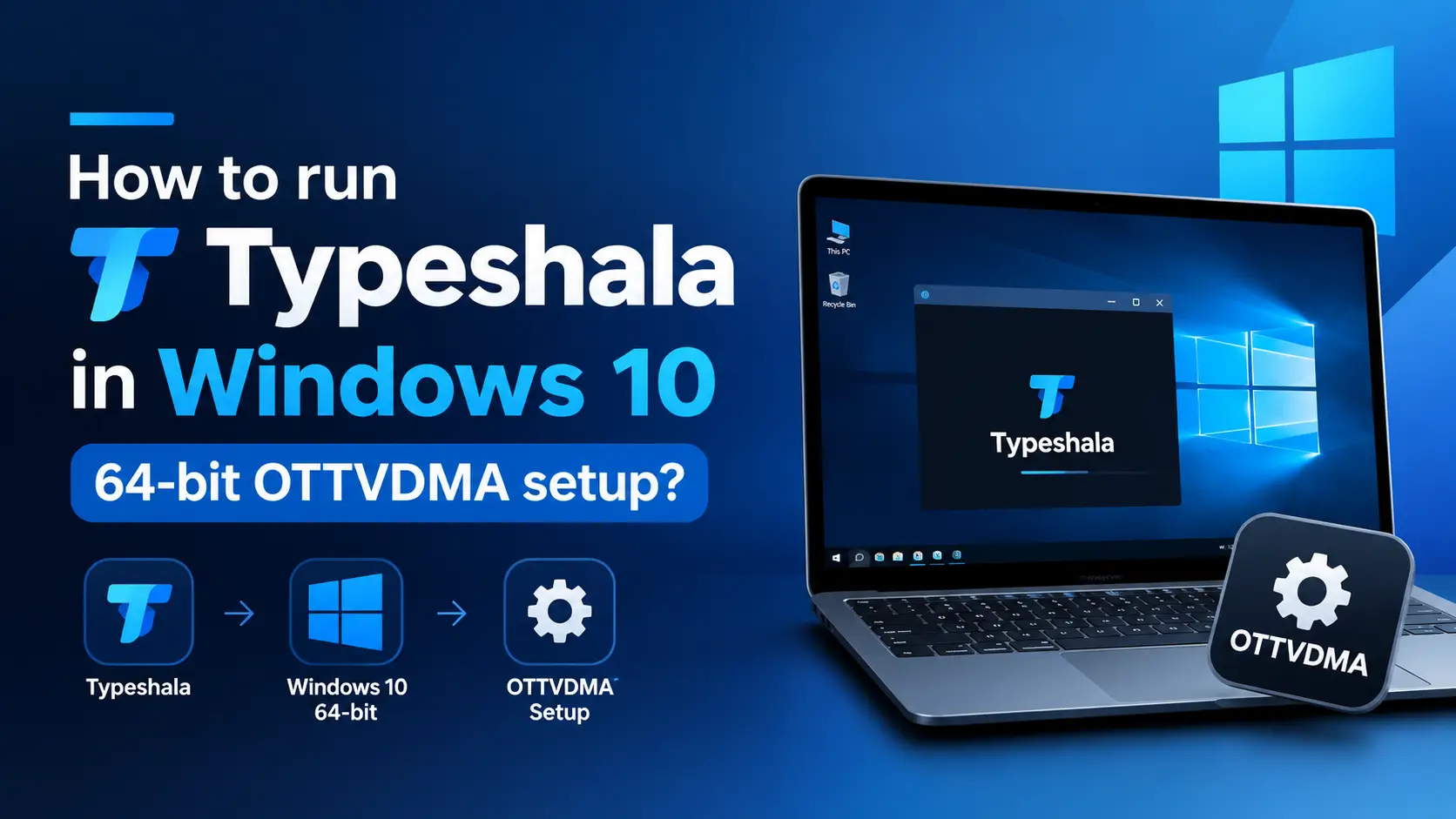
If you've tried opening Typeshala.exe on a modern Windows 10 or 11 PC, you've probably seen this message pop up instead of the typing tutor you were expecting:
This isn't a corrupted download and it isn't your computer's fault. Typeshala is a 16-bit Windows application built long before 64-bit systems became the norm, and Windows 10/11 64-bit dropped native support for that class of program entirely. The fix isn't a settings tweak or "compatibility mode" — it needs a small compatibility layer called OTVDM sitting between Typeshala and your operating system. This guide walks through exactly what that means and how to set it up in under five minutes.
Why Typeshala Won't Run on Windows 10/11 64-Bit
Every version of Windows released since Windows XP has come in two builds: 32-bit and 64-bit. Older software, including Typeshala, was compiled as a 16-bit NE (New Executable) program — the same architecture used by early-90s Windows apps. 32-bit Windows could still run these through an internal compatibility layer called NTVDM (NT Virtual DOS Machine). When Microsoft built the 64-bit versions of Windows, it removed NTVDM completely, because 64-bit processors can't execute 16-bit instructions the same way.
That's the entire story behind the error — it has nothing to do with your antivirus, your RAM, or your Windows edition. You simply need something to stand in for the NTVDM layer that 64-bit Windows no longer has.
What Is OTVDM, and How Does the "OTVDMA Setup" Actually Work?
OTVDM (Open Test Virtual DOS Machine, also distributed under the name WineVDM) is a free, open-source tool that recreates the missing 16-bit compatibility layer on 64-bit Windows. Instead of installing Typeshala the normal way, you run it through OTVDM's own executable (usually otvdmw.exe or otvdma.exe depending on the packaged build), which translates Typeshala's old 16-bit calls into instructions your 64-bit system can actually execute.
Practically, this means:
- You don't "install" Typeshala in the traditional sense — you launch it from inside OTVDM.
- OTVDM needs to sit in the same folder as (or be pointed at) the original
TYPESHALA.exefile. - It also needs the Microsoft Visual C++ Redistributable (x86) installed, since OTVDM itself relies on it to run correctly.
Step-by-Step: How to Install and Run Typeshala on Windows 10 (64-Bit)
Step 1: Download the Typeshala + OTVDM Package
Download the pre-packaged file below. It bundles the original Typeshala program together with the OTVDM compatibility tool and the VC++ redistributable, so you don't have to hunt down each piece separately.
⬇ Download Typeshala for Windows 10/11 (64-bit)
Want the original 32-bit version for an older PC instead? Check our Nepali & English Typeshala download page for every available build.
Step 2: Extract the ZIP/RAR File
- Right-click the downloaded file and choose Extract All (or use 7-Zip/WinRAR if it's a .rar/.7z file).
- Open the extracted folder. You should see a Typeshala folder, an OTVDM folder, and a
vc_redist.x86.exefile.
Step 3: Install the Visual C++ Redistributable
- Double-click
vc_redist.x86.exeand follow the prompts. - If it's already installed, Windows will show Repair / Uninstall options instead of an install button — that's normal, just close the window and move on.
Step 4: Launch Typeshala Through OTVDM
- Open the OTVDM folder and double-click the executable inside it (usually
otvdmw.exe). - A file-browser dialog will open, asking you to locate the program you want to run.
- Navigate to the Typeshala folder and select
TYPESHALA.exe, then click Open.
Typeshala should now launch normally, with full access to all typing lessons, the freehand practice mode, and the built-in Ramayan typing game.
Creating a Permanent Desktop Shortcut
Running OTVDM manually every time gets tedious. Set up a one-click shortcut instead:
- Right-click the OTVDM executable and choose Create shortcut.
- Move the shortcut to your Desktop and rename it "Typeshala."
- Right-click the shortcut → Properties → Change Icon, and select the original Typeshala icon from its folder for a familiar look.
From now on, double-clicking this shortcut opens OTVDM and Typeshala together — you won't need to browse for the .exe file each time.
Troubleshooting: Common OTVDM & Typeshala Errors
Most of the problems people run into come down to a handful of predictable causes. Here's how to fix each one:
- "This app can't run on your PC" still appears: you're double-clicking
TYPESHALA.exedirectly instead of opening it through OTVDM. Always launch OTVDM first, then browse to Typeshala from inside it. - OTVDM itself won't open: the Visual C++ Redistributable (x86) isn't installed, or a 64-bit version was installed instead of the 32-bit one. Reinstall using the x86 package from Step 3.
- Antivirus flags or quarantines the files: this is a common false positive with older, unsigned .exe files and compatibility tools like OTVDM. Add the extracted folder to your antivirus exclusions before running it, and only download the package from a source you trust.
- Screen appears blank, tiny, or garbled: right-click the shortcut → Properties → Compatibility tab, and try enabling "Run this program in compatibility mode for Windows XP."
- Typing/fonts look broken: this usually points to missing Nepali fonts on your system rather than an OTVDM problem — install a Nepali Unicode font pack and relaunch.
- Progress or scores don't save between sessions: run OTVDM as Administrator (right-click → Run as administrator) so it has permission to write save files to the folder.
OTVDM vs. Other Ways to Run Old 16-Bit Software
OTVDM is the simplest option for most people, but it's worth knowing the alternatives and their trade-offs:
| Method | Difficulty | Best for |
|---|---|---|
| OTVDM / WineVDM | Easy — no installation, just run and point | Most users who just want Typeshala working quickly |
| Virtual Machine (32-bit Windows 7/XP) | Advanced — needs a licensed OS image and setup time | Users who need to run several old 16-bit apps together |
| Dual-boot older 32-bit Windows | Advanced — repartitioning required | Rarely worth it just for a typing tutor |
| Windows "Compatibility Mode" | Easy but usually doesn't work | 32-bit apps only — 16-bit apps like Typeshala won't launch this way |
Prefer to Practice Without Installing Anything?
If you just want to build typing speed without dealing with installers, you can also practice Nepali and English typing online directly in your browser — no OTVDM setup needed.
Video Tutorial: Watch the Full Setup
Prefer to follow along visually? This walkthrough covers every step above in real time.
Frequently Asked Questions
- Is Typeshala actually compatible with Windows 10 and 11 64-bit?
- Yes — with OTVDM acting as the compatibility layer, Typeshala runs normally on 64-bit Windows 10 and 11. You don't need to switch to a different program.
- Do I need to "install" OTVDM?
- No installation is required. OTVDM runs directly from its extracted folder — you just launch its executable and point it to Typeshala.exe.
- Is it safe to download Typeshala and OTVDM from third-party sites?
- Stick to a source you trust and keep your antivirus active. Because both files are old and unsigned, some antivirus tools flag them as a false positive — that's expected behavior for legacy software, not necessarily a sign of infection.
- Will my typing progress and scores be saved?
- Yes, as long as OTVDM has write permission to the folder. If scores aren't saving, run OTVDM as Administrator.
- Can I use Typeshala on Windows 11 the same way?
- Yes, the exact same OTVDM steps apply on Windows 11 64-bit.
- Is there a way to practice typing without downloading anything?
- Yes — use the free online Typeshala practice tool directly in your browser.
Final Thoughts
Typeshala's "can't run on this PC" error looks alarming, but it's really just a leftover from how old 16-bit software was built. Once OTVDM is set up, it runs exactly like it did on older machines — full access to Nepali and English typing lessons, freehand practice, and the Ramayan game — with no need to abandon it for a different tool. Download the package above, follow the four steps, and you'll be typing within minutes.
For more downloads and guides, check out our complete Typeshala download page.
Explore the Complete Typeshala Guide
Looking for the right Nepali typing software? Visit our complete Typeshala guide to compare Typeshala, TypeSolute and Typesalute, find Windows 10 and Windows 11 installation instructions, fix common errors, and discover effective Nepali typing practice methods.
- Compare Typeshala versions and compatibility.
- Find download and installation instructions.
- Learn typing speed, accuracy and practice techniques.