Are you looking to increase typing speed in Typeshala? Whether you’re a student or a professional, improving your typing skills can significantly enhance your productivity. Typeshala is an excellent tool for honing your typing skills through systematic practice. In this guide, we’ll delve into practical techniques and advanced tips to help you boost your typing speed efficiently.
Understanding Typeshala for Typing Practice
Typeshala is a popular typing tutor software that combines both Nepali and English language typing exercises. This makes it an excellent resource for those aiming to increase their typing speed in a bilingual setting.
Setting Up Typeshala
To get started with Typeshala, follow these steps:
Download and Install: Ensure you download Typeshala from a [trusted source](https://example.com/typeshala-docs) to avoid any security risks.
Setup: Follow the installation guide provided to set up the software on your computer.
Customize Settings: Adjust the settings to suit your comfort level. This includes font size, background color, and language preference.
Basic Features Overview
Familiarizing yourself with Typeshala’s interface is crucial:
Typing Exercises: Typeshala offers a wide range of exercises that cater to different skill levels.
Progress Tracking: The software provides detailed feedback on your typing performance, allowing you to monitor improvements.
Keyboard Layout Guides: Visual aids help you learn correct finger positioning.
Effective Techniques to Increase Typing Speed
Now that you have Typeshala set up, it’s time to focus on techniques that will increase your typing speed.
Proper Posture and Hand Positioning
Maintaining an ergonomic posture is essential for both speed and comfort:
Sit Upright: Your back should be straight, and your feet flat on the floor.
Keyboard Placement: Position the keyboard at elbow height to reduce strain.
Finger Placement: Use the home row keys as your base position.
💡 Pro Tip: Consistently practicing the correct posture can prevent fatigue and improve your typing speed over time.
Regular Practice Sessions
Consistency is key when it comes to improving typing speed:
Daily Practice: Dedicate specific time slots each day to practice typing.
Set Goals: Aim for incremental increases in speed to stay motivated.
Use Typing Games: Engage with typing games to make practice sessions more enjoyable.
Advanced Tips for Improving Typing Accuracy
As you become more comfortable with basic typing exercises, you can leverage Typeshala’s advanced features to further refine your skills.
Utilizing Advanced Features
Typeshala offers several features that can help you enhance your typing accuracy:
Speed and Accuracy Tests: Regularly test yourself to identify areas of improvement.
Custom Exercises: Create exercises that focus on your weak points for targeted practice.
Monitoring Progress
Analyzing your progress is crucial for continuous improvement:
Review Statistics: Regularly check your typing speed and accuracy statistics.
Set Benchmarks: Use these statistics to set new goals and track your improvement.
⚠️ Important Note: It’s essential to balance speed with accuracy to avoid developing bad habits that could hinder your overall progress.
By integrating these practical tips and advanced strategies, you’ll be well on your way to mastering typing with Typeshala. Remember, the key to increasing your typing speed is consistent practice, proper technique, and the effective use of software tools. For further reading, you can explore the [Typeshala official documentation](https://example.com/typeshala-docs) for more technical insights and guidelines.
For additional resources on typing practice, you may also find our internal article on [How to Set Up an Ergonomic Workspace](https://example.com/ergonomic-workspace) helpful.
Frequently Asked Questions
How can I set up Typeshala for optimal use?
Follow the installation guide and customize settings for comfort.
What are the best practices for increasing typing speed?
Focus on consistent practice and maintaining proper posture.
How often should I practice typing to see improvement?
Daily practice is recommended for noticeable progress.
Can Typeshala help with typing accuracy?
Yes, it offers features to monitor and improve accuracy over time.
COMPLETE TYPESHALA GUIDE
Explore the Complete Typeshala Guide
Looking for the right Nepali typing software? Visit our
complete Typeshala guide
to compare Typeshala, TypeSolute and Typesalute, find
Windows 10 and Windows 11 installation instructions,
fix common errors, and discover effective Nepali typing
practice methods.
Compare Typeshala versions and compatibility.
Find download and installation instructions.
Learn typing speed, accuracy and practice techniques.
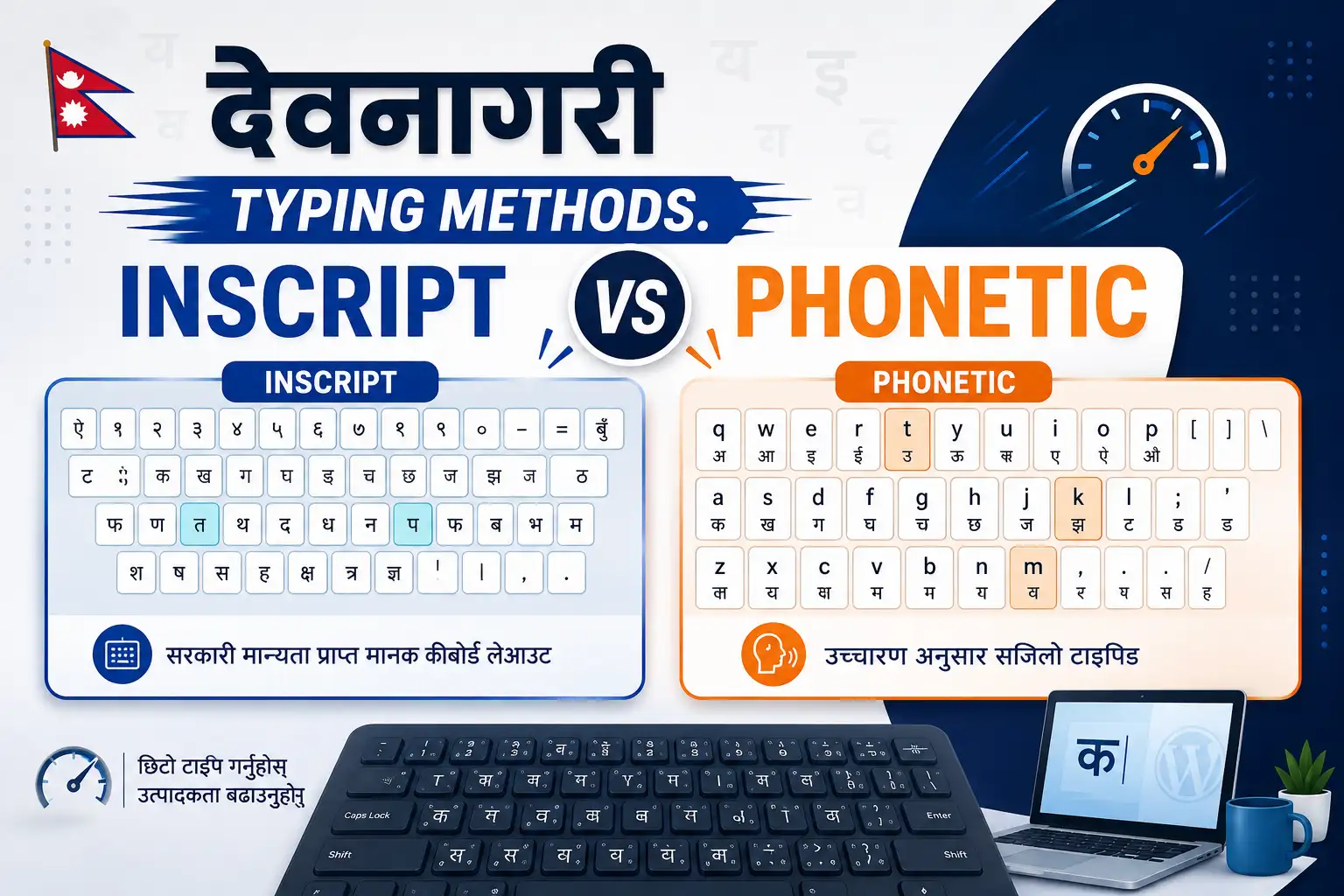
In the realm of digital communication, Devanagari typing methods have become indispensable for anyone engaging with languages like Hindi, Marathi, and Nepali. As more people turn to digital platforms for communication, understanding the nuances of Devanagari typing systems becomes crucial. Two primary methods dominate the landscape: Inscript and Phonetic. This article explores these methods, offering insights into their workings, advantages, and the contexts in which they excel.
Introduction to Devanagari Typing Methods
History and Evolution
The Devanagari script, used for over 120 languages, has a rich history that dates back to ancient times. With the advent of computers, the need for efficient Devanagari typing methods became evident. Initially, typing in Devanagari was cumbersome due to a lack of standardized methods. However, the development of Unicode and keyboard layouts like Inscript revolutionized this space. Today, Devanagari typing is integral to modern computing, facilitating seamless communication in native languages.
Importance in Modern Computing
In today’s digital age, the ability to type in Devanagari is vital for accessing information, creating content, and communicating effectively in several languages. Both Inscript and Phonetic typing methods cater to different user needs, making them pivotal in bridging linguistic and technological gaps.
Understanding Inscript Typing
Layout and Design
The Inscript typing method is a standardized keyboard layout designed by the Government of India. It maps the Devanagari characters to specific keys on the keyboard, allowing users to type directly in Devanagari. The layout is intuitive for those familiar with the script, as it follows the logical sequence of characters.
For a detailed guide on the Inscript layout, refer to the [Government of India’s Inscript keyboard layout guide](https://www.meity.gov.in/content/inscript-keyboard).
Advantages of Inscript Typing
Standardization: Inscript is a standardized layout, ensuring consistency across devices and platforms.
Direct Input: Users can type in Devanagari without converting from another script, making it ideal for formal and professional use.
Comprehensive Character Set: It supports a wide range of Devanagari characters, including rare and complex symbols.
💡 Pro Tip: Familiarize yourself with the Inscript layout through online typing tutors to improve speed and accuracy.
Exploring Phonetic Typing
How Phonetic Typing Works
Phonetic typing translates the phonetic sounds of Devanagari words into Roman script. For example, typing “namaste” will convert into “नमस्ते.” This method leverages the familiarity of the Roman alphabet, making it accessible to new learners and casual users.
Benefits and Drawbacks
Accessibility: Phonetic typing is user-friendly, especially for those who are not native Devanagari speakers.
Ease of Use: Requires minimal learning curve, as it relies on the phonetic sounds of words.
Limitations: May not capture complex characters accurately, leading to potential errors in formal documents.
⚠️ Important Note: Phonetic typing may not be suitable for official documents due to potential inaccuracies in character representation.
Devanagari Inscript vs Phonetic Typing: A Detailed Comparison
Efficiency and Speed
Aspect
Inscript Typing
Phonetic Typing
Typing Speed
Slower initially, faster with practice
Generally faster for beginners
Accuracy
High accuracy in character representation
May vary based on phonetic accuracy
Device Compatibility
Universally compatible
Requires specific software
User Learning Curve
Inscript typing has a steeper learning curve, demanding users to memorize key placements. However, once mastered, it offers high accuracy and speed. Phonetic typing, on the other hand, is intuitive and quick for beginners but may not cater to complex typing needs.
Choosing the Right Typing Method for You
Assessing Your Needs
To choose the right typing method, consider your specific requirements:
Professional Use: Opt for Inscript if you need precision and are working on official documents.
Casual Use: Phonetic typing is suitable for casual communication and quick typing tasks.
Future Trends in Devanagari Typing
The future of Devanagari typing is poised to evolve with advancements in AI and machine learning. Predictive text and voice recognition technologies are expected to enhance typing efficiency, offering users more intuitive experiences.
For further technical insights into Unicode and its role in standardizing scripts, refer to the [Unicode Consortium’s official documentation](https://unicode.org/standard/WhatIsUnicode.html).
In conclusion, whether you choose Inscript or Phonetic typing depends on your specific needs and proficiency level. Both methods have their unique strengths, catering to a diverse range of users. By understanding their differences, you can make an informed decision and enhance your Devanagari typing skills.
Frequently Asked Questions
What is the primary difference between Inscript and phonetic typing?
Inscript typing uses a fixed keyboard layout, while phonetic typing is based on sound representation.
Which typing method is faster for beginners?
Phonetic typing is generally faster for beginners due to its intuitive nature.
Can I use both typing methods interchangeably?
Yes, but it may require practice to switch seamlessly between the two methods.
Typeshala Not Opening on Windows 11? Here's the Real Fix
Updated September 2026Tested on Windows 11 24H2 & Windows 109 min read
Typeshala refuses to launch on Windows 11 for one specific technical reason — and it is not the one most guides tell you.
If Typeshala won't open on your Windows 11 PC, you have almost certainly already tried restarting, reinstalling and running it as administrator — and none of it worked. That's not your fault. Those fixes cannot work, because the actual problem is architectural.
Quick Answer
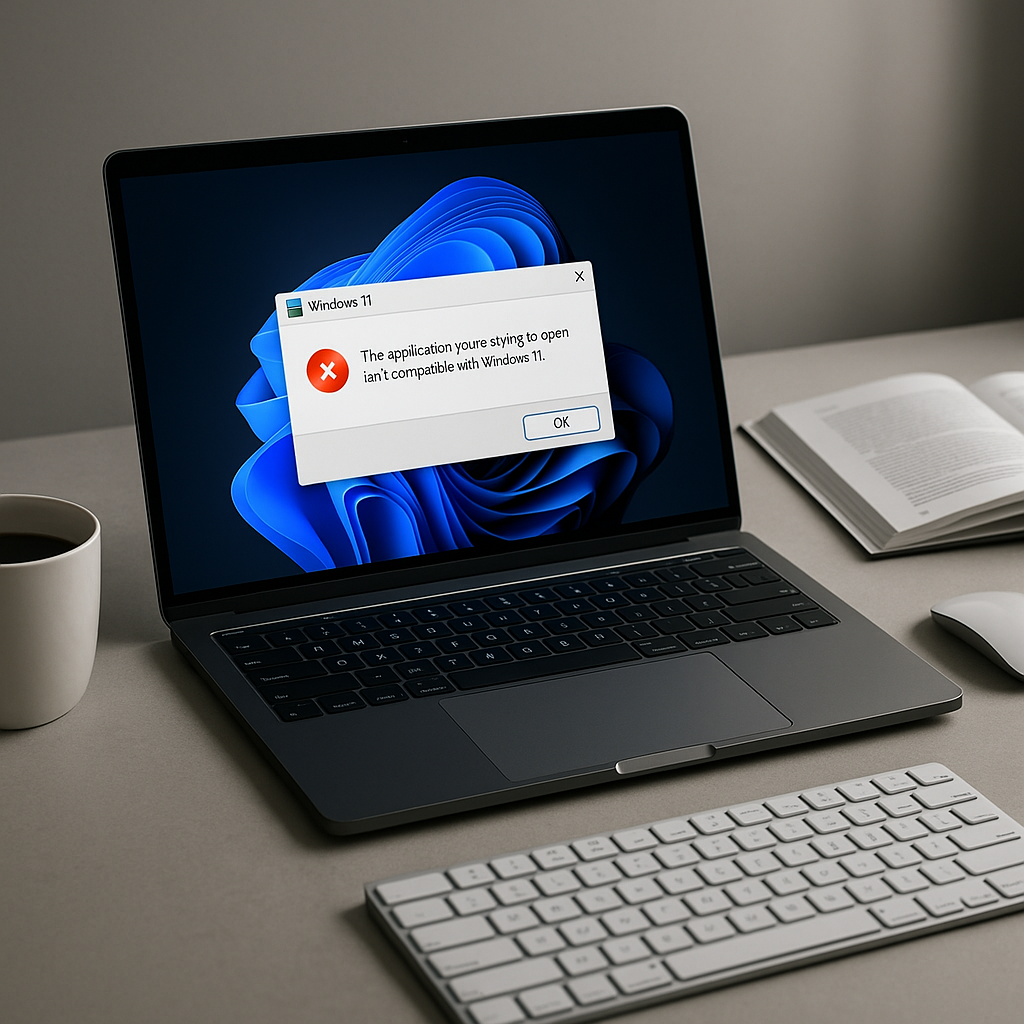
Typeshala (टाइपशाला) is a legacy 16-bit Windows program. All 64-bit versions of Windows — and Windows 11 ships in no other form — removed the NTVDM subsystem that ran 16-bit software. There is nothing left on your PC to execute it, which is why you get "This app can't run on your PC."
The fix: install OTVDM (winevdm), a free open-source 16-bit compatibility layer, then launch TYPSHALA.EXE through it. Compatibility Mode, updating, and reinstalling will not solve this on Windows 11. Full steps are below.
Why Typeshala Won't Open on Windows 11
Typeshala was built in the DOS and Windows 3.x era. You can see its age in the program itself: the main executable is named TYPSHALA.EXE in classic 8.3 uppercase format, and the whole application weighs under 100 KB. It is a 16-bit application.
That single detail explains everything. Modern Windows runs 32-bit software perfectly well through a translation layer called WOW64 — which is why most old programs still open fine. But 16-bit software needed a completely different component called NTVDM (the NT Virtual DOS Machine), and Microsoft never shipped NTVDM in 64-bit Windows at all.
Microsoft's own compatibility documentation is unambiguous: NTVDM is supported only on x86 (32-bit) Windows, and x64 and ARM versions "do not support 16-bit x86 code of any kind."
Now add the detail that makes Windows 11 a hard wall rather than an inconvenience: Windows 11 was never released in a 32-bit edition. Every single Windows 11 installation on earth is 64-bit or ARM. On Windows 10 you could at least turn NTVDM on if you happened to be running the 32-bit edition. On Windows 11 that option does not exist and never will.
This is why the usual advice fails
Updating Typeshala does nothing — the program hasn't been updated in over a decade and there is no newer build to install. Reinstalling does nothing — the files were never corrupted. Running as administrator does nothing — this is not a permissions problem. Even Compatibility Mode usually does nothing on Windows 11, because compatibility mode only changes how Windows reports itself to a program. It cannot restore a 16-bit subsystem that isn't installed.
You are not fixing a broken program. You are supplying the missing piece of Windows that the program needs. Once you understand that, the correct fix becomes obvious.
Match Your Error Message to the Real Cause
Different symptoms point to different problems. Find yours in the table below before you start changing settings.
What you see
What it actually means
What fixes it
"This app can't run on your PC"
The classic 16-bit block. Your 64-bit Windows has no NTVDM to run it.
Press Windows + I to open Settings, then go to System → About and look at System type. If it says 64-bit operating system, you have confirmed the diagnosis above — and if you're on Windows 11, it will always say this.
Check 2 — Make sure you have a complete Typeshala copy
A lot of Typeshala downloads floating around are incomplete: they contain the executable but not the lesson data files or the Preeti font, so even a successful launch gives you a broken program. Make sure your folder contains TYPSHALA.EXE along with its supporting data files before you start troubleshooting the launch itself.
Don't have a clean copy of Typeshala yet?
Start with a complete package that includes the lesson files and the Nepali font, then come back to the fix below. It will save you from chasing a launch problem that's really a missing-files problem.
Fix 1: Run Typeshala with OTVDM — The Method That Actually Works
OTVDM (also called winevdm) is a free, open-source 16-bit Windows emulator built specifically to run Windows 1.x–3.1 era software on modern 64-bit Windows. It is licensed under GPL-2.0 and maintained publicly on GitHub. In effect, it replaces the NTVDM component Microsoft removed — which is exactly what Typeshala needs.
This is the only method on this page that reliably works on Windows 11, and it's the approach the Nepali computer-training community has quietly standardised on. Some Typeshala bundles even ship otvdmw.exe alongside the program for this reason.
Download OTVDM from the official source
Get it from the project's own GitHub releases page — github.com/otya128/winevdm/releases. Download the latest otvdm.zip. Take it from here rather than from a random file-sharing mirror, so you know exactly what you're installing.
Install the Visual C++ runtime it depends on
OTVDM needs the 32-bit Microsoft Visual C++ Redistributable. If the extracted folder contains vc_redist.x86.exe, run that. Otherwise grab it directly from Microsoft's official redistributable page and install the x86 version — not x64. Skipping this step is the single most common reason people report that "OTVDM didn't work either."
Extract and install OTVDM
Right-click otvdm.zip and choose Extract All. Open the extracted folder, right-click install.inf and choose Install. Approve the User Account Control prompt. This registers OTVDM as the handler for 16-bit programs.
Launch Typeshala through OTVDM
You now have two ways to run it, and both work:
Drag and drop: drag TYPSHALA.EXE onto otvdm.exe.
Direct launch: after installing install.inf, simply double-click TYPSHALA.EXE — Windows now hands it to OTVDM automatically.
Typeshala should open in its familiar blue interface.
Create a desktop shortcut so you never repeat this
Right-click TYPSHALA.EXE → Show more options → Send to → Desktop (create shortcut). From now on Typeshala opens with one double-click like any normal app.
Why this works when nothing else does
Compatibility Mode lies to a program about which Windows version it's running on. OTVDM does something fundamentally different — it actually emulates the 16-bit environment itself. That's the difference between telling Typeshala what it wants to hear and giving it what it genuinely needs to execute.
Fix 2: Compatibility Mode — And Why It Usually Fails
Compatibility Mode is the fix you'll find in almost every forum thread and support answer about Typeshala, so it's worth being clear about when it helps and when it's a dead end.
It can work if you are running 32-bit Windows 10, 8 or 7. On those systems the 16-bit subsystem still exists and compatibility mode may be enough to coax Typeshala into launching. It will not work on Windows 11, or on any 64-bit Windows, for the architectural reason explained above.
If you're on 32-bit Windows 10 or older, here's the procedure:
Right-click TYPSHALA.EXE and choose Properties.
Open the Compatibility tab.
Tick Run this program in compatibility mode for and select Windows XP (Service Pack 3).
Also tick Run this program as an administrator.
Click Apply, then OK, and launch the program.
On 32-bit Windows 10, try enabling NTVDM first
Open Control Panel → Programs → Turn Windows features on or off and look for Legacy Components → NTVDM. Tick it, restart, and try Typeshala again. This option appears only on 32-bit editions — if you can't find it, you're on 64-bit Windows and OTVDM is your answer.
Fix 3: Run Typeshala in a Virtual Machine
If you're setting up a computer training centre, a school lab, or any environment where you need Typeshala to behave exactly as it always has, a virtual machine is the most faithful option.
Install VirtualBox (free), create a virtual machine running 32-bit Windows 7 or Windows XP, and install Typeshala inside it. Because the guest operating system is genuinely 32-bit, NTVDM is present and Typeshala runs natively with zero emulation quirks.
The trade-off is honest: it's heavier to set up, it uses more disk space and RAM, and you need a valid licence for the guest Windows. For a single student who just wants to practise typing tonight, OTVDM is far more practical. For a lab of twenty machines that must be identical and reliable, a VM image you can clone is worth the effort.
Fix 4: Skip the Hassle — Use an Online Typeshala
Here's the pragmatic truth many guides won't tell you: if your goal is to learn Nepali typing rather than to run this specific 20-year-old program, you may not need to fix any of this.
Browser-based Typeshala clones now reproduce the original lesson structure, the Preeti keyboard layout and the speed-and-accuracy scoring, and they run on any device with no installation, no emulator and no compatibility issues at all. Options include typeshala.typingkeyboards.com and nepalitypeshala.com.
When the online version is genuinely better
Use it if you're on a Mac, a Chromebook, an ARM-based Windows laptop, or a school PC where you can't install software. Stick with desktop Typeshala if you need to work offline, or if your course or examination board specifically requires the original program.
Which Method Should You Choose?
Method
Works on Windows 11
Difficulty
Best for
OTVDM (winevdm)
Yes
Easy — 5 minutes
Almost everyone. The default recommendation.
Compatibility Mode
No
Very easy
32-bit Windows 10/8/7 only.
Virtual machine
Yes
Advanced — 30+ minutes
Training centres, labs, exam setups.
Online Typeshala
Yes
None — instant
Learners, Mac/ARM users, locked-down PCs.
Reinstall / update
No
—
Nothing. This never addresses the real cause.
Windows 11 Roadblocks: S Mode, SmartScreen & ARM
Windows 11 adds three obstacles that didn't exist on older systems. Any one of them can stop Typeshala even after you've installed OTVDM correctly.
SmartScreen: "Windows protected your PC"
Typeshala and OTVDM are unsigned by modern standards, so SmartScreen warns you. This is a reputation warning, not a virus detection. Click More info, then Run anyway — but only when you downloaded the file from a source you trust, such as the official GitHub releases page linked above.
Windows 11 S Mode blocks it entirely
If your PC is in S Mode, it will refuse to run any application that didn't come from the Microsoft Store, and no fix on this page will work until you leave S Mode. Go to Settings → System → Activation and choose Switch to Windows 11 Home/Pro. It's free and permanent — but note you cannot switch back afterwards.
Microsoft Defender may quarantine old files
Decades-old executables sometimes trip heuristic detection. If Typeshala vanishes after extraction, check Windows Security → Protection history. You can add an exclusion for the Typeshala folder under Virus & threat protection → Manage settings → Exclusions — do this only for files you obtained from a source you trust.
ARM-based Windows laptops
On Snapdragon/ARM devices, Windows emulates x86 software but 16-bit support is absent at an even deeper level. OTVDM is unreliable here. On an ARM laptop, use the online Typeshala or a virtual machine instead.
Typeshala Opens but Nepali Won't Type? Fix the Preeti Font
This catches people out constantly: Typeshala launches perfectly, but Nepali lessons show as Roman letters or meaningless symbols. That isn't a launch failure at all — the program is working and the Preeti font is missing from your system.
Download the Preeti font file (.ttf).
Right-click it and choose Install for all users.
Restart Typeshala.
If it still displays incorrectly, open the program's Options or Settings menu and set the font to Preeti manually.
Preeti is a legacy non-Unicode Nepali font, which is why it must be installed separately and why modern Unicode Nepali text won't display correctly inside Typeshala.
Still Stuck? Final Troubleshooting Checklist
Work down this list in order — each item resolves a distinct failure mode:
Confirm you installed the x86 Visual C++ Redistributable, not the x64 one.
Re-run install.inf as administrator — if the first attempt silently failed, nothing else will work.
Extract the Typeshala folder somewhere simple like C:\Typeshala. Long paths, spaces and non-English folder names can break very old programs.
Move it out of Program Files — legacy apps often can't write to protected directories.
Temporarily pause real-time antivirus protection, launch once, then re-enable it.
Verify your download isn't a partial or corrupted archive by re-extracting it fresh.
Check Task Manager → Details while launching — if otvdm.exe appears and disappears, the runtime dependency is still missing.
If every step fails, fall back to the online Typeshala and move on with your practice.
Key takeaways
The cause is architectural, not a bug. Typeshala is 16-bit; 64-bit Windows removed 16-bit support entirely.
Windows 11 has no 32-bit edition, so enabling NTVDM is not an option on it — ever.
OTVDM (winevdm) is the working fix for Windows 11 and 64-bit Windows 10.
Updating, reinstalling and running as admin cannot help, because nothing is broken or corrupted.
If you only want to learn typing, an online Typeshala removes the problem completely.
Frequently Asked Questions
Why is Typeshala not opening on Windows 11?
Because Typeshala is a 16-bit application and Windows 11 is 64-bit only. All 64-bit versions of Windows removed NTVDM, the component that ran 16-bit software, so there is no subsystem available to execute the program. Installing the free OTVDM (winevdm) compatibility layer restores that capability and lets Typeshala launch normally.
Does Typeshala work on Windows 11 at all?
Yes, but not on its own. With OTVDM installed it runs reliably on Windows 11, including the latest builds. Without a 16-bit compatibility layer it cannot start under any circumstances, no matter which settings you change.
Is Typeshala 32-bit or 64-bit?
Neither — it is a 16-bit program from the DOS/Windows 3.x era. This is the detail most guides get wrong. A 32-bit program would run fine on 64-bit Windows through WOW64; the fact that Typeshala doesn't is precisely what proves it's 16-bit.
Why does compatibility mode not fix Typeshala?
Compatibility mode only changes what version of Windows the program is told it's running on. It cannot install a missing subsystem. Since 64-bit Windows contains no 16-bit execution environment at all, there is nothing for compatibility mode to fall back on. It can help on 32-bit Windows 10 and older, but not on Windows 11.
What does "This app can't run on your PC" mean for Typeshala?
It's Windows telling you the executable's architecture is incompatible with your system — in this case, a 16-bit program on 64-bit Windows. It does not mean the file is corrupted, infected or incorrectly downloaded, so re-downloading it will produce exactly the same message.
Is OTVDM (winevdm) safe to use?
It is an open-source project released under the GPL-2.0 licence with its source code publicly available on GitHub. As with any software, download it only from the official GitHub releases page rather than from third-party mirrors, and expect a SmartScreen warning because the files are unsigned.
Can reinstalling Typeshala fix the opening issue?
No. Reinstalling replaces files that were never damaged. The problem lies in your operating system's missing 16-bit support, not in the Typeshala files, so a fresh copy will fail in exactly the same way.
Can I run Typeshala on a Mac or a Chromebook?
Not natively — Typeshala is a Windows-only program. Use a browser-based Typeshala instead, which works identically on macOS, ChromeOS, Linux and mobile devices with no installation required.
Why does Typeshala open but show Nepali as strange symbols?
The Preeti font isn't installed on your system. Typeshala relies on this legacy non-Unicode Nepali font to display Devanagari characters. Install the Preeti .ttf file, restart the program, and select Preeti in its Options menu if needed.
Is there a modern alternative to Typeshala?
Yes. Online Nepali typing tutors reproduce Typeshala's lesson structure and Preeti keyboard layout in the browser, with no installation or compatibility issues. They're the practical choice if your goal is learning to type rather than running this particular program.
Typeshala has outlived the operating system it was written for by more than twenty years, which is a genuine testament to how well it taught a generation of Nepali typists. It just needs one small bridge to keep going on modern hardware. Install OTVDM once, make your desktop shortcut, and you can carry on exactly as before.
Need the software itself?
If you still need a complete Typeshala package with the lesson files and Nepali font included, the full download guide walks through it step by step.
Looking for the right Nepali typing software? Visit our
complete Typeshala guide
to compare Typeshala, TypeSolute and Typesalute, find
Windows 10 and Windows 11 installation instructions,
fix common errors, and discover effective Nepali typing
practice methods.
Compare Typeshala versions and compatibility.
Find download and installation instructions.
Learn typing speed, accuracy and practice techniques.
Download TypeSolute: Best Free Nepali Typing Software
Every year, thousands of students in Nepal open a new laptop, search for the typing tutor they used in school, and find it will not run. Typeshala is a 16-bit program, and modern 64-bit Windows 10 and 11 refuse to open it. TypeSolute solves that: a free, offline Nepali and English typing tutor that runs natively on today’s Windows.
This guide gives you verified download links, real file sizes, step-by-step installation, fixes for common errors, the Preeti keyboard map, and a 30-day plan for Lok Sewa typing candidates. No fluff, no fake feature lists.
Why Typeshala Stopped Working, and Where TypeSolute Fits
Typeshala was written for a much older Windows. It is a 16-bit application, and 64-bit Windows dropped the NTVDM layer that 16-bit programs need. On a 64-bit Windows 10 or 11 laptop, Typeshala throws an “unsupported” error or won’t launch. It still works on 32-bit Windows 7 and 8, which is why some school labs never noticed.
Appsolute Innovation released TypeSolute in April 2020 as the modern successor. It keeps the structure Nepali learners know (guided lessons, a Preeti board, a Unicode board, a timed test) but installs and runs without workarounds.
Want the original? You can still run Typeshala on 64-bit Windows 10 with the otvdm compatibility layer, or use our free Typeshala download page. For most people, TypeSolute is far simpler. (otvdm guide)
TypeSolute vs Typeshala: Honest Comparison
Feature
Typeshala (Classic)
TypeSolute 1.0.0
Windows 11 / 10 (64-bit)
Needs a compatibility layer
Runs natively
Windows 7 / 8 (32-bit)
Runs
Runs
Nepali Unicode typing
Not included
Included, offline
Preeti typing
Included
Included, on-screen guide
English practice
Included
Included
Speed test
Basic
WPM and CPM after 2 minutes
Typing games
Yes (Ramayan balloon game)
Not included
Interface
DOS-era, keyboard-driven
Modern windowed layout
Portable version
Unofficial repacks only
Official portable build
Price
Free
Free
Worth knowing: the Ramayan balloon game is the one thing missing from TypeSolute. If games kept you motivated, keep the old build on a 32-bit PC and use TypeSolute for serious lessons. See our Nepali typing practice guide.
Download TypeSolute Free for Windows
TypeSolute comes as a ZIP archive. Extract it first, then run the installer or launch the portable executable. Both contain the same program; they only differ in how they sit on your system.
TypeSolute, the free offline Nepali typing tutor for Windows
⬇ TypeSolute: Free Nepali Typing Software
Version 1.0.0 · Windows 11, 10, 8, 7 · 32-bit & 64-bit · Offline
Practical advice: in a college lab where you can’t install software, carry the portable build on a pen drive. Your lesson progress travels with the folder.
How to Install TypeSolute, Step by Step
💻 Installer
1Download the archive. Save the ZIP to Downloads. On typical Nepali broadband this takes two to four minutes.
2Extract the ZIP. Right-click, choose Extract All, and pick a folder you’ll remember. Never run setup from inside the compressed archive; it’s the most common cause of failure.
3Run the setup file. Double-click it and choose Yes if Windows asks permission.
4Handle SmartScreen. On the blue “Windows protected your PC” box, click More info, then Run anyway. The installer isn’t code-signed; that doesn’t make it harmful.
5Choose a folder. The default is fine unless C: is short on space.
6Finish the wizard. A desktop shortcut is created.
7Launch and pick a mode: Unicode Nepali, Preeti Nepali, or English.
💾 Portable
1Extract the portable ZIP to your desktop, or straight onto a USB drive.
2Find the main TypeSolute executable in the extracted folder.
3Double-click to launch. Nothing is written to Program Files and no registry entries are created.
4Optional: right-click the executable and choose Pin to Start or Create shortcut.
Important: don’t move individual files out of the extracted folder. TypeSolute keeps lessons, fonts and settings beside the executable; moving the .exe alone makes it open with missing content.
Fixing the Errors Most Download Pages Never Mention
Most TypeSolute pages give you a link and leave you alone with the error. Expand a problem to see the fix.
1. “Windows protected your PC” blue screen
This is Microsoft Defender SmartScreen reacting to an installer without a purchased code-signing certificate, which small Nepali publishers rarely buy. Click More info, then Run anyway. If SmartScreen is locked down, right-click the file, open Properties, tick Unblock, and apply.
2. Antivirus quarantines the file
Some engines flag unsigned installers and any program that reads keystrokes, which a typing tutor does. This is a heuristic guess, not a malware detection. Add the extracted folder to your exclusion list, or pause real-time protection while installing, then turn it back on straight away.
3. Nepali text shows as boxes or question marks
Your Windows is missing the Nepali language pack. Go to Settings → Time & Language → Language & Region → Add a language, install Nepali (Nepal), then restart. This fixes Word, browsers and TypeSolute together.
4. Preeti text looks wrong in Word
Preeti is a font-based system, not a character encoding. It only looks like Nepali when the Preeti font is applied. Install the Preeti font into the Windows Fonts folder, then select the pasted text in Word and set the font to Preeti. For email or websites, convert to Unicode; Preeti won’t display on devices without the font.
5. Extraction fails or the archive looks corrupted
Windows’ built-in extractor can choke on larger archives, especially after an interrupted download. Install 7-Zip, right-click the ZIP, and choose 7-Zip → Extract Here. If it still fails, delete the file and download again.
Preeti vs Unicode: Choose Before You Start
This decision matters more than the software. The wrong choice means weeks of muscle memory pointed the wrong way.
Aspect
Preeti (Traditional)
Unicode (Romanized / InScript)
How it works
Maps each English key to a Devanagari glyph
Encodes actual Devanagari characters
Shows without the font
No, garbled Roman letters
Yes, on every device
Learning curve
Steeper: full key map to memorise
Gentler, especially Romanized
Top speed
Higher: one keystroke, one glyph
Slightly lower for conjuncts
Used in
Government offices, print, DTP, older archives
Websites, email, social media
Searchable
No
Yes
Exam requirement
Often, for computer operator posts
Increasingly the standard
Rule of thumb: check your exam notice or office requirement first. If neither says, learn Unicode; it’s easier and universally compatible. Learn Preeti only when a job, exam or DTP workflow demands it. TypeSolute lets you practise both.
The Preeti Keyboard Map, Row by Row
TypeSolute shows the guide on screen as you type. Use this for offline revision, and learn the home row first, since it carries the most frequent characters.
🥇 Home row: learn first
aबsकdमfाgनhजjवkपlि
🥈 Top row: learn second
qत्रwधeभrचtतyथuगiषoयpउ
🥉 Bottom row: learn third
zशxहcअvखbदnलmं
Shift layer: holding Shift gives aspirated consonants, conjuncts and extra vowel signs. Learn it only once the base layer is automatic.
Don’t skip ahead. Master the home row without looking, then add one row at a time. Learners who memorise all three rows in week one usually plateau around 12 WPM.
What You Actually Get Inside TypeSolute
Accuracy note: some listings use the name “TypeSolute” for an unrelated text-expansion and snippet tool for office workers (clipboard history, team snippets, encrypted sync). It has no Nepali lessons and no working download. If you saw that, you were on the wrong program.
What it does
✓ Offline Unicode Nepali practice
✓ Preeti typing with on-screen guide
✓ English lessons and drills
✓ 2-minute test with WPM and CPM
✓ Clean, uncluttered interface
✓ Portable build for shared PCs
✓ Works with no internet
What it doesn’t do
✕ No macOS or Linux version
✕ No predictive text or autocomplete
✕ No Nepali spell-checker
✕ No Word or Google Docs plugin
✕ No typing games
✕ No cloud sync or backup
✕ No updates since v1.0.0 (2020)
TypeSolute is a training tool, not an input method editor. You practise in it to build speed, then use Windows’ own Nepali keyboard layout or a converter when you actually write documents.
A Realistic 30-Day Plan to Reach Exam Speed
Days 1–7: Home row only, eyes off the keyboard 20 min/day Target: 8–12 WPM · 90% accuracy
Days 8–14: Add the top row, short word drills 25 min/day Target: 12–16 WPM · 92% accuracy
Days 15–21: Add the bottom row, full sentences 30 min/day Target: 16–20 WPM · 94% accuracy
Why 25 WPM? Public Service Commission typing assessments for computer operator and assistant-level posts commonly sit around 20 to 30 WPM in Devanagari, with higher English requirements. Thresholds vary by post and cycle, so always confirm against the specific Lok Sewa Aayog notice.
✅ Your Daily Practice Checklist
☐ Hands covered, eyes on the screen
☐ Warm-up on the home row (5 minutes)
☐ One lesson or drill for today’s row
☐ One 2-minute speed test, noting WPM and accuracy
☐ Accuracy at or above today’s target
System Requirements
Component
Minimum
Recommended
OS
Windows 7 (32-bit)
Windows 10 or 11 (64-bit)
Processor
1 GHz dual-core
Any modern processor
RAM
1 GB
4 GB or more
Free disk space
150 MB
300 MB (incl. extraction)
Display
1024 × 768
1366 × 768 or higher
Internet
Only to download
Not needed afterwards
Language pack
Nepali (Nepal)
Same, plus Preeti font
Safe Downloading: Avoid the Fake Mirror Sites
Search results for Nepali software are polluted with mirrors that wrap a real file in an ad-laden downloader, or serve something else. Five habits keep you safe:
Check the file size. The installer should be near 52.9 MB and the portable near 73.5 MB. A 2 MB “TypeSolute.exe” is a download manager or worse.
Distrust multiple download buttons. Real pages have one; mirrors surround it with decoys.
Never install an unrequested “download accelerator.” If a site insists, leave.
Ignore “TypeSolute for Mac.” There isn’t one.
Scan first. Right-click and scan, or upload to VirusTotal for a second opinion.
Alternatives Worth Knowing
Tool
Best for
Cost
Offline
TypeSolute
Structured lessons on modern Windows
Free
Yes
Typeshala (classic)
Game-based practice on older PCs
Free
Yes
Browser typing tutors
Quick practice, no install
Free
No
Windows Nepali keyboard
Real document writing
Built in
Yes
Preeti ↔ Unicode converters
Converting existing documents
Usually free
Varies
Many learners combine two: TypeSolute for daily drills and Windows’ Nepali layout for real work. For help getting the classic software running, see our guide to fixing Typeshala on Windows 11.
TypeSolute Pros & Cons
Pros
✓ Free, no license fee
✓ Preeti and Unicode supported
✓ Fully offline after install
✓ Live WPM and accuracy tracking
✓ Beginner-friendly structured lessons
Cons
✕ Interface feels a bit dated
✕ No macOS or Linux version
✕ Occasional setup errors on newer Windows 11 builds
✕ No cloud sync; progress stays on one device
✕ Limited advanced or custom lessons
Frequently Asked Questions
Is TypeSolute really free to download?
Yes. Appsolute Innovation distributes it free, with no trial, registration or paid upgrade. If a site asks for payment or personal details, you’re on the wrong page.
Does TypeSolute work on Windows 11?
Yes. It runs natively on Windows 11 and 10 (32-bit and 64-bit), and on Windows 8 and 7, with no compatibility layer.
Can I use TypeSolute on a Mac?
No. It is Windows-only, and any site offering a macOS version hasn’t verified its claims.
Does TypeSolute need an internet connection?
Only for the initial download. After that it works fully offline.
What is the difference between the installer and the portable version?
Same program, different packaging. The installer (~52.9 MB) sets up like normal software; the portable build (~73.5 MB) runs from any folder or USB drive with no admin rights, which suits labs and shared PCs.
Does TypeSolute support Preeti font typing?
Yes. It includes Preeti Nepali with an on-screen guide, alongside Unicode Nepali and English.
Why does my antivirus flag TypeSolute?
The installer is unsigned and the program reads keystrokes, which triggers heuristic warnings. It isn’t a malware detection. See the fix above, and always download from a trusted page and check the file size.
How long does it take to reach 25 words per minute in Nepali?
With 20 to 30 minutes of daily practice, the plan above targets 22 to 26 WPM by day 30, provided you hold 95% accuracy and don’t look at the keyboard. Individual results vary.
Is TypeSolute the same as the text-expansion tool with the same name?
No. They are unrelated. The text-expansion tool has no Nepali lessons and no working download.
Is there a newer version than 1.0.0?
Not at the time of writing. Version 1.0.0 from April 2020 is the latest, and no updates have been released since.
Final Verdict
TypeSolute isn’t flashy, and it hasn’t been updated since 2020, but it solves the exact problem Nepali learners face today. It installs on modern Windows without tricks, teaches Preeti, Unicode and English side by side, runs offline, and costs nothing. For a Lok Sewa candidate, an office worker who needs Preeti for government correspondence, or anyone who wants to write in their own language faster, it’s the most practical free option on Windows.
Commit to twenty minutes a day for a month, and protect your accuracy before you chase speed. That one habit separates people who pass the practical test from those who retake it.
Ready to Start?
Free · Offline · Windows 11, 10, 8, 7 · Preeti, Unicode & English
Kantipur Font Free Download for Windows, Mac & Linux
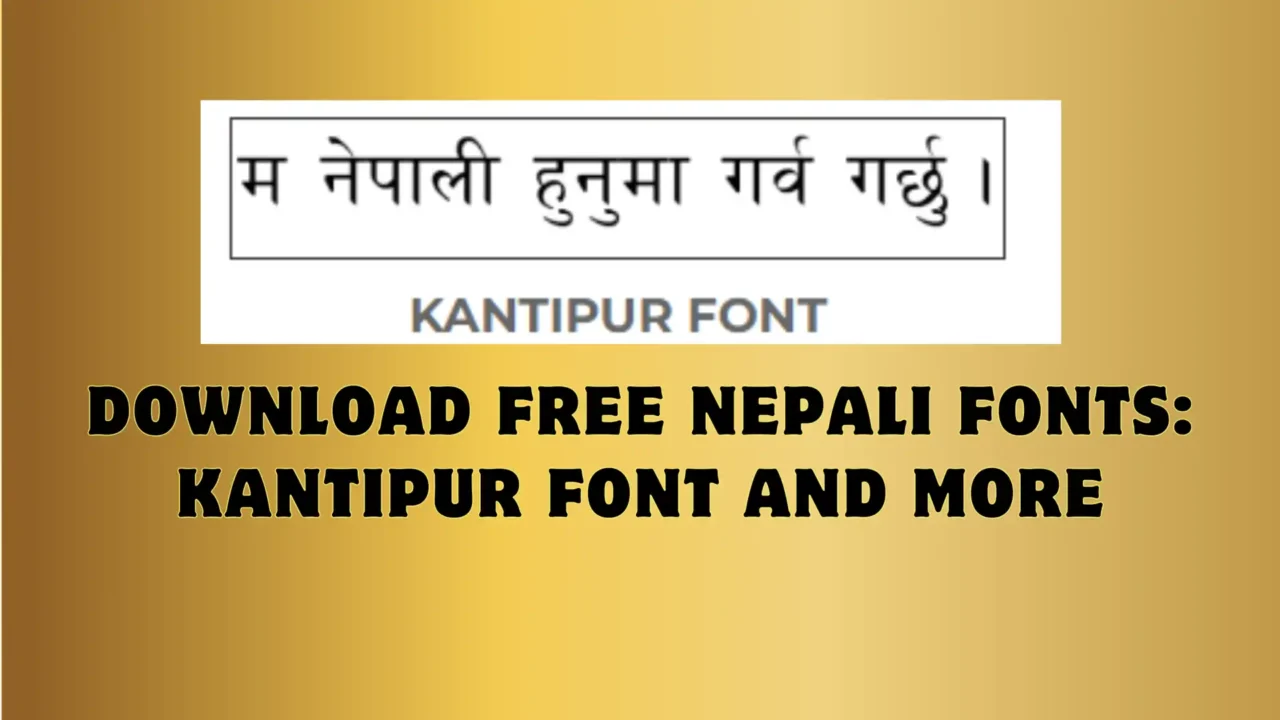
Kantipur is one of the most widely recognized Nepali Devanagari fonts, in the same classic family as Preeti and Kanchan. Here's how to get it, install it correctly on any OS, and understand how it actually works before you use it.
Kantipur is a classic Nepali font for typing and designing in Devanagari script — the same visual style long associated with Kantipur Daily, one of Nepal's largest newspapers. It's simple, highly legible, and close in shape and clarity to the Preeti font, which is why the two are often confused or used side by side.
Like Preeti, Kanchan, and most of the fonts in this family, Kantipur is a legacy (non-Unicode) font: it works by remapping regular English keys to Devanagari characters, rather than using the Unicode Devanagari standard. That one fact explains almost every install or display problem people run into with it — see the comparison below before you install.
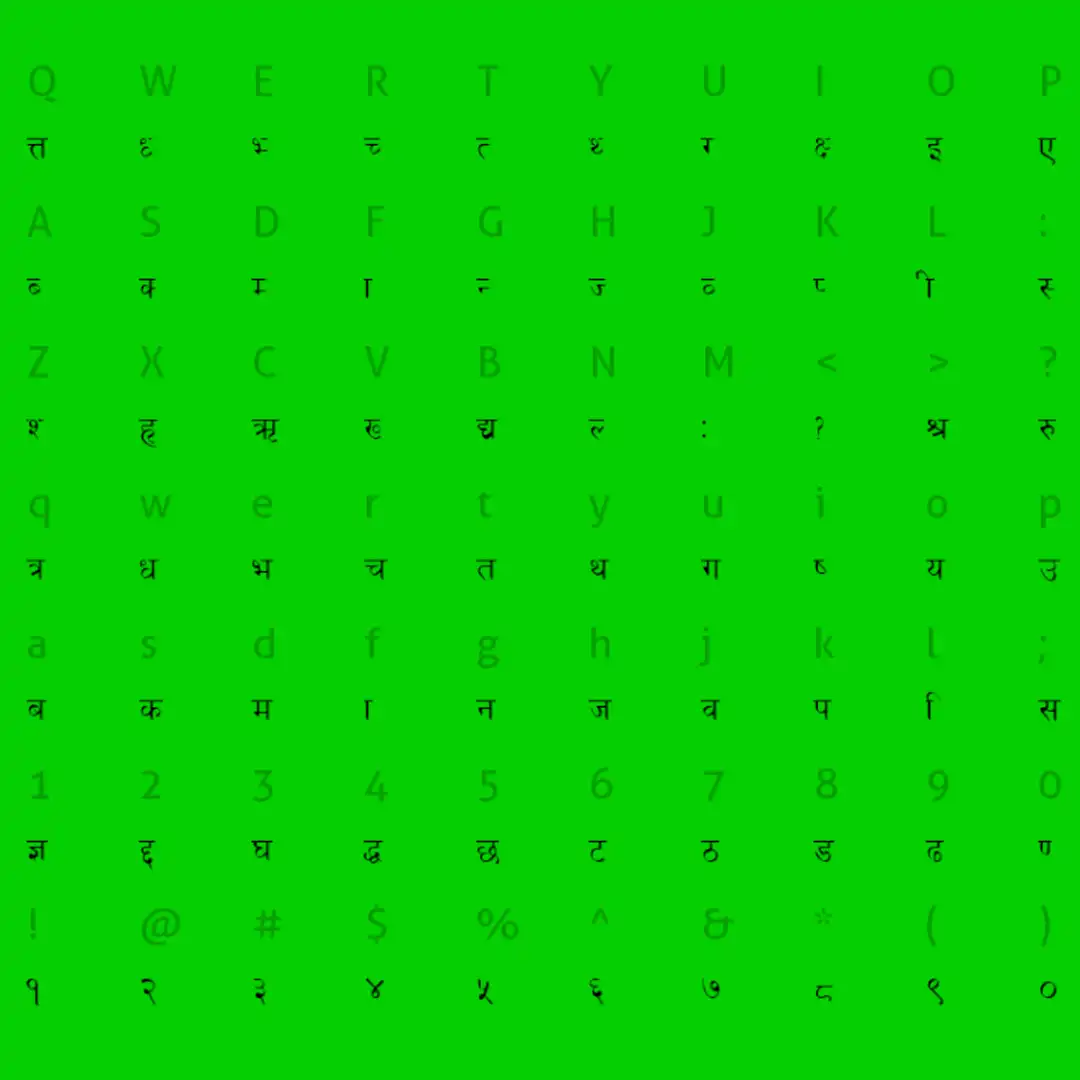
Character map preview
Every character and key mapping in the Kantipur font, at a glance.
Legacy font vs. Unicode — why it matters
⚠️ Legacy fonts like Kantipur
Only display correctly on a device that has the exact font installed. Paste the text into a website, WhatsApp, or someone else's computer without Kantipur installed, and it turns into boxes or random symbols.
✅ Unicode Devanagari fonts
Display correctly everywhere — browsers, phones, social media — without installing anything, because the text itself is standard Unicode, not a remapped font.
If you're typing something that needs to display correctly for other people (a social post, a web page, a WhatsApp message), convert it to Unicode first — our free Preeti/Kantipur-to-Unicode converter does this in one paste. If you're designing something locally (posters, print, Photoshop work) where you control the fonts used, Kantipur works exactly as intended.
How to install the Kantipur font
1
Windows
Extract the downloaded ZIP, then double-click the Kantipur font file inside it. Click Install at the top of the preview window — it's ready to use immediately in Word, Photoshop, and anywhere else. If it doesn't show up right away, restart the app (or your PC).
2
Mac
Double-click the font file to open it in Font Book, then click Install Font. It's immediately available in Pages, Keynote, Photoshop, and other apps.
3
Linux
Copy the font file into ~/.fonts (just for you) or /usr/share/fonts (for every user on the machine), then run fc-cache -f -v in a terminal to refresh the font cache.
Ready to get the font? It's part of our free Nepali fonts collection — look for the Kantipur Font card on the download page.
Go to the Font Download Page → Opens our Nepali Fonts hub, where Kantipur is one of several fonts you can grab for free.
Frequently asked questions
Is Kantipur a Unicode font?
No. Kantipur is a legacy (non-Unicode) Nepali font, in the same family as Preeti and Kanchan. Text typed in it only displays correctly on a device that has the font installed — paste it somewhere else and it can turn into boxes or symbols. For text that needs to display correctly everywhere, use a Unicode font instead, or run your text through a Preeti/Kantipur-to-Unicode converter first.
Why does my Kantipur text show up as boxes or question marks?
Almost always because the font isn't installed on the device you're viewing it on, or the app you're using doesn't support legacy Nepali fonts. Reinstall the font, restart the app, and make sure you're not trying to view it on a device where Kantipur was never installed in the first place.
What's the difference between Kantipur and Preeti fonts?
Visually they're close — both are classic Devanagari fonts with a similar clean, newspaper-style look. The practical difference is mostly about habit and keyboard layout: many typists learn one specific layout and stick with it. If you already know the Preeti layout, see our Preeti font and keyboard layout guide.
Can I use the Kantipur font commercially?
For personal documents, school work, or informal design, it's fine. For anything commercial — books, branding, products for sale — verify the font's license with its original source before publishing, since legacy Nepali fonts circulated online rarely come with clear, traceable licensing. If you need a font with an unambiguous open license, look for a Unicode alternative with published licensing terms instead.
Learn Nepali Typing Practice: A Step-by-Step Plan with Typeshala
📖 8 min read⌨ Preeti layout🟢 Beginner friendly🔄 Updated November 2026
Quick answer
The fastest way to learn Nepali typing is to practise 15–30 minutes every day, start from the home row and put accuracy before speed. Typeshala is a good tool for this: it is completely free, needs no account, and teaches the Preeti layout. It is old software for Windows, so it looks dated, but its lessons still work. Follow the plan below and a realistic goal is about 30 words per minute in three to four weeks.
15–30 minof practice every day
~30 WPMrealistic goal in 3–4 weeks
Freeno account or sign-up needed
Typing in Nepali is no longer a niche skill. Government forms, school assignments, office work and customer support increasingly expect it. I learned Nepali typing on Typeshala and later taught it to more than 100 students, so this guide focuses on what matters most: how to practise, in what order, and how to tell that you are improving.
Why Nepali Typing Skills Matter in 2026
Typing isn't just a convenience anymore. It's a baseline digital skill, like reading and writing. For Nepali speakers, being able to type fluently in your own language opens doors that English-only typing can't: government and municipal work, banking and administrative jobs, Nepali-language customer service, and content creation.
Learning Nepali alongside English also sharpens your general typing. Switching between the two trains muscle memory and keyboard awareness faster than practising a single language.
Before You Start
Typeshala is free to use, with no account or sign-up, and it runs on Windows XP through Windows 11. It is old software, so on newer PCs it sometimes needs a compatibility setting before it opens. Everything about getting the program, installing it and fixing problems lives on the Typeshala download page. This guide assumes it is already running and is about how to practise.
Good to know
Typeshala only runs on Windows. On a Mac, Chromebook or phone, you can follow the same plan with the online version in your browser.
The Preeti Layout: What You Are Learning
Typeshala's Nepali mode teaches the Preeti layout, a typewriter-style layout where each English key types a Nepali character. Many offices still use it, which is why it is worth learning. Typeshala teaches Preeti directly, not Unicode. The Nepali Unicode Traditional layout keeps the same key positions for most characters, so what you learn carries over if you later type in Unicode.
Typeshala's lesson screen guides your fingers through the keys.
Learn the home row first. Your fingers rest there and return to it after every keystroke. On the left hand, A, S, D and F type ब क म ा. On the right hand, J, K, L and ; type व प ि स. Small bumps on F and J let your index fingers find the home row without looking. For the full key chart, see the Preeti font and layout guide.
Your home row in Preeti
बA
कS
मD
ाF
वJ
पK
िL
स;
Left handRight hand
The red marks on F and J are the bumps your index fingers feel for.
What the Lesson Screen Shows
Typeshala's interface is simple enough to use without a manual:
Language choice Pick Nepali or English when the program starts.
Guided lessons Step-by-step lessons from the home row to full sentences.
On-screen keyboard Highlights the next key and the finger to use, which is especially helpful while you are memorising key positions.
Speed and accuracy results Your words per minute (WPM) and accuracy after each exercise.
Free-hand mode and the Ramayan game For practising with your own text and for speed building.
Beginner Typing Lessons
The lessons move from the home row to the top and bottom rows, then on to numbers, symbols and full sentences. The goal at this stage isn't speed, it's accuracy and muscle memory. Rushing through the early lessons is the most common reason people plateau.
Never typed without looking? Spend a few days in English mode first to learn where your fingers go, then switch to Nepali.
Already type English without looking? Go straight to Nepali.
Don't skip ahead. Each lesson builds on the keys from the one before.
Watch the screen, not your hands. Follow the on-screen keyboard. Using the wrong finger now creates habits that are hard to fix later.
Practising Beyond the Lessons
Once you can type without constantly checking the keyboard, build on the lessons with these habits:
Free-hand typing with real text — type a Nepali newspaper article, a government notice or an office letter. Real text prepares you for real work.
Drill the vowel signs — signs like ा, ि and ु appear in almost every Nepali word, so practise them on their own.
Sustained passages — type for several minutes at a stretch to check that your pace and accuracy hold up.
Correct mistakes without losing rhythm — fix an error, then go straight back to the home row.
The Ramayan Typing Game
The Ramayan game is Typeshala's best-known feature. You type characters and words quickly to advance in the game, which turns speed drills into a challenge. Play for about 10 minutes after each lesson to build speed without it feeling like homework. If you have ever abandoned a typing course after a few days, this kind of playful practice is often what keeps people going.
Daily Practice Routine and Tips
A simple daily plan is 5 minutes of home-row warm-up, 15 minutes of lessons and 10 minutes of the Ramayan game. Short daily sessions beat long weekly ones.
5 minutesHome-row warm-up
15 minutesLessons
10 minutesRamayan game
Practise every day. 15–30 minutes daily works far better than two hours once a week.
Get accurate before you get fast. Type slowly and correctly. Speed follows once your fingers know the keys.
Never look at the keyboard. If you keep glancing down, lay a light cloth over your hands until the habit stops.
Use all ten fingers. Return to the home row after every key.
Keep a layout chart nearby for the first week. Glance at a printed chart instead of the keys, then put it away in week two.
Track your WPM weekly, not daily. Day-to-day numbers bounce around and can be discouraging.
Progress Targets: What to Aim For
Use your WPM and accuracy results to check that you are on track:
Week 1
10–20 WPM
80% accuracy or higher
Week 2
20–30 WPM
85% accuracy or higher
Weeks 3–4
30–40 WPM
90% accuracy or higher
Accuracy comes first
If you fall below the accuracy goal, slow down until you are back above it.
Desktop vs. Online Practice
You can follow this plan with the Windows program or in a browser. Here is how the two compare for practice:
Feature
Typeshala (Windows program)
Online Typeshala (browser)
Platform
Windows PC
Any browser, any device
Works offline
✓
✕
Nepali layouts
Preeti
Preeti & Traditional
Practice style
Guided lessons, free-hand mode, Ramayan game
8 lessons, live WPM test, custom text
Price
Free, no account
Free
Best for
Regular, structured practice on a PC
Quick practice on a phone, Mac or shared computer
Many learners use both: the Windows program for focused daily lessons, and the online version for a quick session on another device.
Community & Support
Stuck on something, or want to see what else is available? The Nepali Typing & Fonts hub collects every guide on this site related to Nepali typing and fonts, and you can reach out directly through the contact page with specific questions.
Frequently Asked Questions
Is Typeshala suitable for absolute beginners in typing?
Yes. The lessons start from the home row, so no prior typing experience is assumed.
Is Typeshala free to use?
Yes. Typeshala is completely free and you don't need an account. You can get it from the download page.
Does Typeshala teach Preeti or Unicode typing?
Typeshala teaches the Preeti layout. The Nepali Unicode Traditional layout keeps the same key positions for most characters, so what you learn carries over to Unicode typing.
Can I use Typeshala on a Mac?
Typeshala is a Windows program. Mac users can practise with the online version in a browser instead.
How long does it take to learn Nepali typing?
With 15–30 minutes of practice a day, a realistic goal is about 30 words per minute in three to four weeks. Focus on accuracy first; speed follows.
Nepali typing is a skill with a real payoff in school, at work and in daily life, and a clear practice plan makes it far less overwhelming. Start from the home row, put accuracy first, practise a little every day and check your WPM once a week. If you still need the software, the Typeshala download page has the free download and installation help.