
Typeshala Not Opening on Windows 11? Here's the Real Fix
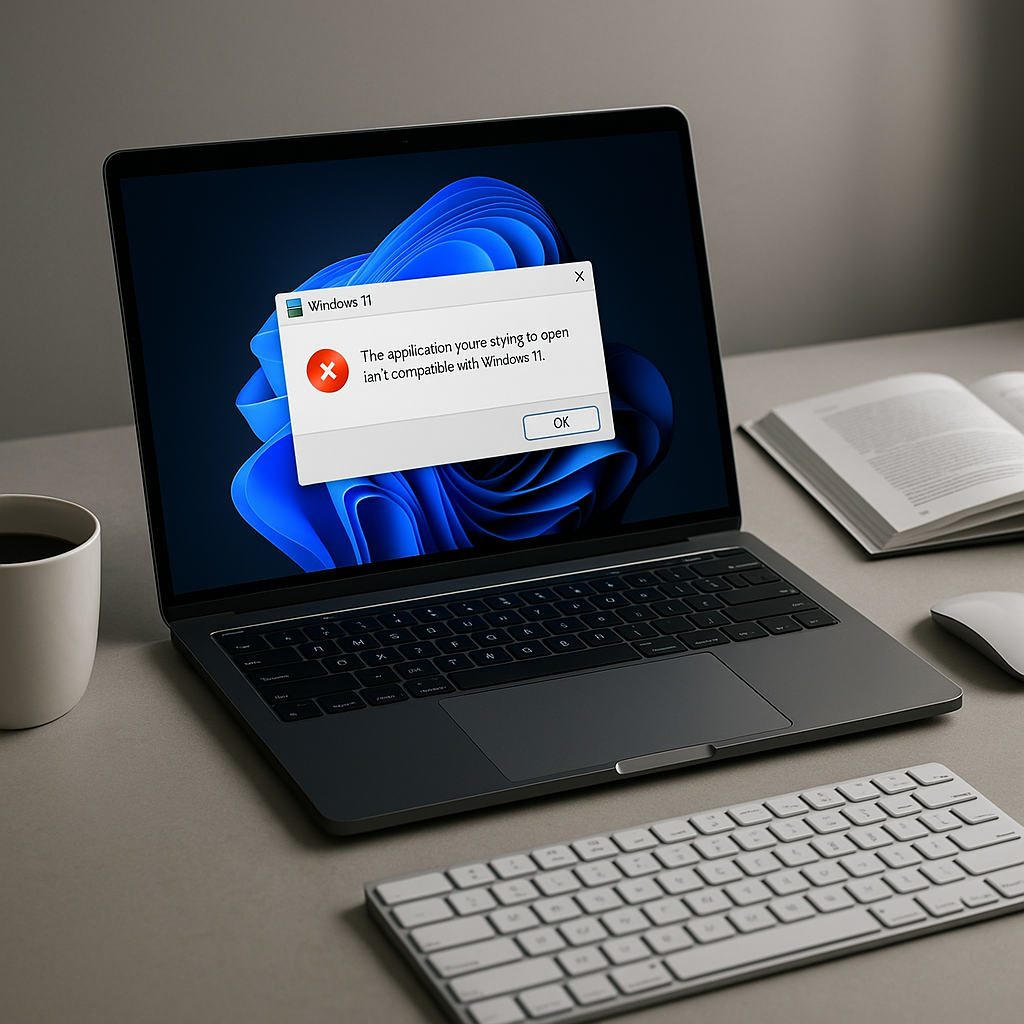
If Typeshala won't open on your Windows 11 PC, you have almost certainly already tried restarting, reinstalling and running it as administrator — and none of it worked. That's not your fault. Those fixes cannot work, because the actual problem is architectural.
Typeshala (टाइपशाला) is a legacy 16-bit Windows program. All 64-bit versions of Windows — and Windows 11 ships in no other form — removed the NTVDM subsystem that ran 16-bit software. There is nothing left on your PC to execute it, which is why you get "This app can't run on your PC."
The fix: install OTVDM (winevdm), a free open-source 16-bit compatibility layer, then launch TYPSHALA.EXE through it. Compatibility Mode, updating, and reinstalling will not solve this on Windows 11. Full steps are below.
Why Typeshala Won't Open on Windows 11
Typeshala was built in the DOS and Windows 3.x era. You can see its age in the program itself: the main executable is named TYPSHALA.EXE in classic 8.3 uppercase format, and the whole application weighs under 100 KB. It is a 16-bit application.
That single detail explains everything. Modern Windows runs 32-bit software perfectly well through a translation layer called WOW64 — which is why most old programs still open fine. But 16-bit software needed a completely different component called NTVDM (the NT Virtual DOS Machine), and Microsoft never shipped NTVDM in 64-bit Windows at all.
Microsoft's own compatibility documentation is unambiguous: NTVDM is supported only on x86 (32-bit) Windows, and x64 and ARM versions "do not support 16-bit x86 code of any kind."
— Microsoft Learn, NTVDM and 16-bit app supportNow add the detail that makes Windows 11 a hard wall rather than an inconvenience: Windows 11 was never released in a 32-bit edition. Every single Windows 11 installation on earth is 64-bit or ARM. On Windows 10 you could at least turn NTVDM on if you happened to be running the 32-bit edition. On Windows 11 that option does not exist and never will.
Updating Typeshala does nothing — the program hasn't been updated in over a decade and there is no newer build to install. Reinstalling does nothing — the files were never corrupted. Running as administrator does nothing — this is not a permissions problem. Even Compatibility Mode usually does nothing on Windows 11, because compatibility mode only changes how Windows reports itself to a program. It cannot restore a 16-bit subsystem that isn't installed.
You are not fixing a broken program. You are supplying the missing piece of Windows that the program needs. Once you understand that, the correct fix becomes obvious.
Match Your Error Message to the Real Cause
Different symptoms point to different problems. Find yours in the table below before you start changing settings.
| What you see | What it actually means | What fixes it |
|---|---|---|
| "This app can't run on your PC" | The classic 16-bit block. Your 64-bit Windows has no NTVDM to run it. | Fix 1 — OTVDM |
| "Unsupported 16-bit application" | Same root cause, worded differently. Confirms the file is 16-bit. | Fix 1 — OTVDM |
| Nothing happens at all — no error, no window | The process starts and is terminated instantly by Windows or by antivirus. | Fix 1, then whitelist in Defender |
| "Windows protected your PC" (blue box) | SmartScreen, not a real error. The installer is old and unsigned. | More info → Run anyway |
| "The app you're trying to install isn't a Microsoft-verified app" | Your PC is in Windows 11 S Mode, which blocks all non-Store software. | Switch out of S Mode |
| It opens, but Nepali types as gibberish | Not a launch problem — the Preeti font is missing. | Install Preeti |
| Opens then closes after a second | Usually a missing Visual C++ runtime that OTVDM depends on. | Fix 1, step 2 |
Before You Start: Two Quick Checks
Check 1 — Confirm your Windows is 64-bit
Press Windows + I to open Settings, then go to System → About and look at System type. If it says 64-bit operating system, you have confirmed the diagnosis above — and if you're on Windows 11, it will always say this.
Check 2 — Make sure you have a complete Typeshala copy
A lot of Typeshala downloads floating around are incomplete: they contain the executable but not the lesson data files or the Preeti font, so even a successful launch gives you a broken program. Make sure your folder contains TYPSHALA.EXE along with its supporting data files before you start troubleshooting the launch itself.
Don't have a clean copy of Typeshala yet?
Start with a complete package that includes the lesson files and the Nepali font, then come back to the fix below. It will save you from chasing a launch problem that's really a missing-files problem.
Fix 1: Run Typeshala with OTVDM — The Method That Actually Works
OTVDM (also called winevdm) is a free, open-source 16-bit Windows emulator built specifically to run Windows 1.x–3.1 era software on modern 64-bit Windows. It is licensed under GPL-2.0 and maintained publicly on GitHub. In effect, it replaces the NTVDM component Microsoft removed — which is exactly what Typeshala needs.
This is the only method on this page that reliably works on Windows 11, and it's the approach the Nepali computer-training community has quietly standardised on. Some Typeshala bundles even ship otvdmw.exe alongside the program for this reason.
-
Download OTVDM from the official source
Get it from the project's own GitHub releases page — github.com/otya128/winevdm/releases. Download the latest
otvdm.zip. Take it from here rather than from a random file-sharing mirror, so you know exactly what you're installing. -
Install the Visual C++ runtime it depends on
OTVDM needs the 32-bit Microsoft Visual C++ Redistributable. If the extracted folder contains
vc_redist.x86.exe, run that. Otherwise grab it directly from Microsoft's official redistributable page and install the x86 version — not x64. Skipping this step is the single most common reason people report that "OTVDM didn't work either." -
Extract and install OTVDM
Right-click
otvdm.zipand choose Extract All. Open the extracted folder, right-clickinstall.infand choose Install. Approve the User Account Control prompt. This registers OTVDM as the handler for 16-bit programs. -
Launch Typeshala through OTVDM
You now have two ways to run it, and both work:
- Drag and drop: drag
TYPSHALA.EXEontootvdm.exe. - Direct launch: after installing
install.inf, simply double-clickTYPSHALA.EXE— Windows now hands it to OTVDM automatically.
Typeshala should open in its familiar blue interface.
- Drag and drop: drag
-
Create a desktop shortcut so you never repeat this
Right-click
TYPSHALA.EXE→ Show more options → Send to → Desktop (create shortcut). From now on Typeshala opens with one double-click like any normal app.
Compatibility Mode lies to a program about which Windows version it's running on. OTVDM does something fundamentally different — it actually emulates the 16-bit environment itself. That's the difference between telling Typeshala what it wants to hear and giving it what it genuinely needs to execute.
Fix 2: Compatibility Mode — And Why It Usually Fails
Compatibility Mode is the fix you'll find in almost every forum thread and support answer about Typeshala, so it's worth being clear about when it helps and when it's a dead end.
It can work if you are running 32-bit Windows 10, 8 or 7. On those systems the 16-bit subsystem still exists and compatibility mode may be enough to coax Typeshala into launching. It will not work on Windows 11, or on any 64-bit Windows, for the architectural reason explained above.
If you're on 32-bit Windows 10 or older, here's the procedure:
- Right-click
TYPSHALA.EXEand choose Properties. - Open the Compatibility tab.
- Tick Run this program in compatibility mode for and select Windows XP (Service Pack 3).
- Also tick Run this program as an administrator.
- Click Apply, then OK, and launch the program.
Open Control Panel → Programs → Turn Windows features on or off and look for Legacy Components → NTVDM. Tick it, restart, and try Typeshala again. This option appears only on 32-bit editions — if you can't find it, you're on 64-bit Windows and OTVDM is your answer.
Fix 3: Run Typeshala in a Virtual Machine
If you're setting up a computer training centre, a school lab, or any environment where you need Typeshala to behave exactly as it always has, a virtual machine is the most faithful option.
Install VirtualBox (free), create a virtual machine running 32-bit Windows 7 or Windows XP, and install Typeshala inside it. Because the guest operating system is genuinely 32-bit, NTVDM is present and Typeshala runs natively with zero emulation quirks.
The trade-off is honest: it's heavier to set up, it uses more disk space and RAM, and you need a valid licence for the guest Windows. For a single student who just wants to practise typing tonight, OTVDM is far more practical. For a lab of twenty machines that must be identical and reliable, a VM image you can clone is worth the effort.
Fix 4: Skip the Hassle — Use an Online Typeshala
Here's the pragmatic truth many guides won't tell you: if your goal is to learn Nepali typing rather than to run this specific 20-year-old program, you may not need to fix any of this.
Browser-based Typeshala clones now reproduce the original lesson structure, the Preeti keyboard layout and the speed-and-accuracy scoring, and they run on any device with no installation, no emulator and no compatibility issues at all. Options include typeshala.typingkeyboards.com and nepalitypeshala.com.
Use it if you're on a Mac, a Chromebook, an ARM-based Windows laptop, or a school PC where you can't install software. Stick with desktop Typeshala if you need to work offline, or if your course or examination board specifically requires the original program.
Which Method Should You Choose?
| Method | Works on Windows 11 | Difficulty | Best for |
|---|---|---|---|
| OTVDM (winevdm) | Yes | Easy — 5 minutes | Almost everyone. The default recommendation. |
| Compatibility Mode | No | Very easy | 32-bit Windows 10/8/7 only. |
| Virtual machine | Yes | Advanced — 30+ minutes | Training centres, labs, exam setups. |
| Online Typeshala | Yes | None — instant | Learners, Mac/ARM users, locked-down PCs. |
| Reinstall / update | No | — | Nothing. This never addresses the real cause. |
Windows 11 Roadblocks: S Mode, SmartScreen & ARM
Windows 11 adds three obstacles that didn't exist on older systems. Any one of them can stop Typeshala even after you've installed OTVDM correctly.
SmartScreen: "Windows protected your PC"
Typeshala and OTVDM are unsigned by modern standards, so SmartScreen warns you. This is a reputation warning, not a virus detection. Click More info, then Run anyway — but only when you downloaded the file from a source you trust, such as the official GitHub releases page linked above.
Windows 11 S Mode blocks it entirely
If your PC is in S Mode, it will refuse to run any application that didn't come from the Microsoft Store, and no fix on this page will work until you leave S Mode. Go to Settings → System → Activation and choose Switch to Windows 11 Home/Pro. It's free and permanent — but note you cannot switch back afterwards.
Microsoft Defender may quarantine old files
Decades-old executables sometimes trip heuristic detection. If Typeshala vanishes after extraction, check Windows Security → Protection history. You can add an exclusion for the Typeshala folder under Virus & threat protection → Manage settings → Exclusions — do this only for files you obtained from a source you trust.
ARM-based Windows laptops
On Snapdragon/ARM devices, Windows emulates x86 software but 16-bit support is absent at an even deeper level. OTVDM is unreliable here. On an ARM laptop, use the online Typeshala or a virtual machine instead.
Typeshala Opens but Nepali Won't Type? Fix the Preeti Font
This catches people out constantly: Typeshala launches perfectly, but Nepali lessons show as Roman letters or meaningless symbols. That isn't a launch failure at all — the program is working and the Preeti font is missing from your system.
- Download the Preeti font file (
.ttf). - Right-click it and choose Install for all users.
- Restart Typeshala.
- If it still displays incorrectly, open the program's Options or Settings menu and set the font to Preeti manually.
Preeti is a legacy non-Unicode Nepali font, which is why it must be installed separately and why modern Unicode Nepali text won't display correctly inside Typeshala.
Still Stuck? Final Troubleshooting Checklist
Work down this list in order — each item resolves a distinct failure mode:
- Confirm you installed the x86 Visual C++ Redistributable, not the x64 one.
- Re-run
install.infas administrator — if the first attempt silently failed, nothing else will work. - Extract the Typeshala folder somewhere simple like
C:\Typeshala. Long paths, spaces and non-English folder names can break very old programs. - Move it out of
Program Files— legacy apps often can't write to protected directories. - Temporarily pause real-time antivirus protection, launch once, then re-enable it.
- Verify your download isn't a partial or corrupted archive by re-extracting it fresh.
- Check Task Manager → Details while launching — if
otvdm.exeappears and disappears, the runtime dependency is still missing. - If every step fails, fall back to the online Typeshala and move on with your practice.
- The cause is architectural, not a bug. Typeshala is 16-bit; 64-bit Windows removed 16-bit support entirely.
- Windows 11 has no 32-bit edition, so enabling NTVDM is not an option on it — ever.
- OTVDM (winevdm) is the working fix for Windows 11 and 64-bit Windows 10.
- Updating, reinstalling and running as admin cannot help, because nothing is broken or corrupted.
- If you only want to learn typing, an online Typeshala removes the problem completely.
Frequently Asked Questions
Why is Typeshala not opening on Windows 11?
Because Typeshala is a 16-bit application and Windows 11 is 64-bit only. All 64-bit versions of Windows removed NTVDM, the component that ran 16-bit software, so there is no subsystem available to execute the program. Installing the free OTVDM (winevdm) compatibility layer restores that capability and lets Typeshala launch normally.
Does Typeshala work on Windows 11 at all?
Yes, but not on its own. With OTVDM installed it runs reliably on Windows 11, including the latest builds. Without a 16-bit compatibility layer it cannot start under any circumstances, no matter which settings you change.
Is Typeshala 32-bit or 64-bit?
Neither — it is a 16-bit program from the DOS/Windows 3.x era. This is the detail most guides get wrong. A 32-bit program would run fine on 64-bit Windows through WOW64; the fact that Typeshala doesn't is precisely what proves it's 16-bit.
Why does compatibility mode not fix Typeshala?
Compatibility mode only changes what version of Windows the program is told it's running on. It cannot install a missing subsystem. Since 64-bit Windows contains no 16-bit execution environment at all, there is nothing for compatibility mode to fall back on. It can help on 32-bit Windows 10 and older, but not on Windows 11.
What does "This app can't run on your PC" mean for Typeshala?
It's Windows telling you the executable's architecture is incompatible with your system — in this case, a 16-bit program on 64-bit Windows. It does not mean the file is corrupted, infected or incorrectly downloaded, so re-downloading it will produce exactly the same message.
Is OTVDM (winevdm) safe to use?
It is an open-source project released under the GPL-2.0 licence with its source code publicly available on GitHub. As with any software, download it only from the official GitHub releases page rather than from third-party mirrors, and expect a SmartScreen warning because the files are unsigned.
Can reinstalling Typeshala fix the opening issue?
No. Reinstalling replaces files that were never damaged. The problem lies in your operating system's missing 16-bit support, not in the Typeshala files, so a fresh copy will fail in exactly the same way.
Can I run Typeshala on a Mac or a Chromebook?
Not natively — Typeshala is a Windows-only program. Use a browser-based Typeshala instead, which works identically on macOS, ChromeOS, Linux and mobile devices with no installation required.
Why does Typeshala open but show Nepali as strange symbols?
The Preeti font isn't installed on your system. Typeshala relies on this legacy non-Unicode Nepali font to display Devanagari characters. Install the Preeti .ttf file, restart the program, and select Preeti in its Options menu if needed.
Is there a modern alternative to Typeshala?
Yes. Online Nepali typing tutors reproduce Typeshala's lesson structure and Preeti keyboard layout in the browser, with no installation or compatibility issues. They're the practical choice if your goal is learning to type rather than running this particular program.
Typeshala has outlived the operating system it was written for by more than twenty years, which is a genuine testament to how well it taught a generation of Nepali typists. It just needs one small bridge to keep going on modern hardware. Install OTVDM once, make your desktop shortcut, and you can carry on exactly as before.
Need the software itself?
If you still need a complete Typeshala package with the lesson files and Nepali font included, the full download guide walks through it step by step.
Explore the Complete Typeshala Guide
Looking for the right Nepali typing software? Visit our complete Typeshala guide to compare Typeshala, TypeSolute and Typesalute, find Windows 10 and Windows 11 installation instructions, fix common errors, and discover effective Nepali typing practice methods.
- Compare Typeshala versions and compatibility.
- Find download and installation instructions.
- Learn typing speed, accuracy and practice techniques.