Touch Typing for Beginners: Learn to Type Without Looking (Nepali & English)

TYPE

Touch typing means typing without looking at the keyboard, using all ten fingers, with each finger responsible for a fixed set of keys. It is the difference between hunting for letters one at a time and writing at the speed you think.

This guide covers touch typing for beginners in the order you should actually learn it: posture, the home row, a simple two-week plan, realistic WPM benchmarks, and how the same finger habits carry over to Nepali typing.

Last updated: November 2026

10fingers, fixed keys
8home-row keys
15–20minutes a day
2weeks to stop peeking

Key takeaways

  • Touch typing means typing by feel, with each finger assigned to fixed keys, so your eyes never leave the screen.
  • Everything starts from the home row: the eight keys your fingers rest on and return to after every reach.
  • Learn one row at a time (home, then top, then bottom) instead of the whole keyboard at once.
  • Accuracy first, speed second: aim for about 95% accuracy before chasing words per minute.
  • A short daily habit of 15–20 minutes for two weeks is enough to stop looking at the keys for most beginners.
  • The same finger positions carry straight over to Nepali typing in Preeti and Unicode.

Why Touch Typing Is Worth Learning

Speed without effort

Once your fingers know where the keys are, your eyes stay on the screen and your speed rises naturally.

Fewer mistakes

You notice errors as they appear on screen instead of after you finish a line.

Less strain

Looking down at the keys and back at the screen all day tires your neck and eyes.

Exam and job readiness

Typing tests for computer operator and assistant-level posts reward both speed and accuracy.

Step 1: Sit Properly Before You Type

Good posture is not optional. Bad habits here slow you down and cause aches later.

  • Sit upright with your back supported and both feet flat on the floor.
  • Keep your elbows bent at about 90 degrees, with your forearms roughly level with the keyboard.
  • Keep your wrists straight and relaxed. Do not rest them hard on the desk edge.
  • Place the screen at eye level, about an arm’s length away.

Step 2: Learn the Home Row

Your fingers rest on the home row, the middle row of letter keys. Each finger returns here after every key press, which is what lets you find the other keys without looking.

ALeft pinky
SLeft ring
DLeft middle
FLeft index
JRight index
KRight middle
LRight ring
;Right pinky
Both thumbs rest on the spacebar

The gold outline marks F and J, the keys with a raised bump.

HandPinkyRingMiddleIndex
LeftASDF
Right;LKJ

Most keyboards have a small raised bump on the F and J keys. Your index fingers feel for these bumps so you can find the home row in the dark.

Each finger also covers the keys directly above and below it. Your index fingers handle two columns each (F and G on the left, J and H on the right). Always return to the home row after a reach.

Step 3: Add One Row at a Time

1
Home row first. Practise until you can type the eight home-row keys without looking.
2
Top row next. Reach up with the same finger, then return home.
3
Bottom row last. Reach down, then return home.
4
Then Shift, numbers and punctuation. These come after the letters are comfortable.

Do not try to learn all three rows in the first few days. Learners who rush this stage usually fall back into looking at the keys.

How Fast Should a Beginner Type? (WPM Benchmarks)

Speed is a side effect of accuracy, not a target to chase on day one. Still, it helps to know roughly where you stand. These are general, widely used benchmarks for words per minute (WPM). Treat them as a rough guide, not a strict scale.

Absolute beginner (first few days, hunt-and-peck)5–15 WPM
After about 2 weeks of daily touch-typing practice15–25 WPM
Comfortable touch typist, a few months in30–45 WPM
Average adult typist~40 WPM
Job-ready / typical exam requirement55–70 WPM
Advanced or professional typist70–90+ WPM

Preparing for a typing-based exam such as a Lok Sewa computer operator or assistant-level post? The required speed and accuracy vary by notice, so check the official vacancy details rather than relying on general numbers. Our Lok Sewa typing test preparation guide shows how to practise against those specific targets.

A Simple 2-Week Practice Plan

Short, daily sessions work better than one long weekend session. Aim for 15 to 20 minutes a day.

DaysFocusGoal
1–3Home row onlyType the home row without looking
4–6Add the top rowShort words, no looking down
7–9Add the bottom rowAll letters by touch
10–12Full sentences, Shift and punctuationSmooth, steady rhythm
13–14Timed testsTrack speed and accuracy

Accuracy comes before speed. Aim for around 95% accuracy before you push for more words per minute. Speed arrives on its own once your fingers stop searching for keys. If you feel tempted to peek, cover your hands with a cloth or a sheet of paper for the first week.

For a longer, day-by-day structure once these two weeks are done, see our Typeshala lesson guide and 30-day plan.

How This Carries Over to Nepali Typing

Learn the finger positions on the English keyboard first. Nepali typing uses the same physical keys, so the habits transfer directly.

If your exam or job requires Nepali typing, check which system it expects before you spend weeks on practice. If the notice does not say, our guide on how to type Nepali on a laptop will help you decide.

The Best Free Tools to Practise With

Common Beginner Mistakes

Looking at the keyboard

This is the habit to break first. Every glance resets your progress.

Using only two or three fingers

It feels faster at first but caps your speed.

Rushing for speed

Errors cost more time than they save, and many typing tests deduct for them.

Not returning to the home row

Your fingers lose their reference point.

Practising too rarely

Muscle memory builds through frequency, not long gaps between sessions.

Relying on Backspace

Slow down slightly instead of fixing every error as it happens. See common typing mistakes and how Typeshala helps fix them.

Frequently Asked Questions

How long does it take to learn touch typing?

It depends on how often you practise. With 15 to 30 minutes of daily practice, many beginners can find most keys without looking within a few weeks. Speed keeps improving for months after that.

What is a good typing speed for a beginner?

Anywhere from 15 to 25 WPM is a reasonable target in your first couple of weeks of touch typing, rising to 30–45 WPM once it feels comfortable. Most exams and jobs ask for 40–60 WPM with high accuracy, so treat early speed numbers as a baseline, not a deadline.

Should I learn English or Nepali typing first?

Start with the language your exam or job requires. The finger positions and habits you build are the same either way, so the second language comes much faster.

Do I need a special keyboard?

No. Any standard keyboard with the raised bumps on F and J works. A comfortable, full-size keyboard helps but is not required.

Can adults learn touch typing, or is it only for kids?

Adults learn touch typing just as well as children. Muscle memory builds at any age with consistent practice. The main difference is usually unlearning an existing hunt-and-peck habit, which takes a bit of patience in the first week.

How can I type faster once I can touch type?

Keep accuracy high, practise daily, and work on rhythm rather than bursts. See our tips on how to increase typing speed in Typeshala.

Your Next Step

Pick one practice tool from the list above, sit properly, and spend 15 minutes today on the home row alone. Do the same tomorrow. Consistency matters more than any trick.

Today: 15 minutes, home row only
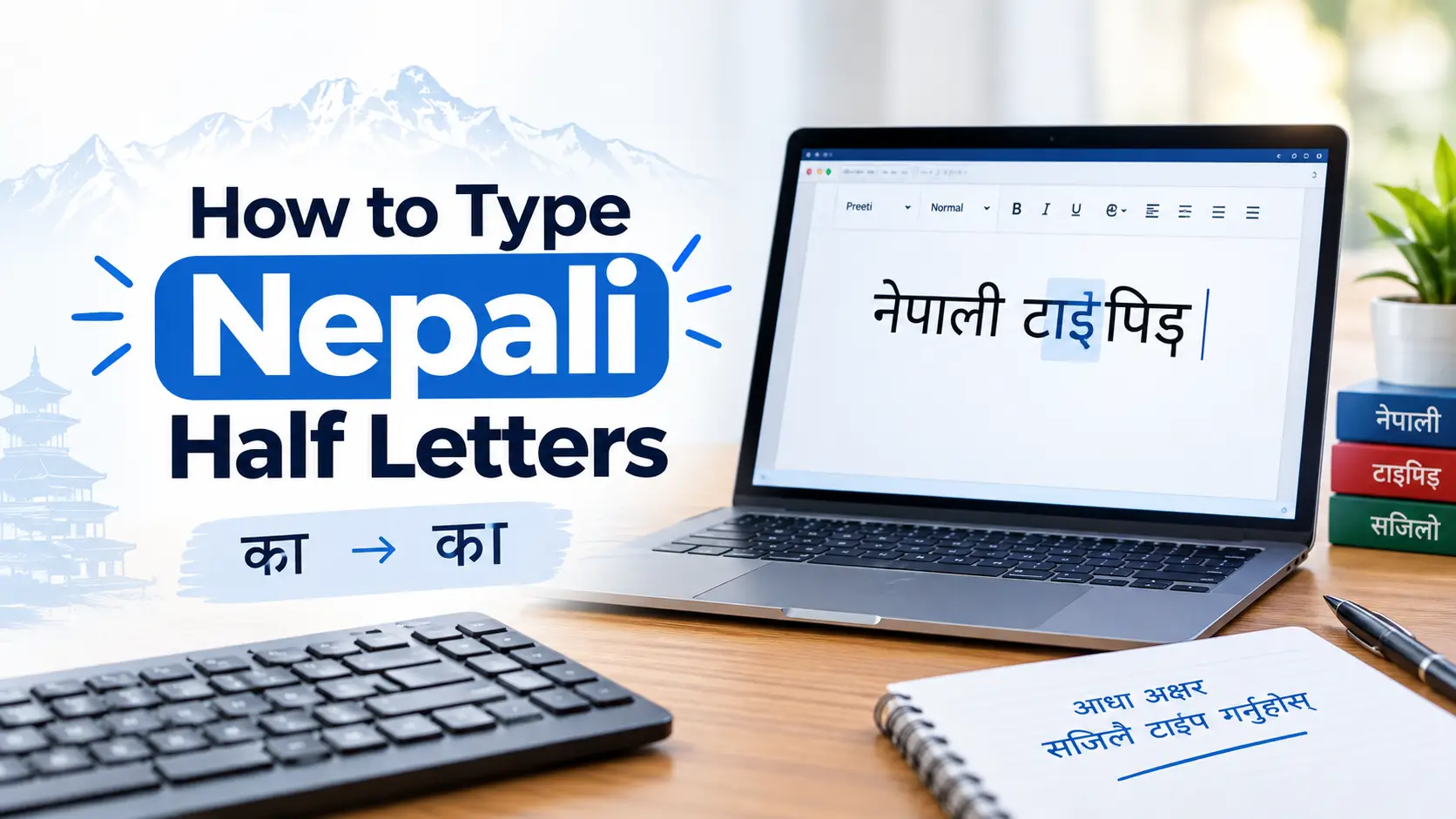
How to Type Nepali Half Letters (आधा अक्षर) in Unicode, Preeti & Mobile

How to Type Nepali Half Letters (आधा अक्षर) in Unicode, Preeti & Mobile

How to type Nepali half letters – consonant plus halant plus consonant on a keyboard

You know how to type क, स and त. But the moment a word needs स्त, क्ष or प्र, the letters refuse to join — you get सत, a stray ् mark, or a box. Half letters (आधा अक्षर) are the single biggest stumbling block for anyone learning Nepali typing.

The good news: every half letter follows one rule. Once you know where the halant (हलन्त, ्) key is on your keyboard, you can type any conjunct in the language — not just the ones you have memorised. This guide shows the rule, then the exact keys for Romanized Unicode, Traditional Unicode, Preeti and mobile keyboards.

Quick answer: A half letter is a consonant + halant (्). Type the first consonant, press the halant key, then type the next consonant: स + ् + त = स्त.

  • Nepali Romanized (Unicode) layout: halant is the / key → s / t = स्त
  • Phonetic tools (Google Input Tools, online converters): just type the sound → mitra = मित्र
  • Preeti: hold Shift + the consonant key for its half form → Shift+; = स्, then t = स्त
  • Mobile: tap the ् key between the two consonants

What Is a Half Letter in Nepali?

Every Nepali consonant carries a built-in “a” sound. क is not just “k” — it is “ka”. When two consonants need to sit together with no vowel between them (like “st” in namaste), the first one has to drop that “a”. The mark that does this is the halant (हलन्त, also called hal or virama): ्.

A consonant with a halant is called a dead consonant (मृत व्यञ्जन) or half letter. Depending on the letters involved, it shows up on screen in one of three ways:

How it looksWhat happensExamples
Half formThe first letter loses its vertical stroke and attaches to the nextस्त, न्त, ग्य, प्य, क्त
Special or stacked shapeThe two letters merge into a new shape or stack verticallyक्ष, त्र, ज्ञ, द्ध, ट्ट, द्य
Visible halantNothing follows, so the ् mark is shown under the letterभगवान्, विद्वान्, जगत्

Behind all three is exactly the same typing sequence. Your font decides the shape — you only decide the order of letters.

The One Rule: Consonant + ् + Consonant

स
consonant (sa)
+
्
halant
+
त
consonant (ta)
=
स्त
half letter + full letter

The same three-step sequence builds every Nepali conjunct: क्ष, त्र, ज्ञ, प्र, र्क and more.

In Unicode (the text used on Facebook, Viber, Google Docs, websites and modern Word files), every conjunct is stored as first consonant → halant → second consonant. Even the “special” letters are not separate keys under the hood:

ConjunctTyped as (Unicode order)Example word
स्तस + ् + तनमस्ते, पुस्तक
क्षक + ् + षशिक्षा, क्षमा
त्रत + ् + रमित्र, पत्र
ज्ञज + ् + ञज्ञान, विज्ञान
श्रश + ् + रश्री, श्रम
द्धद + ् + धबुद्ध, शुद्ध
द्यद + ् + यविद्यालय, विद्यार्थी
प्र (ra below)प + ् + रप्रदेश, प्रेम
र्क (reph above)र + ् + कतर्क, सर्कस
स्त्र (three letters)स + ् + त + ् + रस्त्री, अस्त्र

Notice the two र forms. When र comes first (र्क), it becomes the little hook on top called reph. When र comes second (प्र), it becomes the slanted stroke below. Same keys, different order — that is why धर्म and ध्रम look so different.

If you understand this table, you already understand Nepali half letters. The rest is just finding the halant key on the keyboard you use.

Which Method Should You Use?

Phonetic tools
Chatting, social media, quick posts
Halant: none — type the sound
Romanized layout
Long Unicode documents, blogs, office work
Halant: / key
Traditional / Inscript
Typists trained on the typewriter layout
Halant: or D
Preeti
Lok Sewa tests, print and government offices
Halant: Shift + consonant

Method 1: Romanized Unicode (Easiest for Most People)

Phonetic typing tools

Google Input Tools, Gboard’s transliteration mode and most online “English to Nepali” converters work by sound. You never press a halant — you simply leave out the vowel:

  • namaste → नमस्ते
  • mitra → मित्र
  • shiksha → शिक्षा
  • gyaan → ज्ञान
  • dharma → धर्म

When the tool guesses wrong (for example सत instead of स्त), don’t fight it — pick the right word from the suggestion list, or type the word again a little differently (dhanyabaad vs dhanyawaad). Phonetic tools are fast for chatting but less predictable for official documents.

Nepali Romanized keyboard layout

The Nepali Romanized layout (popularised by Madan Puraskar Pustakalaya and used by many Nepali Unicode setups) maps each Nepali letter to a fixed English key — k = क, s = स, t = त and so on. Here the halant is on the forward slash key /.

  • k / t → क्त
  • s / t → स्त
  • n / t → न्त
  • p / r → प्र
  • j g t / → जगत् (halant at the end of a word)

Because the keys never change, this layout is far more reliable than guess-based phonetic tools once you are typing long documents.

Method 2: Nepali Traditional Unicode or Inscript Layout

If you installed the Nepali keyboard that follows the old typewriter arrangement (Nepali Traditional) or an Inscript-style Devanagari layout, the letters are in fixed positions that don’t match English sounds. The rule is still the same — consonant, halant, consonant — you only need to know where your layout keeps the ् key:

  • Inscript layouts: the halant is on the D key.
  • Nepali Traditional (typewriter-style) Unicode: it is usually on the backslash key, and many Shift+key positions give ready-made half letters, similar to Preeti.

Not sure which layout you have? Switch to Nepali, press Windows + R, type osk and press Enter. The Windows On-Screen Keyboard shows the Nepali character on every key — find ्, then hold Shift to see which half letters sit on the upper layer. New to setting up a Nepali keyboard? Follow our guide on how to type Nepali in laptop first.

Method 3: Typing Half Letters in Preeti

Preeti is still the font of choice for Lok Sewa typing tests, many government offices and print shops. Preeti is not Unicode — each key simply draws a shape — so instead of a halant rule, it gives most half letters their own key: hold Shift and press the consonant.

Full letterPreeti keyHalf letterPreeti key
कsक्S
गuग्U
चrच्R
जhज्H
तtत्T
नgन्G
पkप्K
बaब्A
मdम्D
लnल्N
वjव्J
स;स्: (Shift + 😉
शzश्Z

So in Preeti, नमस्ते is g d : t ] and प्राप्त is k | f K t.

For the full Preeti key map, see our Typeshala keyboard shortcuts and lesson guide.

Ready-made conjunct keys in Preeti

ConjunctPreeti keyExample
त्रqपत्र = kq
त्तQउत्तर = pQ/
ज्ञ1ज्ञान = 1fg
द्ध4बुद्ध
द्यBविद्यालय
्र (ra below)| (Shift + )प्र = k|
र् (reph above){ (Shift + [)कार्य = sfo{
् (visible halant)for letters with no half form, and word endings

Two Preeti habits that trip everyone up

  1. Use Shift, not backslash, to join letters. Pressing in Preeti draws a visible ् mark; it does not glue the letters together the way Unicode does. Use the Shift half-letter keys for joined forms, and keep for letters that have no half form (like द्, ट्, ड्) or for word endings such as भगवान्.
  2. Type in visual order. Preeti types what you see, left to right. The ि matra appears before the whole conjunct, so स्थिति starts with l. Reph (र्) appears on top of the next letter, so it is typed after that letter: कार्य = sfo{. In Unicode it’s the opposite — you always type in sound order.

Typing in Preeti but need to post the text online? Preeti text shows as gibberish anywhere the font isn’t installed. Paste it into a Preeti to Unicode converter and every half letter and conjunct is converted to proper Unicode.

How to Type Half Letters on Mobile

  • Nepali (Devanagari) keyboards such as Gboard’s Nepali layout or Hamro Nepali Keyboard have a ् key. Depending on the keyboard it sits on the main layer, on the second/symbols page, or under a long-press. Tap consonant → ् → consonant.
  • Transliteration mode (type English, get Nepali) works like the phonetic tools above — type mitra, tap मित्र in the suggestions.

Forcing a Visible Halant or a Standalone Half Letter

Sometimes you need the opposite of joining — for example showing क्‌त with the halant visible in a grammar lesson, or a lone half letter like क्‍ for a typing chart. Unicode has two invisible characters for this:

CharacterCodeEffectExample
Zero Width Non-Joiner (ZWNJ)U+200CStops the join — shows the halant markक्‌त instead of क्त
Zero Width Joiner (ZWJ)U+200DShows the half form even with nothing after itक्‍ instead of क्

In Microsoft Word: after the halant, type 200C (or 200D) and press Alt + X. Word turns the code into the invisible character. Many online Nepali keyboards also have dedicated ZWJ/ZWNJ keys.

Why Your Half Letters Aren’t Joining (and How to Fix It)

ProblemLikely causeFix
You see क् त instead of क्तA space or wrong character between the letters, or a ZWNJ slipped inDelete back to the first consonant and retype consonant → ् → consonant
Joins in one app, not in anotherFont has limited conjunct supportUse a full Unicode Nepali font: Kalimati, Mangal, Nirmala UI or Noto Sans Devanagari (see how to install Nepali font)
English letters like k|f appearPreeti text in a non-Preeti font (or pasted online)Select it and apply Preeti, or convert it to Unicode
Backslash shows as Preeti isn’t the active font in WordChoose Preeti in the font box before typing
ि appears on the wrong letter in PreetiTyped in sound order instead of visual orderIn Preeti, type ि before the whole conjunct
Phonetic tool keeps adding a vowelThe tool guessed a different wordPick from suggestions, or switch to a fixed-key Romanized layout

Practise Half Letters Until They’re Automatic

Knowing the rule takes five minutes; typing स्वास्थ्य without stopping takes practice. Drill conjunct-heavy words — शिक्षा, प्रदेश, विद्यार्थी, मन्त्रालय, स्वतन्त्र — in a typing tutor that gives you accuracy feedback:

Frequently Asked Questions

What is a half letter called in Nepali?

It is called आधा अक्षर (half letter) or हलन्त भएको अक्षर. The mark that creates it is the हलन्त (्), also called hal or virama. Two or more consonants joined this way form a संयुक्त अक्षर (conjunct letter).

Which key is halant on the Nepali keyboard?

It depends on the layout: / on the Nepali Romanized layout, D on Inscript layouts, and usually on Nepali Traditional Unicode and Preeti. Open the Windows On-Screen Keyboard (osk) to confirm on your computer.

How do I type क्ष, त्र and ज्ञ?

In Unicode they are क + ् + ष, त + ् + र and ज + ् + ञ. In phonetic tools type ksha, tra and gya. In Preeti, त्र is q, ज्ञ is 1, and क्ष is I followed by f.

How do I type र् (reph) like in धर्म or कार्य?

In Unicode type र + ् + the next consonant: र + ् + म gives र्म. In Preeti, type the following letter first and then {, because reph sits on top of it: कार्य = sfo{.

Why do half letters work in Word but break on Facebook?

Your Word document is probably in Preeti, which only looks correct on computers that have the Preeti font. Facebook, Viber and websites need Unicode. Convert the text to Unicode before you paste it.

Is it better to learn Preeti or Unicode for half letters?

Learn Unicode for everyday use — the halant rule works the same everywhere and the text displays on any device. Learn Preeti too if you are preparing for a Lok Sewa typing test or work in an office that still uses it.

Final Tip

Stop memorising conjuncts one by one. Find the halant key on your layout, remember consonant + ् + consonant, and every half letter in Nepali — from स्त to स्त्र — is just three keystrokes away.

How to Type Nepali in Laptop (Windows 11, Mac & Chromebook, 2026)

How to Type Nepali in Laptop (Windows 11, Mac & Chromebook, 2026)

By Wilson Shrestha · Updated October 6, 2026 · 12 min read

How to type Nepali in laptop on Windows 11, Mac and Chromebook

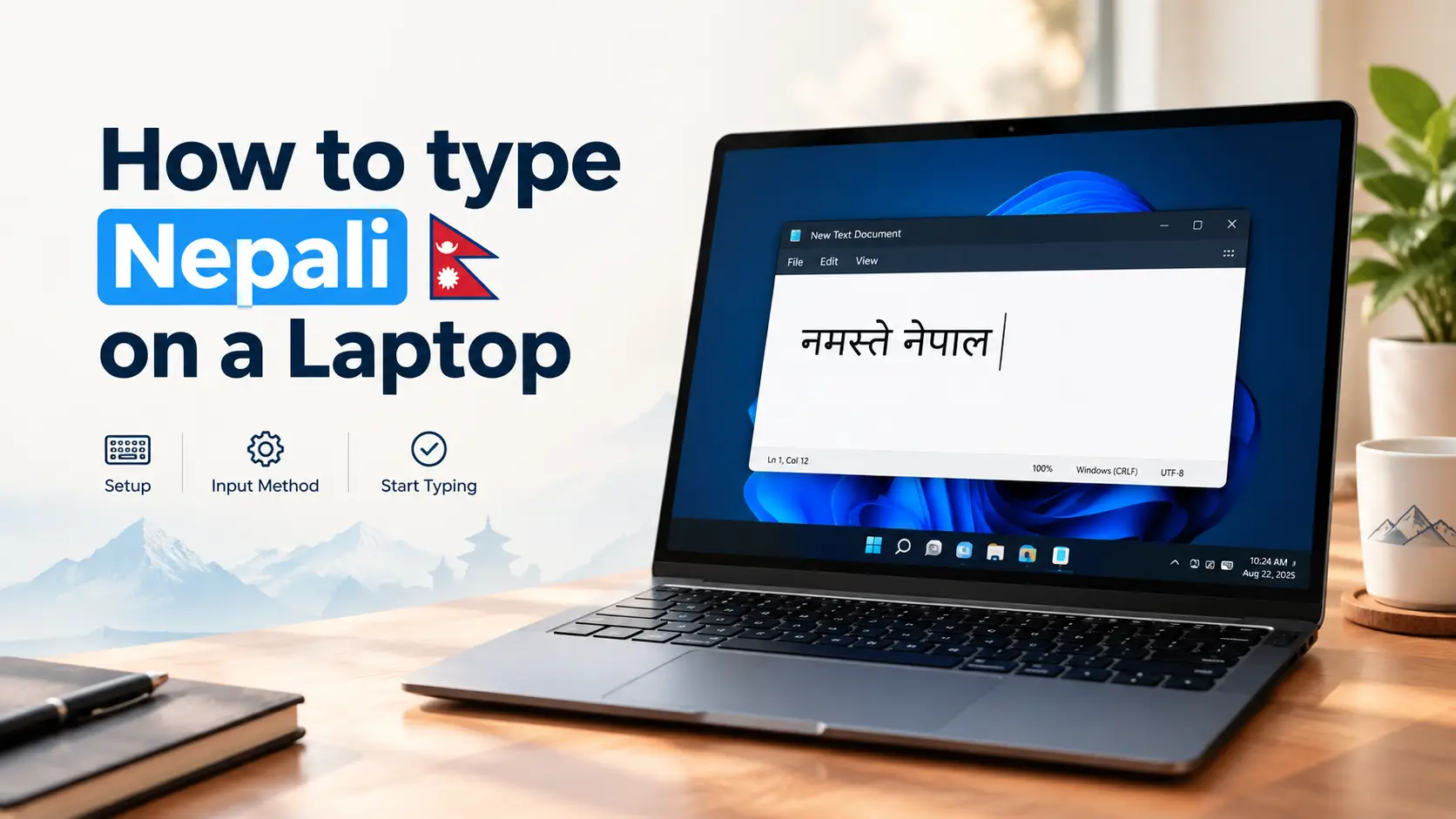
To type Nepali in a laptop, add Nepali as a keyboard language in your laptop’s settings, then press Windows + Space (or Control + Space on a Mac) to switch between English and Nepali. You don’t need a keyboard with Nepali letters printed on it, you don’t need to buy software, and once it’s set up it works offline in every app.

The catch is choosing the right way of typing. Laptops can type Nepali with a fixed Traditional layout, a Romanized layout, an online phonetic tool or the old Preeti font — and many guides still send you to download Google Input Tools for Windows, which Google stopped offering years ago. This guide gives you the method that fits you, the exact steps for Windows 11, Mac and Chromebook, a half-letter cheat sheet and fixes for the problems people actually hit.

Quick answer: type Nepali on a Windows 11 laptop in 5 steps

  1. Open Settings → Time & language → Language & region.
  2. Next to Preferred languages, click Add a language.
  3. Search Nepali (नेपाली), select it, click Next, then Install.
  4. Press Windows + Space and pick Nepali (the taskbar shows NEP).
  5. Open Notepad and type. Press K then F and you get पा.

Which Nepali Typing Method Should You Use?

Pick by how often you type Nepali and whether an exam or office expects a specific layout. All four methods below produce Nepali on an ordinary English laptop keyboard.

MethodHow it worksInternetLearning timeBest for
Built-in Nepali keyboard (Traditional)Each key gives a fixed Nepali letter, mostly in the same places as PreetiNo2–4 weeks of practiceDaily typists, office work, Lok Sewa
Romanized layoutFixed keys that follow English sounds: K = क, M = मNoA few daysEnglish typists who want offline Nepali
Online phonetic toolType “namaste” and get नमस्ते, with word suggestionsYesMinutesOccasional messages and posts
Preeti fontA legacy font that draws Nepali over English lettersNo2–4 weeksEditing old office documents, printing

My pick if you type Nepali every day

The built-in Nepali keyboard. It costs a few weeks of practice, but it works in every app, needs no internet, and the key positions match what Lok Sewa typing tests and most offices use.

My pick if you type Nepali now and then

An online phonetic tool. Type the way the word sounds, copy, paste. No setup and nothing to memorise.

Unicode vs Preeti in 60 Seconds

Unicode is the modern standard. Every Nepali letter has its own code, so Unicode text shows correctly on websites, Facebook, Gmail, Google search and any phone — no special font needed. Every method in this guide except Preeti produces Unicode.

Preeti is a font, not a language setting. It draws Nepali shapes on top of ordinary English letters, so नेपाल is really stored as “g]kfn”. Send that to someone without the Preeti font and they see the English letters. Use Preeti only when an office or an old document needs it — you can download the Preeti font with its layout here.

Good news for Preeti typists: the Windows Nepali keyboard puts most letters on the same keys as Preeti, so your muscle memory carries over and your output becomes Unicode. Have old Preeti files? Convert them with the free Preeti ↔ Unicode converter.

How to Add the Nepali Keyboard in Windows 11

This is a one-time setup that takes about five minutes. Windows downloads a small language file, so stay online until it finishes.

1

Open Language & region

Click Start → Settings → Time & language → Language & region.

2

Click Add a language

It sits next to Preferred languages.

3

Search for Nepali

Type Nepali, select नेपाली Nepali and click Next.

4

Install, but don’t change your display language

Untick Set as my Windows display language unless you want menus in Nepali, then click Install.

5

Check the keyboard was added

Click the ··· next to Nepali → Language options. Under Keyboards you should see Nepali. If the list is empty, click Add a keyboard.

6

Switch and type

Press Windows + Space, choose Nepali, and start typing.

Test it in Notepad

Open Notepad, switch to Nepali and press these keys. If Nepali letters appear, you are done.

PressYou get
K Fपा
G Dनम
S F Dकाम

The Windows Nepali keyboard: home-row map

Your fingers rest on these ten keys. The big letter is what you get normally; the small one underneath is what you get with Shift. Notice that Shift often gives the half letter.

LEFT HAND

A

ब

ब्

S

क

क्

D

म

म्

F

ा

ँ

G

न

न्

RIGHT HAND

H

ज

ज्

J

व

व्

K

प

प्

L

ि

ी

;

स

स्

Windows Nepali keyboard (KBDNEPR), home row. Large = normal key, small blue = with Shift. Colours show which finger presses each key.

See every key at once: with Nepali active, press Windows + Ctrl + O to open the On-Screen Keyboard. It shows the Nepali letter on each key, and pressing Shift on it shows the second layer. Keep it open in a corner while you learn.

Still on Windows 10?

The path is Settings → Time & Language → Language → Add a preferred language; everything else is the same. Microsoft ended Windows 10 support on 14 October 2025, so if your laptop can run Windows 11, the upgrade is worth it for security alone.

Can You Type Nepali Phonetically in Windows?

Not with a built-in Nepali option. Windows 10 and 11 include phonetic keyboards — where you type “namaste” and get नमस्ते — for 10 Indian languages: Hindi, Bangla, Tamil, Marathi, Punjabi, Gujarati, Odia, Telugu, Kannada and Malayalam. Nepali isn’t on Microsoft’s list. Some guides say otherwise; they are wrong. You have three real options:

1. A Romanized layout

The Nepali Unicode Romanized layout from Madan Puraskar Pustakalaya maps sounds to keys (K = क, M = म) and works offline. Its old installer can fail on Windows 10 and 11; community rebuilds exist on GitHub. Install only from a source you trust.

2. The Hindi Phonetic workaround

Add Hindi, then the Hindi Phonetic keyboard. It types Devanagari — the same script as Nepali — but its word suggestions come from a Hindi dictionary, so Nepali-only words may need fixing by hand. Fine for short notes.

3. An online phonetic tool

The easiest route if you have internet: type in a browser tool and paste the result. See typing Nepali online below.

If you added Hindi Phonetic and see “IME is not ready yet”, its dictionary is still downloading. Go to Hindi → Language options and click Download next to Basic typing.

Is Google Input Tools Still Available for Windows?

No. Google discontinued the Windows version of Google Input Tools in 2018 and removed the download from its website. Older blog posts that tell you to “download Google Input Tools Nepali” are pointing at something that no longer exists officially.

What still works from Google:

  • The Google Input Tools Chrome extension — phonetic Nepali inside the Chrome browser only, not in Word or other desktop apps.
  • Gmail — Settings → See all settings → Language → tick Enable input tools and choose Nepali.
  • Chromebooks — Google’s Nepali transliteration is built in (see below).

Don’t download Google Input Tools .exe files from random sites

Copies on download portals are unsupported and can be bundled with adware. Since Windows already has a Nepali keyboard built in, there’s no reason to take the risk.

Type Nepali Online Without Installing Anything

On a borrowed laptop, an office PC where you can’t change settings, or when you only need one paragraph, a browser tool is quickest:

  1. Open our English to Nepali Unicode converter.
  2. Type the Nepali words the way they sound: mero naam becomes मेरो नाम.
  3. Copy the Nepali text with Ctrl + C.
  4. Paste it anywhere: Word, Facebook, a government form, an email.

Three tricks for that converter

  • End a word with a backslash to keep the halant: bas\ = बस्
  • Use a slash to stop two letters joining: pratishat/ko = प्रतिशतको
  • Keep English words in curly brackets: yo {mobile} mero ho = यो mobile मेरो हो

How to Switch Between English and Nepali

You’ll switch dozens of times a day, so learn the shortcut for your laptop.

LaptopShortcutOr click
Windows 11 / 10Windows + Space (also Left Alt + Shift)ENG / NEP on the taskbar
Mac / MacBookControl + Space, or the Globe (fn) keyInput menu in the menu bar
ChromebookCtrl + Space (previous), Ctrl + Shift + Space (next)Input code on the shelf
Linux (GNOME)Super + SpaceInput indicator, top bar

Windows remembers the language per window in some apps, so if Notepad suddenly types English again, just switch once more in that window.

How to Type Nepali on a Mac or MacBook

macOS has a built-in Nepali keyboard. No download needed.

  1. Open System Settings → Keyboard.
  2. Under Text Input, click Edit next to Input Sources.
  3. Click +, search Nepali, select it and click Add.
  4. Turn on Show Input menu in menu bar.
  5. Press Control + Space (or the Globe key) to switch, and type.

See the layout: click the Input menu in the menu bar and choose Show Keyboard Viewer. It shows which Nepali letter sits on each key.

Prefer sound-based keys? Under Hindi you can add Devanagari – QWERTY, where keys follow English sounds (K gives क). It types the same Devanagari letters Nepali uses, though it is a fixed layout, not a suggestion-based phonetic tool.

How to Type Nepali on a Chromebook or Linux Laptop

Chromebook

Open Settings → Device → Keyboard and inputs → Input (wording varies slightly by ChromeOS version), click Add input methods and search Nepali. You’ll usually see two choices: Nepali with InScript keyboard (fixed keys) and a नेपाली transliteration option, where you type by sound. Pick the transliteration one if you want “namaste” to become नमस्ते.

Linux

In Ubuntu and other GNOME desktops, go to Settings → Keyboard → Add Input Source and add Nepali for the fixed layout. For sound-based typing, install the ibus-m17n package and add its Nepali Romanized input method.

How to Type Nepali in MS Word, Google Docs and Gmail

MS Word uses whatever keyboard Windows or macOS is set to. Switch to Nepali and type — there’s nothing to install inside Word. The only thing that goes wrong is the font. If letters look broken or matras sit in the wrong place, select the text and change the font to one of these:

FontUnicode?Use it for
Nirmala UIYes, built into WindowsEveryday documents, nothing to install
KalimatiYesGovernment letters and office documents in Nepal
MangalYesOlder Office templates
PreetiNoOnly old documents already typed in Preeti

Need help installing a font? Follow our guide to install a Nepali font on Windows 11.

Google Docs and Gmail work with your laptop’s Nepali keyboard like any other website. Without the keyboard installed, you can turn on Google’s own input tools in Gmail (see above) or paste text from an online converter.

How to Type Half Letters and Conjuncts in Nepali

A half letter is a consonant plus a halant (्). In Unicode you type the letter, the halant, then the next letter, and the font joins them: क + ् + य = क्य. The Windows Nepali keyboard saves keystrokes by putting common half letters and conjuncts on their own keys.

To getWindows Nepali keyboardMost phonetic tools
ब् क् म् न् (half letters)Shift + the letter’s key (Shift + A = ब्)Type the consonant with no vowel
् (halant)Shift + \ (backslash key)\ after the letter, e.g. bas\
क्षShift + Iksha
ज्ञShift + 1gya or jna
श्रShift + . (full stop key)shra
त्र, प्र (letter + ्र)The letter, then \ (T then \ = त्र)tra, pra
। (purna biram). (full stop key). or |
ँ (chandrabindu)Shift + F~ or ^ in many tools

Phonetic tools differ slightly in their spelling rules, so test a word before typing a long document. On Windows, the On-Screen Keyboard (Windows + Ctrl + O) is the quickest way to find any character not listed here.

Nepali Keyboard Not Working on Your Laptop? Fixes

ProblemLikely causeFix
Nepali isn’t in the Windows + Space listLanguage installed but no keyboard addedNepali → ··· → Language options → Add a keyboard → Nepali
Still typing EnglishSwitched in a different windowClick inside the app first, then press Windows + Space
Nepali shows as empty boxesThe font has no Devanagari lettersChange the font to Nirmala UI or Kalimati
Text looks like “g]kfn”It was typed in PreetiInstall Preeti, or convert it with the Preeti ↔ Unicode converter
Matras or half letters breakOld app or non-Unicode fontUse a Unicode font; update the app
Wrong letters with Caps Lock onCaps Lock acts like Shift on Nepali keysTurn Caps Lock off
“IME is not ready yet”Phonetic dictionary still downloadingLanguage options → Download next to Basic typing

How to Improve Your Nepali Typing Speed

Setting up the keyboard takes five minutes; typing fast takes practice. Because the Windows Nepali keyboard shares most key positions with Preeti, the classic Typeshala drills train exactly the right muscle memory.

Practise in your browser

Online Typeshala gives row-by-row Nepali lessons, live WPM and a timed test. Free, no download.

Practise offline

Download Typeshala for Windows if your internet is unreliable or you practise in a computer lab.

Practise with a game

Bored of drills? Play the Typeshala Ramayana game in Nepali or English.

Preparing for a government exam? Read Typeshala for Lok Sewa for speed targets and exam-day tips.

Frequently Asked Questions

Can I type Nepali on a laptop without internet?

Yes. Once the Nepali keyboard is added in Windows, macOS, ChromeOS or Linux, it works fully offline in every app. You only need internet for the one-time setup download and for online converters.

What is the shortcut to change the keyboard from English to Nepali?

On Windows, press Windows + Space (or Left Alt + Shift). On a Mac, press Control + Space or the Globe key. On a Chromebook, press Ctrl + Space.

Is Google Input Tools still available for Windows 11?

No. Google discontinued the Windows version in 2018. Google Input Tools now works only as a Chrome extension and inside Google services like Gmail. Use the built-in Windows Nepali keyboard instead.

Can I type Nepali using English letters on Windows?

Not with a built-in Nepali option, because Windows’ phonetic keyboards don’t include Nepali. Use an online English-to-Nepali converter, a Romanized Nepali layout, or the Hindi Phonetic keyboard as a Devanagari workaround.

Which Nepali keyboard layout is used in Lok Sewa typing tests?

Typing tests in Nepal are generally based on the Preeti / Traditional key positions rather than Romanized typing. Requirements can differ by post, so always check the official vacancy notice.

Why does my Nepali text show as boxes?

The app is using a font without Devanagari letters. Select the text and switch to a Unicode Nepali font such as Nirmala UI or Kalimati.

Do I need to install a Nepali font to type Unicode?

No. Windows, macOS and ChromeOS already include fonts that display Nepali Unicode. Install Kalimati only if your office or template asks for it.

Can I type Nepali on a MacBook?

Yes. Go to System Settings → Keyboard → Input Sources, add Nepali, and switch with Control + Space. No download is needed.

The Short Version

Add Nepali in your laptop’s language settings, switch with Windows + Space or Control + Space, and use a Unicode font. If you only type Nepali occasionally, an online converter is enough. Then put ten minutes a day into Typeshala and you’ll be typing Nepali faster than you write it by hand.

Sources

Steps checked against Microsoft’s support documentation in October 2026. Menu names can shift slightly with Windows and macOS updates; if a step doesn’t match your screen, look for the closest option under Language or Keyboard settings.

Best Free Nepali Typing Practice Software for Computer

Free DownloadsNepali TypingUpdated 2026

Best Free Nepali Typing Practice Software for Computer (2026 Guide)

Updated September 2026 · 10 min read · By the Wilson.com.np Team

If you searched for the best free Nepali typing practice software for computer, you're probably comparing a handful of tools before you install anything — and that's the right instinct. Most sites either push a single download or bury you in transliteration jargon. This guide does the opposite: it lines up every major free option, tells you exactly who each one is for, and links you straight to a working download so you can start practicing today.

Why a Dedicated Typing Tutor Beats a Transliteration Tool

Search results for Nepali typing are dominated by transliteration tools — type "namaste" in English letters and watch it convert to "नमस्ते". These are excellent for writing a quick Facebook post, but they will not teach you to type. You're still hunting for letters phonetically, not building finger memory on a real Nepali (Preeti or Unicode Traditional) keyboard layout.

A genuine typing practice software is different. It teaches you where each Devanagari character sits on the physical keyboard, drills you with structured lessons, times your speed and accuracy, and — in the better tools — turns practice into a game so you actually stick with it. If your goal is Lok Sewa Aayog exam preparation, office data entry, or just typing Nepali fast without looking at the keys, you need the second kind of tool, not the first.

What to Look For Before You Download

Not every "free Nepali typing software" result is worth your disk space. Before picking one, check it against these points:

  • Layout support — does it teach Preeti, Unicode Traditional, or both? Government exams in Nepal generally use Preeti or Unicode, so confirm which one you need first.
  • Windows compatibility — many older Nepali typing tutors were built for 32-bit Windows XP/7 and glitch on modern 64-bit Windows 10/11.
  • Offline availability — useful if you're practicing without reliable internet, common outside Kathmandu Valley.
  • Progressive lessons — random practice text won't build muscle memory as well as a structured, difficulty-increasing lesson plan.
  • Speed and accuracy tracking — you need WPM and error-rate feedback to know if you're actually improving.
  • File size and safety — legitimate typing tutors are a few MB; be cautious of bundled installers from unfamiliar sources.
  • Genuinely free — no forced trial period or "unlock full version" paywall after lesson one.

The Best Free Nepali Typing Practice Software, Compared

We tested and reviewed the tools that currently rank for Nepali typing practice, plus the two most common Windows-based tutors Nepali learners actually install. Here's how they stack up.

SoftwareBest ForWindows SupportWorks OfflineLayoutTyping Games
Typeshala & English Typeshala (Wilson.com.np)All-round beginners on any Windows versionWindows 7 / 8 / 10 / 11 (32 & 64-bit)YesPreeti & UnicodeYes
Classic Typeshala (32-bit)Older PCs, legacy 32-bit systemsWindows XP / Vista / 7 onlyYesPreeti-basedYes
TypeSoluteWindows 10/11 users needing Unicode supportWindows 10 / 11 (64-bit)YesPreeti & UnicodeNo
Pramukh IMETyping Nepali directly inside apps like Word, Chrome, ExcelWindows 7 / 8 / 10Yes (input method, not a lesson tutor)Phonetic inputNo
Easy Nepali Typing (browser tool)Quick transliteration typing, not structured practiceAny (browser-based)NoPhonetic transliterationNo

1. Typeshala for Windows (Nepali + English)

This is the most complete free option for someone specifically searching for typing practice software rather than a typing-while-you-write tool. It bundles a Nepali tutor and an English tutor in one installer, works on both older and current Windows builds, and includes games that turn drilling into something closer to play — a detail most competitor pages don't emphasize even though it's the single biggest reason learners stick with a lesson plan past week one.

Download Typeshala for Windows (Free)

For the full setup walkthrough and troubleshooting notes, see our complete Typeshala download guide.

2. Classic Typeshala (32-bit)

The original, decade-old Typeshala build is still around and still free, but it was compiled for 32-bit Windows XP/Vista/7. On modern 64-bit Windows 10 or 11 machines it frequently throws compatibility errors — something worth knowing before you spend time downloading it if you're on a newer PC.

3. TypeSolute

A newer, actively maintained alternative aimed squarely at 64-bit Windows 10/11 users, with native Unicode support and both Preeti and Unicode practice modes. It skips typing games in favor of practice, test, and drill modes — a solid pick if you want a no-frills, exam-style layout.

4. Pramukh IME

Pramukh IME isn't a typing tutor at all — it's an input method editor that lets you type Nepali phonetically inside Word, Excel, PowerPoint, Chrome, and other Windows apps using your regular English keyboard. It's genuinely useful once you already know how to type, but it teaches you nothing about the Preeti or Unicode keyboard layout, so it won't help you pass a typing speed test that requires the real layout.

5. Easy Nepali Typing (Online)

A well-known browser-based transliteration tool — type "tapai lai kasto chha" and get "तपाई लाई कस्तो छ?" instantly. It's convenient for one-off writing tasks (emails, social posts, forms) but, like Pramukh IME, it's not built to teach layout-based typing skills or track your WPM progress over lessons.

How to Download and Install Nepali Typing Software (Step-by-Step)

  1. Download the installer. Use the button above to get the Typeshala ZIP file, or grab an alternative from the comparison table.
  2. Extract the ZIP. Right-click the downloaded file and choose "Extract All" (or use 7-Zip/WinRAR if it's a RAR file).
  3. Open the extracted folder and locate the .exe file.
  4. Run the installer. If Windows SmartScreen shows a warning, click "More info" → "Run anyway" — this is normal for smaller free tools without an expensive code-signing certificate.
  5. Launch the software and pick your layout (Preeti or Unicode) before starting lesson one.
  6. Start with the beginner lessons even if you already type in English — Devanagari finger positions are different and skipping ahead slows you down later.
Tip: If the installer won't launch on Windows 10/11, it's almost always a 32-bit vs 64-bit mismatch. Switch to a 64-bit-native option like TypeSolute instead of forcing compatibility mode.

Prefer Not to Install Anything? Practice Online

If you just want to test your current speed or warm up before an exam without installing software, our browser-based online Nepali typing practice tool runs the same lesson structure directly in your browser — no download, no admin permissions needed, and it works on Chromebooks and shared office PCs where you can't install software.

Preeti vs Unicode: Which Layout Should You Practice?

This is the one decision every competitor page skips, and it's the one that actually determines which software you should pick:

  • Preeti is a legacy font-based layout still used in many Nepali government offices and older typing exams. It's fast to type once learned but isn't Unicode-compliant on its own.
  • Unicode Traditional is the modern, standardized layout that renders correctly everywhere — websites, mobile phones, and current government systems — without needing a special font installed.

If you're preparing for a Lok Sewa Aayog exam, check the exam notice for the required layout first — some still specify Preeti. For general use, learning Unicode is the safer long-term investment since it's the layout the web and modern Nepal government software are standardizing on.

What Actually Works — From Someone Who's Taught This

Having installed and tested most of these tools with students who came in only knowing English touch-typing, the pattern is consistent: the biggest drop-off happens in the first three days, not from lack of software quality but from starting on the wrong layout for their goal. Students preparing for exams who started on Unicode and then had to relearn Preeti a week before their test lost more time than the ones who checked the exam requirement first and picked the matching software from day one. The second biggest factor is the games — students using Typeshala's game modes kept practicing past the two-week mark noticeably more often than those using drill-only tools, simply because it didn't feel like a chore.

How Long Does It Take to Reach a Good Nepali Typing Speed?

With consistent, focused practice (not just casual use):

  • Week 1–2: Learning finger positions, expect 5–10 WPM with frequent errors.
  • 1 month: 15–25 WPM as muscle memory forms.
  • 2–3 months: 30–40 WPM, enough for most office and exam requirements.
  • 6–12 months of regular practice: 60+ WPM, typing without looking at the keyboard.

Speed comes after accuracy, not before — resist the urge to rush lessons just to see a higher number.

Frequently Asked Questions

What is the best free Nepali typing practice software for a Windows 10/11 computer?
For most users, Typeshala (Nepali + English) or TypeSolute are the strongest free options on modern 64-bit Windows, since both are actively usable on Windows 10/11, unlike the original 32-bit-only Typeshala build.
Is there a free Nepali typing tutor I can use without installing anything?
Yes — browser-based tools like our online typing practice page let you practice directly with no download required.
Should I learn Preeti or Unicode Nepali typing?
Check your exam or office requirement first. Preeti is still used in some government exams; Unicode is the modern standard for general and web use. See the comparison above.
Is Pramukh IME the same as a typing tutor?
No. Pramukh IME is an input method for typing Nepali phonetically inside apps like Word and Chrome — it doesn't teach the Preeti/Unicode keyboard layout or track your typing speed through lessons.
How much disk space does Nepali typing software need?
Very little — most free Nepali typing tutors, including Typeshala, are only a few megabytes and run on machines with as little as 512MB RAM.
Is this software safe to download for free?
Download only from a source you trust and verify the publisher, as with any free Windows software. Our Typeshala download link above is scanned and safe to install.

Final Verdict

If you want one clear recommendation: for most people learning Nepali typing on a current Windows computer, start with Typeshala for Windows — it covers both Nepali and English, runs on modern systems, and its game-based lessons are the single biggest reason learners actually finish the course instead of quitting after week one. Pair it with our free online practice tool for quick daily warm-ups between install sessions.

Download Typeshala Free Practice Online Now

Top Nepali Typing Practice Alternatives

Top Nepali Typing Practice Alternatives for 2023

In the digital age, proficiency in typing is a valuable skill, especially for languages like Nepali. Traditional tools like Typeshala have long been a staple for learners, but as technology progresses, new and more effective Nepali typing practice alternatives have emerged. These modern tools offer engaging and efficient ways to enhance your typing skills, catering to both beginners and advanced users.

Why Look for Nepali Typing Practice Alternatives?

Limitations of Traditional Tools

Typeshala has been a reliable resource for many, but it comes with limitations. For instance, its interface has remained unchanged for years, lacking the dynamic features that modern software offers. Moreover, Typeshala’s exercises can become monotonous, making it difficult to maintain engagement over time. As a result, learners often find their progress stalling.

Benefits of Modern Typing Software

Modern Nepali typing software provides a variety of features that address these shortcomings. These tools often include interactive lessons, real-time feedback, and engaging interfaces that keep users motivated. Additionally, they accommodate different skill levels, from novice to proficient typists. By incorporating the latest technology, these platforms offer a more personalized learning experience.

Top Nepali Typing Software and Tools

Software for Beginners

For those new to Nepali typing, starting with user-friendly software is crucial. Nepali Unicode typing tool is an excellent option for beginners. It supports Unicode, which is essential for typing in Nepali across various platforms. Understanding [Unicode’s role in typing software](https://www.unicode.org/standard/WhatIsUnicode.html) can greatly enhance your typing experience.

Another beginner-friendly tool is Easy Nepali Typing, which offers a simple interface and step-by-step tutorials. It helps users familiarize themselves with the Nepali keyboard layout and basic typing techniques.

Advanced Typing Tools

For advanced users seeking to refine their skills, tools like Nepali Typing Master provide comprehensive lessons that cover advanced typing techniques. These platforms offer detailed analytics to track progress and identify areas that need improvement. They also introduce challenging exercises aimed at increasing typing speed and accuracy.

FeatureBeginner ToolsAdvanced Tools
InterfaceSimple and intuitiveFeature-rich and dynamic
Typing ExercisesBasic finger placementAdvanced speed drills
Progress TrackingBasic feedbackDetailed analytics
Real-time FeedbackMinimalComprehensive

Engaging Online Typing Courses

Interactive Courses

Online typing courses have revolutionized how we learn to type. Platforms like TypingClub offer interactive lessons that adapt to the learner’s pace. These courses incorporate multimedia elements such as videos and games to make the learning process more engaging. [TypingClub](https://www.typingclub.com/) is renowned for its structured curriculum that gradually increases in difficulty.

Free vs Paid Options

While many online courses offer free trials, they also provide premium versions with additional features. Free versions usually include basic lessons and limited progress tracking. In contrast, paid options offer extensive resources, personalized lessons, and comprehensive analytics. Depending on your commitment and budget, choosing between free and paid resources can significantly impact your learning journey.

Gamified Typing Practice Platforms

Typing Games for Skill Improvement

Gamification is a powerful tool in education, making learning enjoyable and effective. Typing games transform mundane practice into an exciting challenge. Platforms like Keybr integrate games that focus on speed and accuracy, making it easier to improve these skills through regular practice.

Platforms with Leaderboards

Competitive elements, such as leaderboards, can further motivate learners. Platforms like 10FastFingers allow users to compete against others worldwide, adding a competitive edge to the practice. This not only enhances motivation but also provides a benchmark to measure progress. By striving to climb the leaderboard, users naturally improve their typing speed and accuracy.

Tips for Effective Nepali Typing Practice

Setting Realistic Goals

Effective typing practice begins with setting achievable goals. Start by determining your current speed and set incremental targets. This approach ensures consistent progress without feeling overwhelmed.

Consistent Practice Strategies

Consistency is key to mastering any skill. Dedicate a specific time each day for typing practice. Utilize a mix of platforms to keep your sessions varied and engaging. Combining structured lessons with gamified exercises can yield the best results.

💡 Pro Tips:

  • Start each session with a warm-up exercise to get your fingers moving.
  • Use online timers to track typing sessions and ensure focused practice.
  • Regularly review your progress and adjust goals accordingly.

⚠️ Important Note: While practice is essential, ensure you maintain proper hand positioning to prevent strain. Taking regular breaks is crucial to avoid fatigue and potential injury.

In conclusion, embracing modern Nepali typing practice alternatives can significantly enhance your typing skills. Whether you are a beginner or an advanced user, these tools offer tailored solutions to meet your learning needs. By leveraging interactive courses, gamified platforms, and consistent practice strategies, you can achieve proficiency in Nepali typing more efficiently and enjoyably.

Frequently Asked Questions

What are the best alternatives to Typeshala?

Several modern tools offer enhanced features, such as online courses and interactive platforms.

Can typing games really improve my Nepali typing speed?

Yes, gamified platforms can make learning fun and improve speed through practice.

Are there free resources available for Nepali typing practice?

Many platforms offer free trials or limited access to their typing courses and tools.

Devanagari Typing Methods: Inscript vs Phonetic

Devanagari Typing Methods: Inscript vs Phonetic

Devanagari Typing Methods: Inscript vs Phonetic

In the realm of digital communication, Devanagari typing methods have become indispensable for anyone engaging with languages like Hindi, Marathi, and Nepali. As more people turn to digital platforms for communication, understanding the nuances of Devanagari typing systems becomes crucial. Two primary methods dominate the landscape: Inscript and Phonetic. This article explores these methods, offering insights into their workings, advantages, and the contexts in which they excel.

Introduction to Devanagari Typing Methods

History and Evolution

The Devanagari script, used for over 120 languages, has a rich history that dates back to ancient times. With the advent of computers, the need for efficient Devanagari typing methods became evident. Initially, typing in Devanagari was cumbersome due to a lack of standardized methods. However, the development of Unicode and keyboard layouts like Inscript revolutionized this space. Today, Devanagari typing is integral to modern computing, facilitating seamless communication in native languages.

Importance in Modern Computing

In today’s digital age, the ability to type in Devanagari is vital for accessing information, creating content, and communicating effectively in several languages. Both Inscript and Phonetic typing methods cater to different user needs, making them pivotal in bridging linguistic and technological gaps.

Devanagari Typing Methods Inscript vs Phonetic

Understanding Inscript Typing

Layout and Design

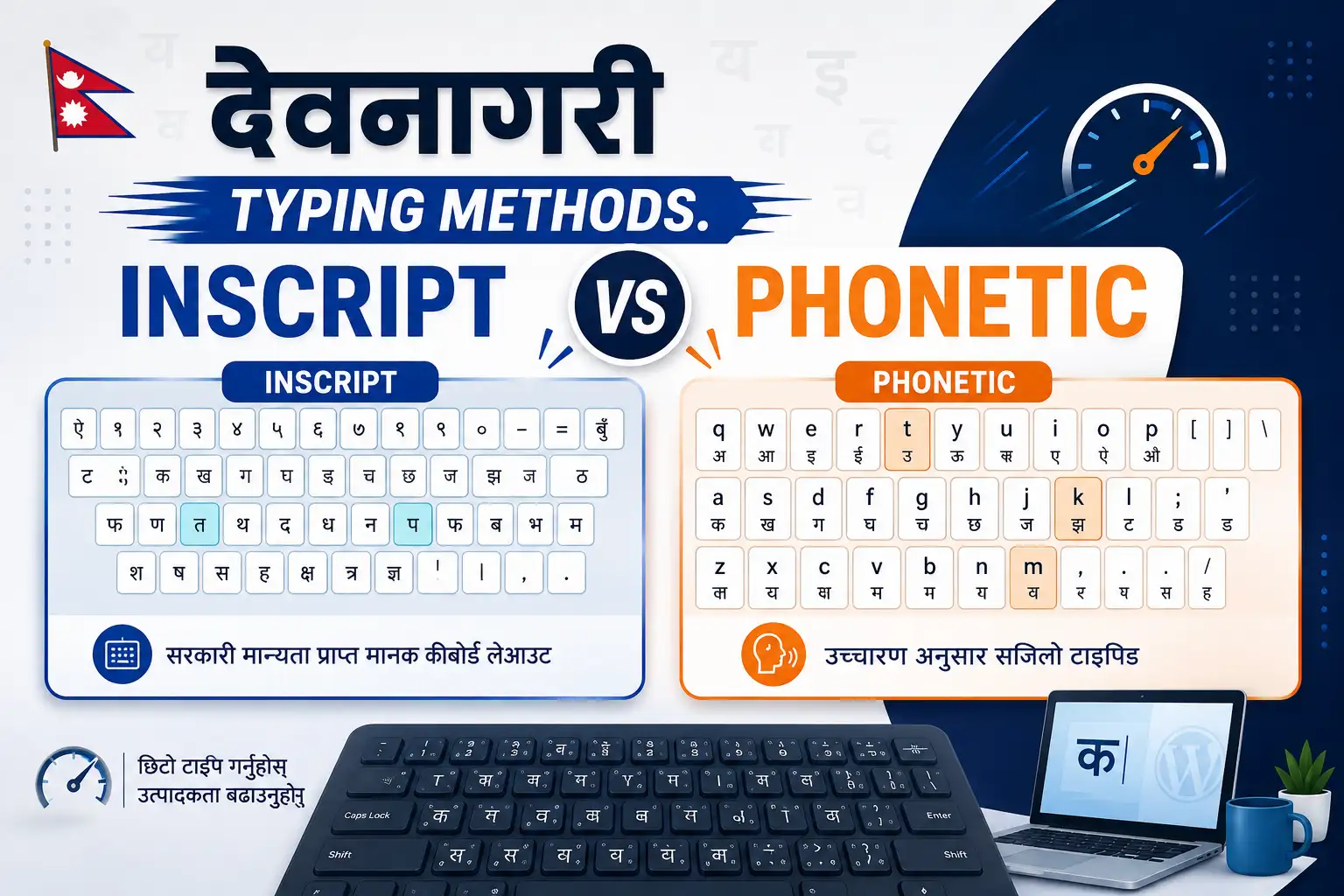
The Inscript typing method is a standardized keyboard layout designed by the Government of India. It maps the Devanagari characters to specific keys on the keyboard, allowing users to type directly in Devanagari. The layout is intuitive for those familiar with the script, as it follows the logical sequence of characters.

For a detailed guide on the Inscript layout, refer to the [Government of India’s Inscript keyboard layout guide](https://www.meity.gov.in/content/inscript-keyboard).

Advantages of Inscript Typing

  • Standardization: Inscript is a standardized layout, ensuring consistency across devices and platforms.
  • Direct Input: Users can type in Devanagari without converting from another script, making it ideal for formal and professional use.
  • Comprehensive Character Set: It supports a wide range of Devanagari characters, including rare and complex symbols.

💡 Pro Tip: Familiarize yourself with the Inscript layout through online typing tutors to improve speed and accuracy.

Exploring Phonetic Typing

How Phonetic Typing Works

Phonetic typing translates the phonetic sounds of Devanagari words into Roman script. For example, typing “namaste” will convert into “नमस्ते.” This method leverages the familiarity of the Roman alphabet, making it accessible to new learners and casual users.

Benefits and Drawbacks

  • Accessibility: Phonetic typing is user-friendly, especially for those who are not native Devanagari speakers.
  • Ease of Use: Requires minimal learning curve, as it relies on the phonetic sounds of words.
  • Limitations: May not capture complex characters accurately, leading to potential errors in formal documents.

⚠️ Important Note: Phonetic typing may not be suitable for official documents due to potential inaccuracies in character representation.

Devanagari Inscript vs Phonetic Typing: A Detailed Comparison

Efficiency and Speed

AspectInscript TypingPhonetic Typing
Typing SpeedSlower initially, faster with practiceGenerally faster for beginners
AccuracyHigh accuracy in character representationMay vary based on phonetic accuracy
Device CompatibilityUniversally compatibleRequires specific software

User Learning Curve

Inscript typing has a steeper learning curve, demanding users to memorize key placements. However, once mastered, it offers high accuracy and speed. Phonetic typing, on the other hand, is intuitive and quick for beginners but may not cater to complex typing needs.

Choosing the Right Typing Method for You

Assessing Your Needs

To choose the right typing method, consider your specific requirements:

  • Professional Use: Opt for Inscript if you need precision and are working on official documents.
  • Casual Use: Phonetic typing is suitable for casual communication and quick typing tasks.

Future Trends in Devanagari Typing

The future of Devanagari typing is poised to evolve with advancements in AI and machine learning. Predictive text and voice recognition technologies are expected to enhance typing efficiency, offering users more intuitive experiences.

For further technical insights into Unicode and its role in standardizing scripts, refer to the [Unicode Consortium’s official documentation](https://unicode.org/standard/WhatIsUnicode.html).

In conclusion, whether you choose Inscript or Phonetic typing depends on your specific needs and proficiency level. Both methods have their unique strengths, catering to a diverse range of users. By understanding their differences, you can make an informed decision and enhance your Devanagari typing skills.

Frequently Asked Questions

What is the primary difference between Inscript and phonetic typing?

Inscript typing uses a fixed keyboard layout, while phonetic typing is based on sound representation.

Which typing method is faster for beginners?

Phonetic typing is generally faster for beginners due to its intuitive nature.

Can I use both typing methods interchangeably?

Yes, but it may require practice to switch seamlessly between the two methods.