
Traveling to Nepal (2026): The Complete Guide to Visas, SIM Cards, Treks, Insurance & Himalayan Adventure
Traveling to Nepal (2026): The Complete Guide to Visas, SIM Cards, Treks, Insurance & Himalayan Adventure
Updated October 2026 · Visa fees checked against Nepal’s Department of Immigration schedule · All heights in feet
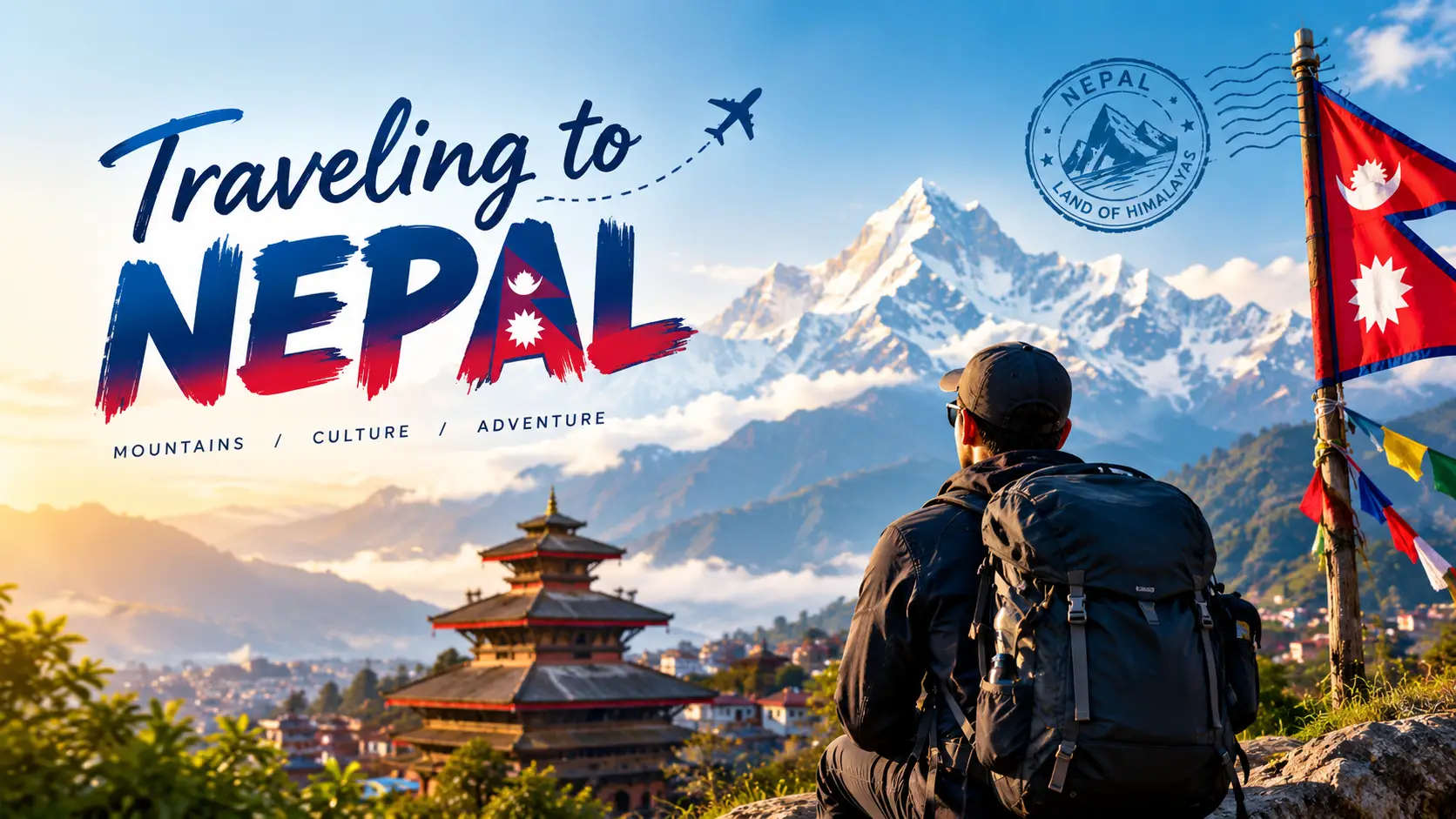
Traveling to Nepal is easier than most first-timers expect and harder than most travel brochures admit. The visa takes minutes, a local SIM costs less than a cup of coffee, and you can be standing in a 1,500-year-old temple square on the same afternoon you land. But the details that actually make or break a trip – where Lukla flights leave from in peak season, which treks now require a licensed guide, and whether your insurance covers the altitude you’re walking to – are scattered, outdated or buried in tour-company sales pages.
This guide is written from Kathmandu, for travelers. It pulls everything into one place: the current Nepal visa on arrival fee, the best Nepal SIM card for tourists, an Everest trek map with every overnight stop and elevation, Nepal adventure travel options beyond trekking, what Nepal travel insurance must cover, and how to plan your Himalayan travel season by season.
Nepal at a Glance (2026)
In this guide
- Why travel to Nepal in 2026
- Nepal visa on arrival fee and process
- Nepal SIM card for tourists
- Himalayan travel: seasons and regions
- Everest trek map and itinerary
- Nepal adventure travel beyond trekking
- Nepal travel insurance
- Money, budget and costs
- Culture, etiquette and food
- Safety, altitude and scams
- Sample itineraries
- FAQs
Why Travel to Nepal in 2026?
Nepal packs an extraordinary range into a small country. In roughly 120 miles from south to north, the land climbs from steamy Terai jungle where rhinos and tigers live to eight of the world’s ten highest mountains, including Everest at 29,032 ft. Between them sit the Kathmandu Valley’s seven UNESCO-listed monument zones, Pokhara’s lakes, and Lumbini, the birthplace of the Buddha.
Visitors are coming back in strong numbers. Nepal recorded 1,158,459 international arrivals in 2025, and the first seven months of 2026 reached 692,887, with four straight months above 100,000 visitors from February to May, according to Nepal Tourism Board figures reported by Himal Press.
International tourist arrivals in Nepal, January–July 2026
Source: Nepal Tourism Board monthly figures. *June is derived from NTB’s cumulative January–May and January–July totals. Arrivals peak in spring, dip in the monsoon and rise again in autumn.
Nepal Visa on Arrival Fee and Process (2026)
Every foreign visitor except Indian citizens needs a visa, and most nationalities can get a tourist visa on arrival at Tribhuvan International Airport (TIA) in Kathmandu or at major land borders. The fees below come from the Department of Immigration’s own visa fee schedule, and every tourist visa issued at an entry point allows multiple entries.
Who pays what: exemptions most guides get wrong
- Indian citizens do not need a visa at all.
- Children under 10 get a free (gratis) visa – except US citizens, whose children pay the normal fee.
- SAARC citizens (except Afghanistan) get up to 30 days free on their first visit in a visa year.
- Chinese nationals are eligible for a gratis tourist visa of up to 150 days per visa year.
- Transit visa: US$5 if you need to leave the airport for up to 24 hours.
- Some nationalities are not eligible for visa on arrival and must apply at a Nepali embassy first – check before booking.
How the arrival process works at Kathmandu airport
You can complete the online tourist visa application on the Department of Immigration’s official portal shortly before you fly. Nepal has also introduced an online visa / Electronic Travel Authorisation route that lets you pay in advance; the Department adds a small convenience fee for online payment. Either way you still pass the immigration desk in person.
Passport validity: at least six months from arrival, with a blank page.
Extending your visa (with the real maths)
Extensions are done at the Department of Immigration in Kalikasthan, Kathmandu, or the Immigration Office in Pokhara. The rules: US$3 per day, with a minimum of 15 days, plus US$25 if you want multiple re-entry. You cannot stay more than 150 days in total in one visa year (January–December). Overstaying costs US$5 per day in fines on top of the visa fee.
| Extension needed | Fee | With multiple re-entry |
|---|---|---|
| 5 days (still billed as 15) | US$45 | US$70 |
| 15 days | US$45 | US$70 |
| 30 days | US$90 | US$115 |
| 60 days | US$180 | US$205 |
Local tip from Kathmandu
Bring crisp US dollar notes in small denominations for the visa. Card machines at the airport counter exist but “network error” is a phrase you will hear often, and the queue behind you will not be patient. If you are only slightly unsure about trip length, the 30-day visa is usually better value than a 15-day visa plus an extension.
Nepal SIM Card for Tourists: NTC vs Ncell vs eSIM
Nepal has two national mobile operators: state-owned Nepal Telecom (NTC, branded “Namaste”) and private Ncell. Both have counters side by side in TIA’s arrivals hall, and both sell tourist-friendly data packs. A physical SIM itself costs very little – roughly NPR 90 for NTC and NPR 100 for Ncell at standard rates, with airport counters sometimes charging a little more.
| Option | Best for | Strength | Watch out for |
|---|---|---|---|
| NTC (Namaste) | Trekkers, rural travel | Generally reaches further into the hills and remote valleys | Longer queues at some outlets |
| Ncell | Cities, Pokhara, Chitwan | Fast urban 4G, dedicated tourist packs and tourist eSIM | Coverage thins on high trails |
| International eSIM | Short trips, landing connected | Set up before you fly, no counter | Higher cost per GB; data-only, no local number |
What you need to buy a SIM
- Your passport with the Nepal visa stamp
- A completed registration form (staff fill most of it); some outlets take a photo or ask for a passport-size picture
- An unlocked phone – and an eSIM-capable one if you want Ncell’s tourist eSIM
Once you have a local number, topping up is simple. Our guides to Ncell data pack codes and the full NTC USSD codes list show how to buy data and check balance without visiting a shop. If you prefer eSIM, see how NTC eSIM activation and the Ncell eSIM setup work. For everything else on networks and internet, browse our telecom and internet in Nepal hub.
Local tip: connectivity on the trail
On the Everest trail, mobile data is reasonable up to Namche Bazaar and patchy above it. Many lodges sell paid Wi-Fi cards for the higher villages, and charging a phone often costs extra at altitude. Carry a power bank and download offline maps before you leave Kathmandu. If you missed the airport counter, the operators’ shops in Thamel usually charge slightly less.
Himalayan Travel: Best Time to Visit Nepal and Where to Go
Nepal’s climate is shaped by the monsoon. Clear mountain views and dry trails come in two windows – autumn and spring – and almost every trekking decision follows from that.
| Season | Months | Mountain views | Good for |
|---|---|---|---|
| Autumn | Sep–Nov | Excellent (best from mid-Oct) | All classic treks, Dashain & Tihar festivals |
| Winter | Dec–Feb | Very clear, very cold | Lower treks, Chitwan, culture; high passes may close |
| Spring | Mar–May | Good, hazier by May | Rhododendron forests, Everest climbing season |
| Monsoon | Jun–Aug | Mostly cloud | Rain-shadow treks (Upper Mustang, Dolpo), fewer crowds; flight delays and leeches elsewhere |
Nepal’s main regions in one view
Durbar Squares of Kathmandu, Patan and Bhaktapur, Boudhanath, Swayambhunath, Pashupatinath and hilltop Changunarayan.
Sherpa villages, monasteries, Everest Base Camp, Gokyo Lakes and the Three Passes.
Lakeside town, paragliding, Poon Hill, Annapurna Base Camp and the Annapurna Circuit.
Chitwan and Bardia national parks for rhino and tiger country; Lumbini for Buddhist heritage.
If you want to understand why Nepal’s rivers, forests and mountains look the way they do, our explainer on the natural resources of Nepal is a good primer, and the story of Changunarayan Temple’s reconstruction is worth reading before you visit the valley’s oldest temple.
Popular treks compared (2026 rules)
| Trek | Typical days | Highest point | Licensed guide required? |
|---|---|---|---|
| Everest Base Camp | 12–14 | 18,192 ft (Kala Patthar) | Not mandatory in Khumbu (strongly advised) |
| Annapurna Circuit | 12–18 | 17,769 ft (Thorong La) | Yes |
| Annapurna Base Camp | 7–10 | 13,550 ft | Yes |
| Ghorepani Poon Hill | 3–5 | 10,531 ft | Yes |
| Langtang Valley | 7–10 | 15,659 ft (Kyanjin Ri) | Yes |
| Manaslu Circuit | 14–16 | 16,752 ft (Larke Pass) | Yes – restricted area, book through an agency |
The guide rule, explained simply
Since 1 April 2023, foreign trekkers in Nepal’s national parks and conservation areas must be accompanied by a licensed guide booked through a registered agency, and the independent TIMS card was scrapped. The big exception is the Everest (Khumbu) region: its local government, the Khumbu Pasang Lhamu Rural Municipality, did not adopt the rule, so independent trekking there remains allowed with the right permits. Rules in Nepal can change quickly, so confirm with a registered agency or the Nepal Tourism Board before you go.
Everest Trek Map: Route, Elevations and Itinerary
The classic Everest Base Camp (EBC) trek is a round trip of roughly 80 miles on foot from Lukla. It follows the Dudh Koshi valley to Namche Bazaar, climbs past Tengboche Monastery, and then follows the Khumbu Glacier to base camp. The map below shows every standard overnight stop with its elevation in feet.
Everest Base Camp route map (schematic)
Kathmandu · 4,600 ft
↓ 4–6 hour pre-dawn drive in peak season
Manthali Airport, Ramechhap
↓ about 20 minutes by small plane
Lukla · 9,383 ft — trek starts; get your Khumbu municipality permit here
Phakding · 8,563 ft — first night, slightly lower than Lukla
Monjo — Sagarmatha National Park entry gate
Namche Bazaar · 11,286 ft — acclimatization day 1
Tengboche · 12,687 ft — famous monastery, Ama Dablam views
Dingboche · 14,469 ft — acclimatization day 2
Lobuche · 16,207 ft
Gorak Shep · 16,942 ft — last lodges before base camp
Everest Base Camp · 17,598 ft
Kala Patthar · 18,192 ft — the best viewpoint of Everest’s summit
Side routes: from Namche or Dingboche you can branch west to the Gokyo Lakes, or link Kongma La, Cho La and Renjo La on the Three Passes trek.
Schematic, not to scale. Use an offline map app on the trail.
Elevation profile of the EBC trek (feet)
Lukla
Phakding
Namche
Tengboche
Dingboche
Lobuche
Gorak Shep
EBC
Kala Patthar
You gain nearly 9,000 ft between Lukla and Kala Patthar – which is exactly why the two rest days matter.
Standard 12-day EBC itinerary
| Day | Route | Sleep at |
|---|---|---|
| 1 | Fly to Lukla, walk to Phakding | 8,563 ft |
| 2 | Phakding → Namche Bazaar | 11,286 ft |
| 3 | Acclimatization hike, return to Namche | 11,286 ft |
| 4 | Namche → Tengboche | 12,687 ft |
| 5 | Tengboche → Dingboche | 14,469 ft |
| 6 | Acclimatization hike, return to Dingboche | 14,469 ft |
| 7 | Dingboche → Lobuche | 16,207 ft |
| 8 | Lobuche → Gorak Shep → Everest Base Camp | 16,942 ft |
| 9 | Sunrise on Kala Patthar, descend to Pheriche | ≈14,340 ft |
| 10 | Pheriche → Namche Bazaar | 11,286 ft |
| 11 | Namche → Lukla | 9,383 ft |
| 12 | Fly out (keep 1–2 buffer days for weather) | Kathmandu |
EBC permits and Lukla flights: the 2026 details
- Sagarmatha National Park permit: NPR 3,000 for foreigners, bought in Kathmandu or at the Monjo park gate.
- Khumbu Pasang Lhamu Rural Municipality permit: bought in Lukla; it replaces the TIMS card in the Everest region. Published figures vary between roughly NPR 2,000 and 3,000, so carry enough rupees.
- Ramechhap, not Kathmandu: in the spring and autumn peak seasons, scheduled Lukla flights depart from Manthali Airport in Ramechhap, a 4–6 hour drive east of Kathmandu. Most trekkers leave Kathmandu around 1–2 a.m. or overnight in Manthali.
- Baggage: expect a strict limit of about 10 kg (22 lb) checked plus a small carry-on. Extra weight may be refused in peak season.
- Weather buffer: Lukla flights fly by sight, and cloud cancels them. Build at least one spare day before your international flight home.
Nepal Adventure Travel Beyond Trekking
Trekking is the headline, but Nepal adventure travel covers air, water and jungle too. Most of these can be booked a day or two ahead from Kathmandu or Pokhara.
Tandem flights launch from Sarangkot above Phewa Lake with the Annapurnas behind you. Best Oct–Apr.
The Trishuli suits beginners on a day trip; the Bhote Koshi is steeper and faster. Multi-day trips run on the Sun Koshi and Karnali.
The Bhote Koshi gorge bungee near the Tibet border drops around 525 ft; canyoning trips run in the same area.
Jeep, canoe and walking safaris in Chitwan for one-horned rhinos; remote Bardia for the best tiger odds.
A one-hour morning flight from Kathmandu along the Himalaya, or a helicopter landing near Everest for those short on time.
Peaks like Island Peak (20,305 ft) add glacier travel and fixed ropes – and need specialist insurance (see below).
Nepal Travel Insurance: What It Must Cover
Nepal travel insurance is the part of trip planning travelers most often get wrong – not by skipping it, but by buying a policy that quietly stops covering them halfway up the trail. On remote routes, the only realistic evacuation is by helicopter, and insurers have quoted minimum costs of around US$7,000 for a rescue.
The altitude limit is the trap
Many adventure policies cover trekking up to 6,000 metres – that is 19,685 ft – and some standard policies stop far lower or need an upgrade. Compare that line with where you are actually going:
Green: usually inside a 19,685 ft (6,000 m) limit. Orange: beyond it – you need mountaineering or rescue-specific cover.
Your Nepal insurance checklist
✓ Must have
- Emergency medical treatment abroad
- Helicopter evacuation and repatriation
- An altitude limit above your highest point
- Cover for every activity you plan (rafting, paragliding, bungee)
✗ Common exclusions
- Trekking above the policy’s altitude cap
- Mountaineering, ice climbing or roped glacier travel
- Search-and-rescue costs (separate from evacuation)
- Evacuations not pre-approved by the insurer’s assistance line
Why insurers are strict about Nepal
Nepal has a history of helicopter-rescue fraud, where trekkers with mild symptoms were pushed into unnecessary evacuations. As a result, many insurers charge a higher excess for Nepal evacuations and insist that their own medical team approves the flight. Save the assistance phone number offline, call it before you board any helicopter, and give your guide a copy of your policy number.
Money, Budget and Costs in Nepal
Nepal runs mostly on cash. Cards work in mid-range and upscale hotels, restaurants and shops in Kathmandu and Pokhara, but teahouses, taxis, local buses and permit counters on the trail want rupees. ATMs are common in cities and disappear quickly once you leave the road; on the Everest trail, Namche Bazaar is your last reliable stop.
| Travel style | Typical daily spend | What it buys |
|---|---|---|
| Backpacker | US$25–40 | Guesthouses, dal bhat and momos, local buses |
| Mid-range | US$60–120 | Comfortable hotels, tourist buses or taxis, café meals |
| Comfort | US$150+ | Boutique hotels, private car and guide, domestic flights |
| On a teahouse trek | Rises with altitude | Food, hot showers, charging and Wi-Fi all cost more higher up; guide and porter fees are extra |
Typical ranges excluding international flights, visa and insurance. Prices move with exchange rates and season.
Culture, Etiquette and Food
Nepal is a deeply religious country where Hindu and Buddhist traditions overlap, and a little etiquette goes a long way:
- Walk clockwise around stupas, prayer wheels and mani walls.
- Remove shoes before entering temples and homes; leather items are unwelcome in some Hindu shrines.
- Use your right hand to give, receive and eat.
- Ask before photographing people, rituals and cremations at Pashupatinath, where the main temple is open only to Hindus.
- Dress modestly, especially at religious sites; public displays of affection are uncommon.
- “Namaste” with palms together works as hello, goodbye and thank you.
Festivals change your trip
Autumn’s two great festivals, Dashain and Tihar, are the best and the trickiest time to travel. Streets glow and families gather, but offices, some shops and immigration services close for days, and buses fill up as people head home. Read our explainer on what Dashain is and how it’s celebrated, and see how homes are decorated with Tihar rangoli designs. If you need a visa extension, do it well before the holidays start.
What to eat
Dal bhat (rice, lentils and curry, with free refills) fuels the whole country and every trekker. Momos are the national snack, thukpa warms you at altitude, and the Kathmandu Valley’s Newar kitchen is a world of its own – start with our guide to Newari cuisine and where to eat it, then explore more on our Taste of Nepal page and the wider Nepali culture and food hub.
Safety, Altitude Sickness and Common Scams
Altitude: the golden rules
Above about 9,800 ft, raise your sleeping altitude by no more than roughly 1,600 ft a day.
Take an acclimatization day every 3–4 days – “climb high, sleep low.”
Headache, nausea, dizziness and poor sleep. If they worsen, do not go higher.
Confusion, loss of coordination or breathlessness at rest are emergencies. Go down immediately.
Everyday safety
- Nepal is generally safe for travelers, including solo women, but use registered agencies and licensed guides.
- Drink purified or boiled water; carry a filter or tablets to cut plastic on trails.
- Road travel is the biggest everyday risk – prefer daytime journeys and reputable tourist buses.
- Watch for overpriced taxis from the airport (agree the fare first or use a ride-hailing app), fake “monks” asking for donations, and gem or carpet “investment” pitches.
- Drones need special permits; do not fly one without paperwork.
Sample Nepal Itineraries
7 days: first taste
- Days 1–2: Kathmandu, Patan, Boudhanath
- Day 3: Bhaktapur, sunset at Nagarkot
- Days 4–5: Pokhara, paragliding
- Days 6–7: Chitwan safari
14 days: mountains & lakes
- Days 1–2: Kathmandu Valley
- Days 3–4: Pokhara
- Days 5–11: Annapurna Base Camp trek
- Days 12–14: Chitwan, return
21 days: the big one
- Days 1–3: Kathmandu & Bhaktapur
- Days 4–16: Everest Base Camp (with buffer days)
- Days 17–19: Pokhara recovery
- Days 20–21: Kathmandu, fly home
What Most Nepal Travel Guides Don’t Tell You
- Lukla flights in peak season start from Ramechhap, not Kathmandu – plan for a middle-of-the-night drive or a night in Manthali.
- The solo-trekking ban doesn’t cover the Everest region, but it does cover Annapurna, Langtang and most other national parks and conservation areas.
- US children under 10 pay for a visa; other nationalities’ under-10s are free.
- A five-day visa extension costs the same as fifteen – the minimum charge is 15 days.
- Your insurance may stop below a trekking peak even if it covers EBC – check the altitude in feet against your highest point.
- Festivals close offices: immigration, banks and permit counters can shut for several days during Dashain and Tihar.
Frequently Asked Questions About Traveling to Nepal
How much is the Nepal visa on arrival fee in 2026?
US$30 for 15 days, US$50 for 30 days and US$125 for 90 days. All are multiple-entry tourist visas. Indian citizens need no visa, and most children under 10 (except US citizens) get one free.
Which is the best Nepal SIM card for tourists?
For trekking, NTC generally reaches more remote hill areas; for cities, Ncell’s tourist packs and eSIM are convenient. Both sell SIMs in Kathmandu airport’s arrivals hall – bring your passport with the visa stamp.
Do I need a guide to trek in Nepal?
Yes in most national parks and conservation areas since April 2023, including Annapurna and Langtang. The Everest (Khumbu) region is the main exception, where independent trekking remains allowed with the national park and municipality permits.
How high is Everest Base Camp?
Everest Base Camp sits at about 17,598 ft. Kala Patthar, the usual viewpoint on the same trek, reaches about 18,192 ft.
Is travel insurance mandatory for Nepal?
It isn’t checked for a standard tourist visa, but trekking agencies usually require it and you should treat it as essential. Make sure it covers helicopter evacuation and an altitude above your highest point.
What is the best time to travel to Nepal?
October to November for the clearest mountain views, and March to May for spring flowers and warmer days. Winter suits lower treks and the jungle; the June–August monsoon is best for rain-shadow regions like Upper Mustang.
Can I pay for the Nepal visa by card?
Card and online payment options exist, but connections can fail at the airport. Carry enough US dollar cash to cover the fee as a backup.
Where do Lukla flights leave from?
In the spring and autumn peak seasons, scheduled Lukla flights depart from Manthali Airport in Ramechhap, about 4–6 hours’ drive from Kathmandu. In the quieter seasons they often operate from Kathmandu.
The bottom line
Traveling to Nepal rewards a little preparation. Bring US dollars for the visa, pick NTC or Ncell at the airport, choose your season, check whether your trek needs a licensed guide, and buy insurance that covers your highest point and a helicopter ride down. Do that, and the hardest decision left is whether to watch sunrise over Everest from Kala Patthar or over the Annapurnas from Poon Hill.