Select Page

FREE DOWNLOAD: PREETI FONT WITH LAYOUT

FREE DONWLOAD PREETI FONT WITH LAYOUT
In Nepal, Preeti Font is one of the most used fonts in local Graphic Design, Nepali Documentation, blogger, etc. It is the most simple to read and elegant choice for all the users. Preeti Font is a combination of style and Legibility, which makes it an ideal choice for both print and digital media. It is also used in Government office documentation. I have also used this font in my daily life as in graphic design and to create documents. So here I have provided to Free download of Preeti Font just in one click.
[dsm_button button_one_text=”CLICK HERE TO DOWNLOAD” button_one_url=”https://wilson.com.np/wp-content/uploads/2022/10/Preeti-Normal.zip” button_one_url_new_window=”on” button_alignment=”center” _builder_version=”4.23.1″ _module_preset=”default” custom_button_one=”on” button_one_text_size=”25px” button_one_text_color=”#FFFFFF” button_one_bg_use_color_gradient=”on” button_one_bg_color_gradient_stops=”#12876f 0%|#0c5a4a 100%” button_one_border_radius=”50px” button_one_icon=”||divi||400″ button_one_on_hover=”off” global_colors_info=”{}”][/dsm_button]
Preeti Font is one of the oldest computer font of Nepal. It is developed by Ananda K. Maharjan and officially released in 1996.

NamePreeti Font
TypeNepali Font
DesignerAnanda K. Maharjan
Release Year1996
AppearanceElegant and Traditional
ReadabilityHigh
VersatilitySuitable for Various Applications
Used in
Wedding Invitations, Certificates, Cultural Publications
Graphic Design, Printing press, Documentation, blogs

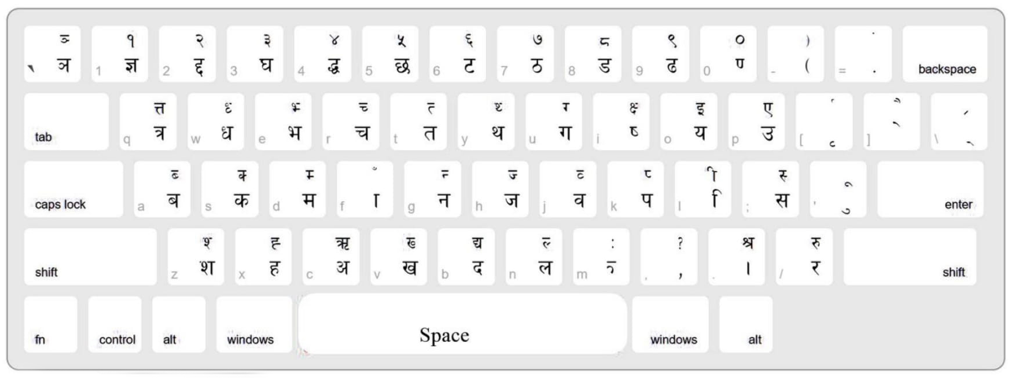
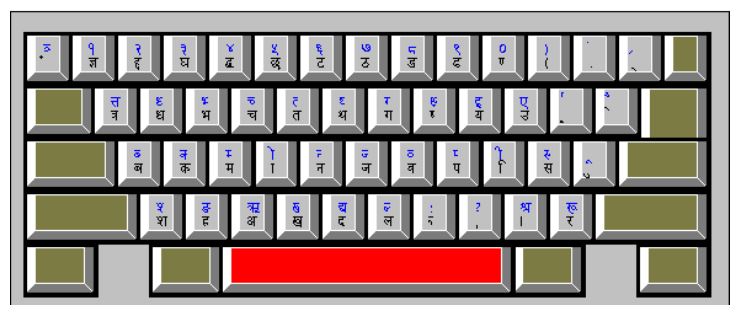
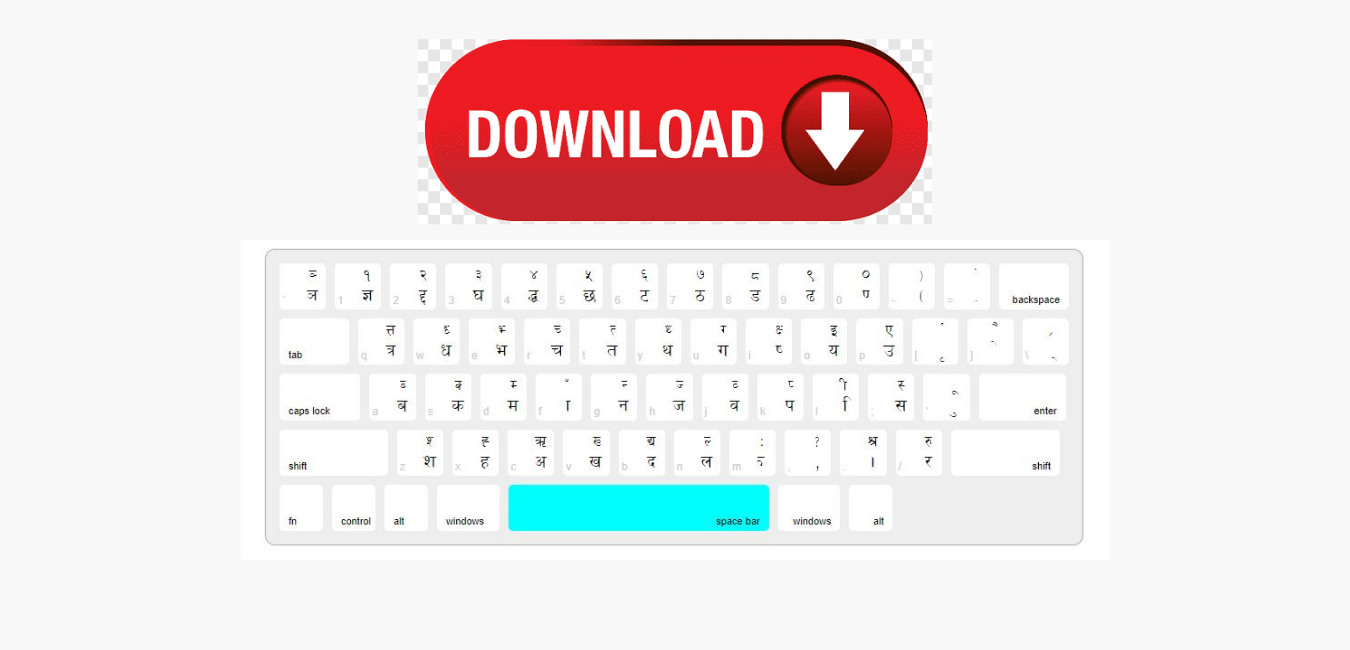
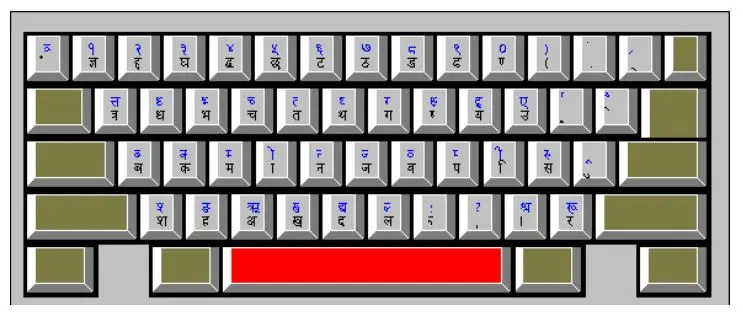
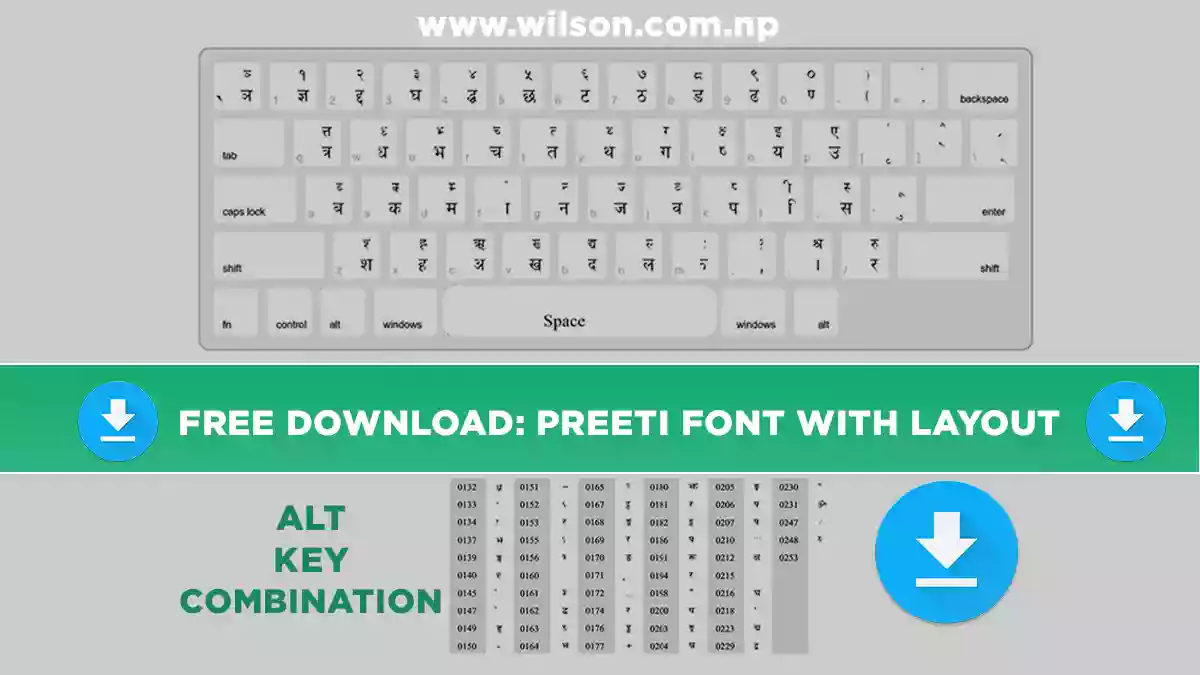
To be able to use this font, first of all, you need to Download this font from the above button (CLICK HERE TO DOWNLOAD). Then you need to learn to type this font from your keyboard. I will provide you Preeti font layout so that it will be helpful for you to type by watching the placement of words on the keyboard. Also, I am suggesting you download Typeshala to practice typing.

PREETI FONT KEYBOARD LAYOUT

PREETI FONT KEYBOARD LAYOUT

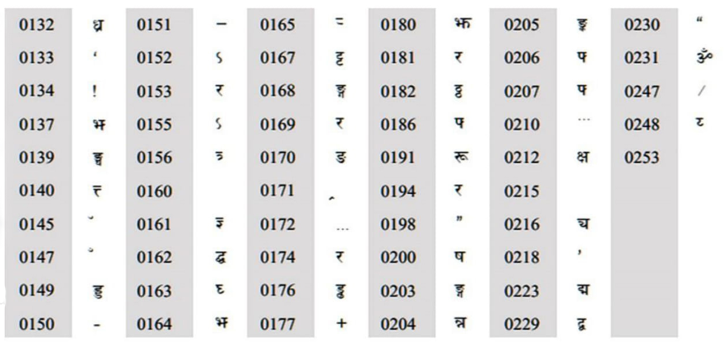
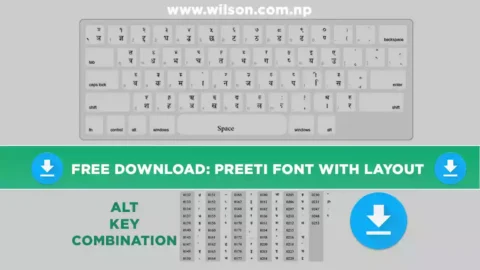
Alt key Combination

preeti font alt key keyboard combination

Free Hindi Fonts Download for PC

Free Hindi Fonts Download for PC: Where to Find and How to Install Them

Free Hindi fonts are essential for anyone looking to type in Hindi on their PC. These fonts allow users to create documents, emails, and other text-based content in Hindi, making it easier to communicate with others who speak the language. With the popularity of Hindi increasing globally, the demand for free Hindi fonts has also been on the rise.

There are many websites that offer free Hindi fonts for download. These fonts come in a variety of styles and designs, making it easy for users to find the perfect font for their needs. Some websites even offer font packages that include multiple fonts, allowing users to experiment with different styles and designs. Additionally, many of these websites also provide instructions on how to install the fonts on a PC, making it easy for users to get started.


Why Download Free Hindi Fonts for PC?

Hindi is one of the most widely spoken languages in the world and is the official language of India. If you are someone who works with Hindi language content, it is essential to have access to a variety of Hindi fonts on your PC. Here are a few reasons why downloading free Hindi fonts for PC is important:

1. Better readability and comprehension

Using the same font for all Hindi content can lead to boredom and lack of interest in reading. By using different fonts, you can make the content more visually appealing, which can lead to better readability and comprehension. With a wide variety of free Hindi fonts available for download, you can choose the best font that suits your content and enhances its readability.

2. Improved aesthetics

Fonts play a crucial role in the overall aesthetics of any content. Using the right font can make the content more attractive and pleasing to the eyes. With the availability of free Hindi fonts for download, you can experiment with different fonts and choose the one that best complements your content.

3. Enhanced creativity

Having access to a variety of Hindi fonts can also enhance your creativity. With different fonts available, you can experiment with various font styles, sizes, and colors to create unique and visually appealing content. This can help you stand out from the crowd and make your content more memorable.

4. Cost-effective

Purchasing Hindi fonts can be expensive, especially if you require multiple fonts for various projects. However, with the availability of free Hindi fonts for download, you can save a significant amount of money. You can download and use as many fonts as you need without worrying about the cost.

In conclusion, downloading free Hindi fonts for PC is essential for anyone who works with Hindi language content. With a wide variety of fonts available for download, you can choose the best font that suits your content and enhances its readability, aesthetics, and creativity. Additionally, downloading free Hindi fonts is cost-effective and can save you a significant amount of money.

Where to Find Free Hindi Fonts for PC

For those looking for free Hindi fonts for their PC, there are several websites that offer a wide range of options. In this section, we will discuss some of the most popular websites for free Hindi font downloads and provide tips for finding high-quality fonts.

Popular Websites for Free Hindi Fonts Download

  1. HindiFonts.com: This website offers a vast collection of trendy, stylish, and high-quality Hindi fonts for any device, including mobile, tablet, desktop, Apple, Windows, Linux, and iPad. Users can download fonts for free and preview how their desired text looks using the “Enter Your Text To Preview” feature.
  2. IndiaTyping.com: This website provides all types of Hindi fonts for free download, including the popular Devlys Hindi font, Mangal, and many more. Users can also download Hindi keyboard layouts for the Typewriter (Remington) layout used in Hindi typing.
  3. TypingGuru.net: This website offers over 1000 free Hindi fonts for Windows and Mac, including Chanakya font, Devnagari font, Krishna font, Kruti Dev font, Kundli font, New Delhi font, and more. Users can also find fonts for other languages and typing tutorials.

Tips for Finding High-Quality Free Hindi Fonts

  1. Look for websites that offer a wide range of fonts and font styles to choose from. This will give you more options to find the perfect font for your needs.
  2. Check the font’s compatibility with your device and software before downloading. Some fonts may not work with certain operating systems or software programs.
  3. Read user reviews and ratings to get an idea of the font’s quality and usability. This can help you avoid downloading fonts that may have issues with readability or other problems.
  4. Consider the font’s licensing before downloading. Some fonts may be free for personal use only, while others may require attribution or payment for commercial use.

In conclusion, finding free Hindi fonts for your PC is easy with the help of popular websites like HindiFonts.com, IndiaTyping.com, and TypingGuru.net. By following the tips provided, you can ensure that you find high-quality fonts that are compatible with your device and software, and meet your specific needs.

English To Nepali Type Converter Unicode

Are you looking for a Nepali Unicode converter?

You are in the right place, you will find an easy and quick English and Nepali Unicode converter plus a converter for Unicode to Preeti Font. So that you can perform both tasks on the same page. I have created this because it was not available on another site.

I use this page everyday in my day to day life for my work like Graphic designing, blogging, and Nepali Documentation.

Easy way to convert English letters to Nepali letters Unicode. No need to know Nepali Typing, now you can convert English alphabets to Nepali letters. It automatically translates your English letter into Nepali letters.

You can use this in sending messages, Graphic design, Documents, or letter typing.

English to Nepali Unicode Converter.

English to Nepali Unicode Converter
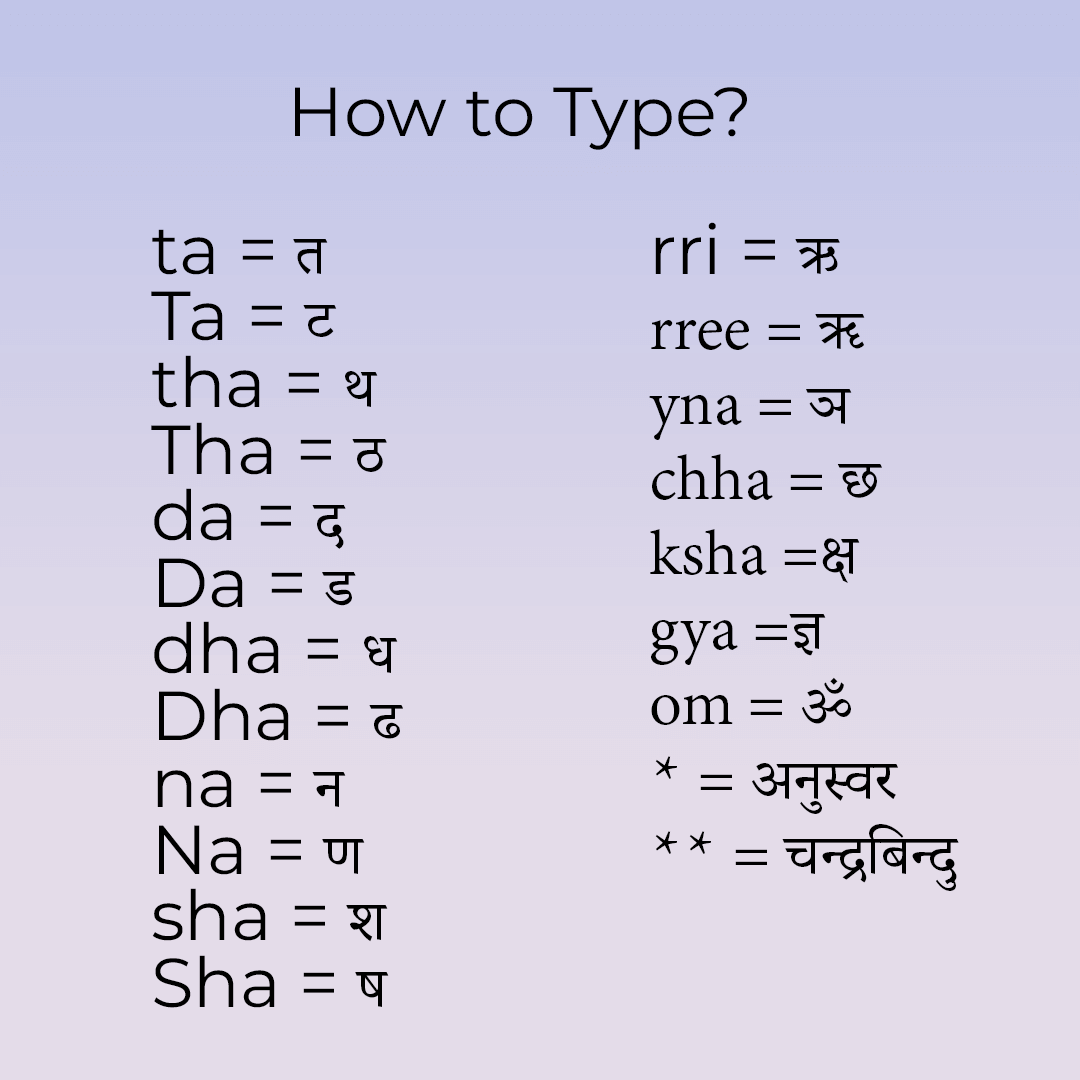
Other special characters
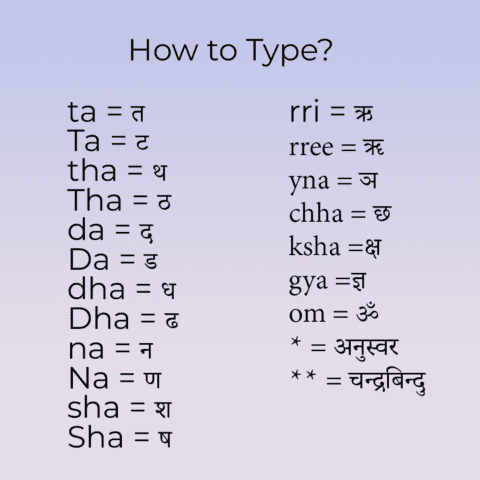
ri^ = रि (as in प्र)
rr= र्‍ (as in गर्‍य)


शब्दको अन्त्यमा हलन्त राख्नको लागि backslash (\) अक्षर प्रयोग गर्नुहोस् । Example: bas = बस, bas\ = बस् |
If a Nepali letter gets wrongly analyzed with the preceding letter, use the slash (/) key to separate. Example: pratishatko = प्रतिशत्को, pratishat/ko = प्रतिशतको |
Combine English into your Nepali Unicode text: Simply put any English text inside the curly {} brackets to keep it in English. Example: yo {mobile} mero ho. = यो mobile मेरो हो

Convert Unicode to Preeti Font

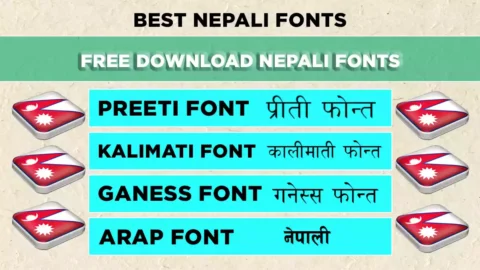
Download Nepali Fonts

Kalimati Download

Here you can also download the popular fonts for free. this page will help you to save you time.

Conclusion for English to Nepali Type converter unicode

I think it is the best page or site for Unicode converter. In this page, you will get the following:

  • English to Nepali Unicode Converter
  • Unicode to Preet Font converter (also known as Devnagrik to Nepali typing converter.)
  • Also, How to type in using English text in Nepali
  • Links for downloading popular Nepali Fonts.

Want to type Nepali directly instead of converting text? Learn the Preeti keyboard with Typeshala, the free Nepali typing tutor for Windows.

[dsm_blog_carousel use_excerpt="off" use_date="off" use_author="off" _builder_version="4.23.1" _module_preset="default" hover_enabled="0" global_colors_info="{}" include_categories="122" sticky_enabled="0"][/dsm_blog_carousel]

Typeshala Download for Windows 10/11 – Free Nepali Typing

Free download · Windows · Works offline

Typeshala Free Download for Windows – Nepali & English Typing Tutor

Typeshala is a free, offline typing tutor that teaches Nepali (Preeti layout) and English touch typing on Windows. Download it below, install it in a few minutes, then follow the step-by-step guide to go from hunting for keys to typing Nepali without looking.

Wilson ShresthaBy Wilson Shrestha Taught 100+ students Updated 12 min read
Typeshala Nepali and English typing tutor for Windows PC

Typeshala for Windows

Nepali & English typing tutor · Free

  • FileTypeshala.zip
  • Size15.1 MB
  • Works onWindows XP to 11
  • PriceFree, no sign-up
  • InternetOnly to download
  • LanguagesNepali & English
Download TypeshalaZIP file · 15.1 MB · Windows No Windows PC? Practise online in your browser →
You can check any download for free on VirusTotal before opening it. Windows may show a SmartScreen warning for older programs like Typeshala. See the fixes below.
On this page

What Is Typeshala?

Typeshala (टाइपशाला, "typing school") is a Windows typing tutor with two modes: Nepali and English. It teaches touch typing, which means typing without looking at the keys, through guided lessons, a free-typing mode and the Ramayan typing game.

Nepali computer institutes and schools have used it for well over a decade because it does one job well. It teaches the Nepali Preeti keyboard layout, which many offices still use, and it runs on almost any Windows PC without internet.

Office and government work

Many government, banking and administrative jobs in Nepal expect you to type in Nepali.

Faster everyday writing

Write documents, emails and social posts in Nepali directly, without a converter.

Learn by playing

The Ramayan game turns speed drills into a challenge, so daily practice doesn't feel like a chore.

Is Typeshala free?

Yes. Typeshala is free to download and use, and you don't need an account. Nepali training institutes have shared it freely for years; this page keeps a copy so you can download it from one place.

Typeshala System Requirements

Typeshala is a lightweight program, so almost any Windows PC can run it.

Operating system
Windows XP, Vista, 7, 8, 10 and 11
Processor
Pentium 4 or equivalent
Memory (RAM)
512 MB or more
Storage
About 100 MB free space
Display
Any standard screen
Input
A physical keyboard (best for practice)

Using a Mac, Chromebook or phone? Typeshala only runs on Windows. Use the free online version instead.

How to Download and Install Typeshala on Windows 10/11

The whole process takes a few minutes, and you only need internet for the download.

  1. Download the ZIP file

    Click Download Typeshala at the top of this page. Your browser saves Typeshala.zip (15.1 MB) to your Downloads folder.

  2. Extract the ZIP

    Right-click Typeshala.zip, choose Extract All…, then click Extract. Don't run the program from inside the ZIP, or it may not work properly.

  3. Run Typeshala as administrator

    Open the extracted folder, right-click Typeshala.exe and choose Run as administrator. Click Yes when Windows asks for permission.

  4. Finish setup and open Typeshala

    If a setup window opens, accept the terms and finish the installation. Then open Typeshala from its desktop shortcut or from the extracted folder.

Video: installing Typeshala

The video only loads when you press play, so it doesn't slow the page down.

Typeshala Not Working on Windows 10 or 11? Try These Fixes

Typeshala was built for older versions of Windows, so newer PCs sometimes need a setting or two changed. Work through these fixes in order.

Typeshala won't open or closes straight away

  1. Right-click Typeshala.exe (or its desktop shortcut) and choose Properties.
  2. Open the Compatibility tab.
  3. Tick Run this program in compatibility mode for and choose Windows XP (Service Pack 3).
  4. Tick Run this program as an administrator.
  5. Click Apply, then OK, and open Typeshala again. If it still fails, repeat with Windows 7.

"Windows protected your PC" message

Windows SmartScreen shows this warning for many older programs from publishers it doesn't recognise. If you downloaded the file from this page, click More info, then Run anyway. If you're unsure, check the file on VirusTotal first.

Your antivirus blocks or deletes the file

Some antivirus tools flag old programs like Typeshala by mistake. Upload Typeshala.zip to VirusTotal to check it. Only restore it from quarantine if the scan is clean, and never switch your antivirus off completely.

Nepali letters show as boxes or English letters

Typeshala's Nepali lessons use the Preeti font. If you see boxes or random English letters, install it from our Preeti font download guide, then restart Typeshala.

The window is tiny or blurry on a high-resolution screen

Open Properties → Compatibility → Change high DPI settings, tick Override high DPI scaling behavior, choose System and click OK.

Still stuck? Follow the full Typeshala not opening on Windows 11 guide. If that doesn't help, send me a message with your Windows version and a screenshot of the error, and I'll help you get it running.

How to Use Typeshala: A Step-by-Step Guide

I've taught Nepali typing to more than 100 students with Typeshala, and this is the order I recommend. It works for complete beginners and for people who already type English but not Nepali.

Step 1

Choose Nepali or English mode

Typeshala asks you to pick a language when it starts. If you've never touch-typed, start with English for a few days to learn where your fingers go, then switch to Nepali. If you already type English without looking, go straight to Nepali.

Step 2

Follow the lessons in order

The lessons move from the home row to the top row and the bottom row, then on to numbers, symbols and full sentences. Don't skip ahead: each lesson builds on the keys from the one before.

Step 3

Watch the on-screen keyboard, not your hands

An on-screen keyboard highlights the next key and the finger to use. Keep your eyes on the screen and follow it. Using the wrong finger now creates habits that are hard to fix later.

Typeshala Nepali typing lesson with the on-screen keyboard layout
Typeshala's on-screen keyboard shows which key to press next.
Step 4

Practise with free-hand typing

Once the lessons feel easy, switch to free-hand mode and type any text you like, such as a Nepali newspaper article, a government notice or an English email. Real text prepares you for real work.

Step 5

Play the Ramayan typing game

The Ramayan game is Typeshala's best-known feature: you type characters and words quickly to advance in the game. Play for about 10 minutes after each lesson to build speed without it feeling like a drill.

Step 6

Check your speed and accuracy

Typeshala shows your speed in words per minute (WPM) and your accuracy after each exercise. Use these targets to measure your progress:

Practice periodSpeed goalAccuracy goal
Week 110–20 WPM80% or higher
Week 220–30 WPM85% or higher
Weeks 3–430–40 WPM90% or higher

Accuracy comes first. If you fall below the accuracy goal, slow down until you're back above it.

Step 7

Keep a 15–30 minute daily routine

Short daily sessions work better than long weekly ones. A simple plan is 5 minutes of home-row warm-up, 15 minutes of lessons and 10 minutes of the Ramayan game.

Typeshala Nepali Keyboard Layout (Preeti)

Typeshala's Nepali mode uses the Preeti layout, a typewriter-style layout where each English key types a Nepali character. Learn the home row first. Your fingers rest there and return to it after every keystroke.

Preeti layout, lowercase keys. Highlighted keys are where your eight fingers rest; F and J have small bumps so your index fingers can find them without looking. Hold Shift for the second character on each key.

Home row keys

  • Aबba
  • Sकka
  • Dमma
  • Fाaa sign
  • Gनna
  • Hजja
  • Jवwa
  • Kपpa
  • Lिi sign
  • ;सsa
  • 'ुu sign

Preeti vs Unicode: which should you learn?

Preeti is a legacy font. Text typed in Preeti only looks Nepali on computers that have the font installed, so it often breaks when you email it or post it online. Unicode Nepali works everywhere, including websites, email, Facebook and phones.

The practical path is to learn the layout with Typeshala, then type in Unicode for everyday use. The Nepali Unicode Traditional layout keeps the same typewriter-style key positions for most characters, so your muscle memory carries over. The Romanized layout is different: it maps sounds to English letters (for example, K types क), so it's a separate skill. To turn old Preeti documents into Unicode, use the Nepali Unicode converter.

Typeshala Features

Typeshala keeps things simple. These are the tools you'll use most.

Nepali and English modes

Pick a language on the start screen. Both modes use the same lessons and tools.

Step-by-step lessons

Guided lessons take you from the home row to full sentences, at any age.

On-screen keyboard guide

Shows the next key and which finger to use, so you never need to look down.

Free-hand typing

Practise with any text you choose, from news articles to office letters.

Ramayan typing game

The classic speed game many Nepali learners remember from computer class.

Speed and accuracy results

See your WPM and accuracy after every exercise to track progress.

7 Tips to Learn Nepali Typing Faster

  1. Practise every day15–30 minutes daily works far better than two hours once a week.
  2. Never look at the keyboardIf you keep glancing down, lay a light cloth over your hands until the habit stops.
  3. Get accurate before you get fastType slowly and correctly. Speed follows once your fingers know the keys.
  4. Use all ten fingersReturn to the home row (ब क म ा and व प ि स) after every key.
  5. Drill the vowel signs separatelySigns like ा, ि and ु appear in almost every Nepali word, so practise them on their own.
  6. Keep a layout chart nearby for the first weekGlance at a printed chart instead of the keys, then put it away in week two.
  7. Type real Nepali textUse free-hand mode with a newspaper article or an office notice to prepare for real work.

Typeshala Pros and Cons

Typeshala is best for beginners who need Nepali typing for school, office or government work. Experienced typists who want detailed analytics may prefer a modern web tool.

Pros

  • Free, with no account needed
  • Works fully offline
  • Teaches both Nepali (Preeti) and English
  • Structured lessons suited to beginners
  • The Ramayan game makes practice fun

Cons

  • Windows only
  • Dated design
  • May need compatibility settings on Windows 10/11
  • Teaches Preeti rather than Unicode directly
  • Limited statistics for advanced typists

Typeshala vs Other Typing Tutors

Here's how the Typeshala download compares with the free online version on this site and two popular English typing tutors.

FeatureTypeshala (download)Typeshala OnlineTypingMasterKeybr
PlatformWindows PCAny browser, any deviceWindows PCAny browser
Works offlineYesNoYesNo
Nepali (Preeti) lessonsYesYes (Preeti & Traditional)NoNo
English lessonsYesYesYesYes
PriceFreeFreeFree version + paid ProFree
Standout featureRamayan typing gameLive WPM test and custom textStructured English courseLessons that adapt to your weak keys
Best forNepali beginners on a PCPhones, Macs and quick testsEnglish typing on WindowsEnglish speed training

Swipe the table to compare all four →

Verdict: To learn Nepali typing on a Windows PC without internet, Typeshala is still the most practical free choice. On a phone, Mac or Chromebook, use Typeshala Online. For extra English speed training, Keybr is a good addition. If Typeshala won't run on your PC at all, try these Typeshala alternatives for Windows 11.

No download needed

Practise Typeshala Online

Want to try before you install, or practise on a phone or Mac? The free online Typeshala runs in any modern browser.

  • Preeti and Nepali Traditional layouts
  • Live WPM and accuracy test
  • Nepali, English and numbers modes
  • 8 lessons, Easy to Expert, row by row
  • Custom text: paste anything to practise
  • Works on phones, tablets, Macs and PCs
Start online typing practice → It works well alongside the download above: use the app for lessons and the Ramayan game, and the online tool for quick speed tests.

What Instructors and Students Say

I have been using Typeshala for more than 10 years of my working career. I used it to teach my students Nepali typing. There has been no issue with this software while working with it. It is user-friendly and easy for new learners.

Suraj Raj ShresthaComputer Engineer and Instructor, Blueprint Technologies Pvt. Ltd.

I did what my teacher Suraj Raj Shrestha told me, and I am doing well in Nepali and English typing. I think it is the best software to start your typing journey. Highly recommended to beginners.

Gunjan ShresthaComputer student

Disclosure: Suraj is my colleague at Blueprint Technologies, and Gunjan is one of his students.

Typeshala FAQs

Is Typeshala free to download?

Yes. Typeshala is completely free to download and use, and you don't need to create an account.

Does Typeshala work on Windows 10 and Windows 11?

Yes. On Windows 10 and 11, run Typeshala as administrator. If it still won't open, set compatibility mode to Windows XP (Service Pack 3), as shown in the fixes section above.

Can I use Typeshala without internet?

Yes. You only need internet to download the 15.1 MB ZIP file. After that, Typeshala works fully offline.

Is Typeshala available for Mac, Android or iPhone?

No. Typeshala is a Windows program. On a Mac, Chromebook or phone, use the free online Typeshala in your browser instead.

Is the Typeshala download safe?

You can scan Typeshala.zip for free on VirusTotal before opening it. Windows may show a SmartScreen warning for older programs like Typeshala; the warning alone doesn't mean a file is harmful.

Does Typeshala teach Preeti or Unicode typing?

Typeshala teaches the Preeti layout. The Nepali Unicode Traditional layout keeps the same key positions for most characters, so what you learn carries over to Unicode typing.

How long does it take to learn Nepali typing with Typeshala?

With 15–30 minutes of practice a day, a realistic goal is about 30 words per minute in three to four weeks. Focus on accuracy first; speed follows.

What is the difference between Nepali Typeshala and English Typeshala?

They're the same program. Typeshala has a Nepali mode for the Preeti layout and an English mode for the standard QWERTY layout, and you choose one when it starts.

Wilson Shrestha
Written by

Wilson Shrestha

I learned Nepali typing on Typeshala and later taught it to more than 100 students as an instructor at a typing institute in Nepal. Today I'm a web developer at Blueprint Technologies Pvt. Ltd. in Kathmandu, and Typeshala is still the first tool I recommend to anyone learning Nepali typing.