
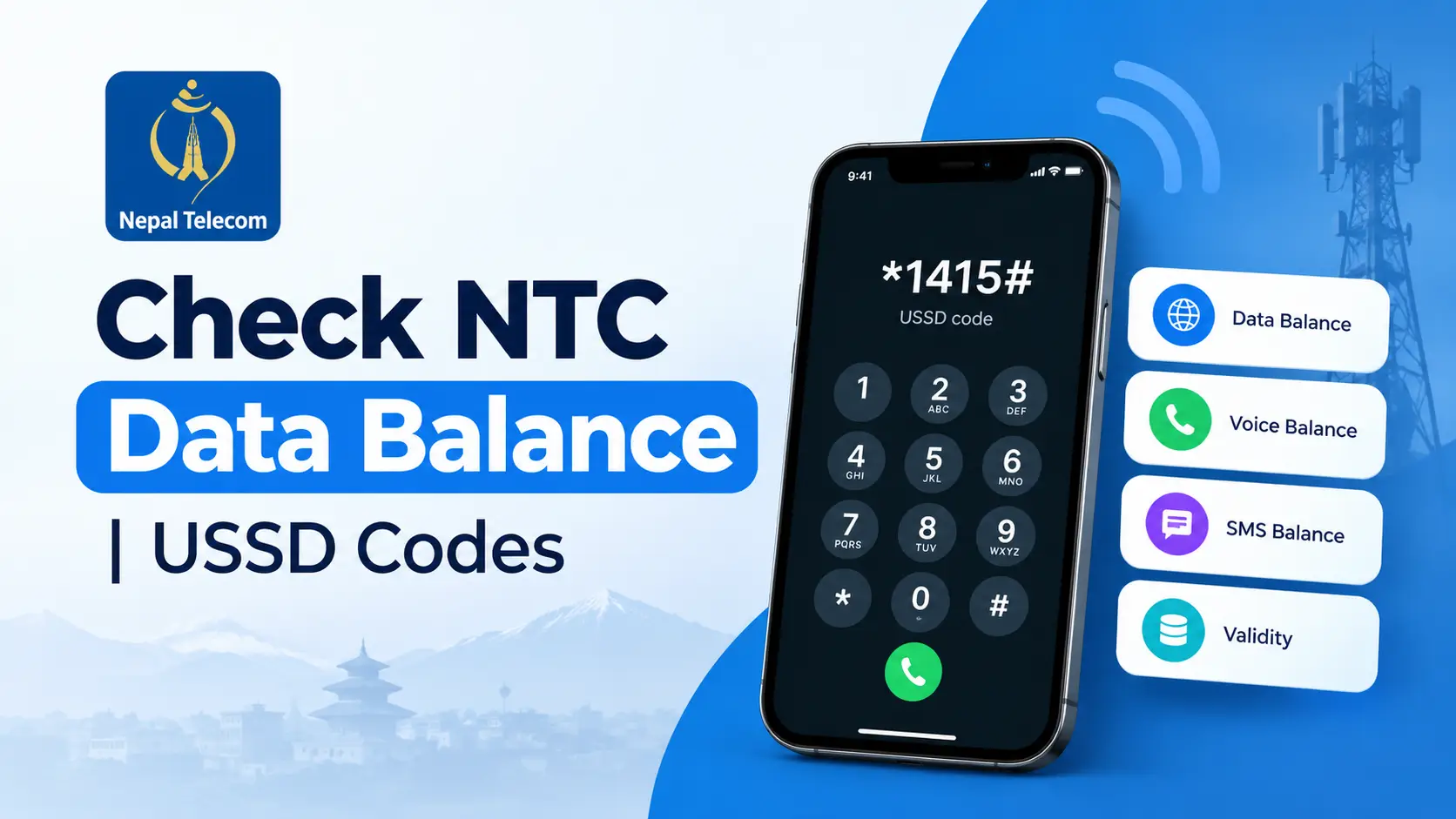
How to Check NTC Data Balance: *1415*55# USSD Code, SMS & App Guide
In today’s connected world, staying on top of your mobile data usage is crucial. For NTC (Nepal Telecom) users, knowing how to check your data balance quickly can save you from unexpected interruptions. The fastest way is a single USSD code — *1415*55# — but this guide also covers the SMS, app, and online portal methods, plus the questions NTC users ask most.
⚡ Quick Answer
Dial *1415*55# from your NTC SIM. You’ll get an instant on-screen reply showing your remaining data balance and its expiry date — no internet needed.
Understanding USSD Codes for NTC
What is a USSD Code?
Unstructured Supplementary Service Data (USSD) codes are a communication protocol used by GSM cellular telephones to communicate with the mobile network operator’s computers. These codes allow users to access various services, such as checking balance, data usage, or even subscribing to new services. For more on how USSD works, see this overview of USSD functionality.
Is *1415# the Same as *1415*55#?
No. Dialing plain *1415# opens Nepal Telecom’s general USSD menu for data packs, combo offers, and account options — it doesn’t show your remaining balance directly. For an instant data-balance reading, dial the full code, *1415*55#. Keep this distinction in mind, since the two codes are easy to mix up.
Why Use USSD Codes for Checking Data Balance?
USSD codes offer a quick and convenient way to access your account information without needing any internet connectivity. This is particularly useful in areas with poor internet coverage. For NTC users, USSD codes are a reliable method to check your data balance instantly, ensuring you can manage your mobile data usage effectively.
Step-by-Step Guide to Check NTC Data Balance
Dial the USSD Code
To check your NTC data balance, follow these steps:
- Open the Dialer: Navigate to the phone app on your mobile device.
- Enter the USSD Code: Type *1415*55# — the direct code for your remaining data volume.
- Dial the Code: Press the call button. NTC displays your remaining data balance and its expiry date on screen within a few seconds.
💡 Pro Tip: Always ensure you have a strong network signal before attempting to check your data balance using USSD.
4 Ways to Check Your NTC Data Balance, at a Glance
The USSD code above is the fastest option, but NTC gives you three more ways to see the same information:
USSD
*1415*55# — instant, no internet needed
SMS
Text “VL” to 1415, get a reply SMS
NTC App
Log in and view usage in detail
Online Portal
Full account dashboard on the web
Using SMS (Text Message)
Prefer texting? Send VL to 1415 from your NTC SIM. You’ll get a reply within a few seconds showing your remaining data balance and its expiry date. Standard SMS charges may apply.
Using the NTC Mobile App
For those who prefer using apps, the NTC mobile app provides a comprehensive platform to manage your account. Here’s how you can use it:
- Download the App: Find and install the NTC mobile app from your app store.
- Log In: Enter your credentials to access your account.
- Check Data Balance: Navigate to the data balance section within the app.
Using the Online Portal
Alternatively, NTC provides an online portal where users can log in and manage their accounts. This method requires internet access but offers a detailed view of your data usage and other account features.
- Visit the NTC Portal: Go to the NTC official website.
- Log In to Your Account: Use your mobile number and password.
- View Data Balance: Access the section displaying your current data balance.
Common Issues and Troubleshooting
Common Problems
While checking your NTC data balance using USSD is generally straightforward, users may encounter occasional issues. Some common problems include:
- Network Errors: Poor network connectivity can hinder the USSD execution.
- Incorrect Code Entry: Mistyping the USSD code, or dialing *1415# alone instead of the full *1415*55#, can lead to the wrong menu or an error message.
- Service Unavailability: Temporary unavailability of the USSD service due to maintenance.
Solutions and Tips
To tackle these issues, consider the following solutions:
- Ensure Strong Network Coverage: Verify that your phone shows good network strength before dialing the USSD code.
- Double-Check the USSD Code: Make sure you’ve entered the full code *1415*55# — not just *1415#, which opens a different menu.
- Retry After Some Time: If the service is temporarily unavailable, try again after a few minutes.
If your USSD code still won’t work, you may also want to check whether the SIM is registered correctly using NTC & Ncell’s SIM owner lookup codes.
Tips for Managing Your NTC Data Balance
Data Usage Monitoring
Keeping track of your data usage helps prevent overages and ensures you are using your plan efficiently. Consider setting up data usage alerts through your phone’s settings to notify you when you’re nearing your limit.
Effective Data Management
Here are some strategies for managing your data usage effectively:
- Optimize App Settings: Limit background data usage for apps that consume high amounts of data.
- Use Wi-Fi When Available: Connect to Wi-Fi networks whenever possible to conserve mobile data.
- Schedule Updates: Set apps and system updates to occur only over Wi-Fi.
By following these tips, you can make the most of your data plan and avoid unexpected overages. Topping up or transferring balance between two NTC numbers is also useful if you’re about to run low before your next recharge.
Frequently Asked Questions
What is the USSD code to check NTC data balance?
Dial *1415*55# — NTC replies instantly with your remaining data volume and its expiry date.
Is *1415# the same as *1415*55#?
No. Plain *1415# opens Nepal Telecom’s general account menu for packs and offers — it won’t show your data balance directly. Use the full code, *1415*55#, for an instant balance reading.
Can I check my NTC data balance without dialing USSD?
Yes. Send VL by SMS to 1415, check the NTC mobile app, or log in to the NTC online self-care portal — all three show your remaining data balance.
Why can’t I access my data balance using USSD?
Double-check you’re dialing the full code *1415*55# (not *1415# alone), confirm you have network signal, and retry after a few minutes if NTC’s USSD service is temporarily busy.
Key Takeaways
- Quick Access: Dial *1415*55# to check your NTC data balance instantly.
- Alternative Methods: SMS “VL” to 1415, or use the NTC mobile app or online portal for more detailed account management.
- Troubleshooting: Ensure a strong network connection and double-check you’re using the full *1415*55# code, not *1415# alone.
For more information on official USSD codes and services, visit the NTC official website. You can also top up from abroad using these recharge methods from India, or browse our full Telecom & Internet guides.
By mastering these methods and tips, you can ensure uninterrupted connectivity and make the most of your NTC mobile data plan.