
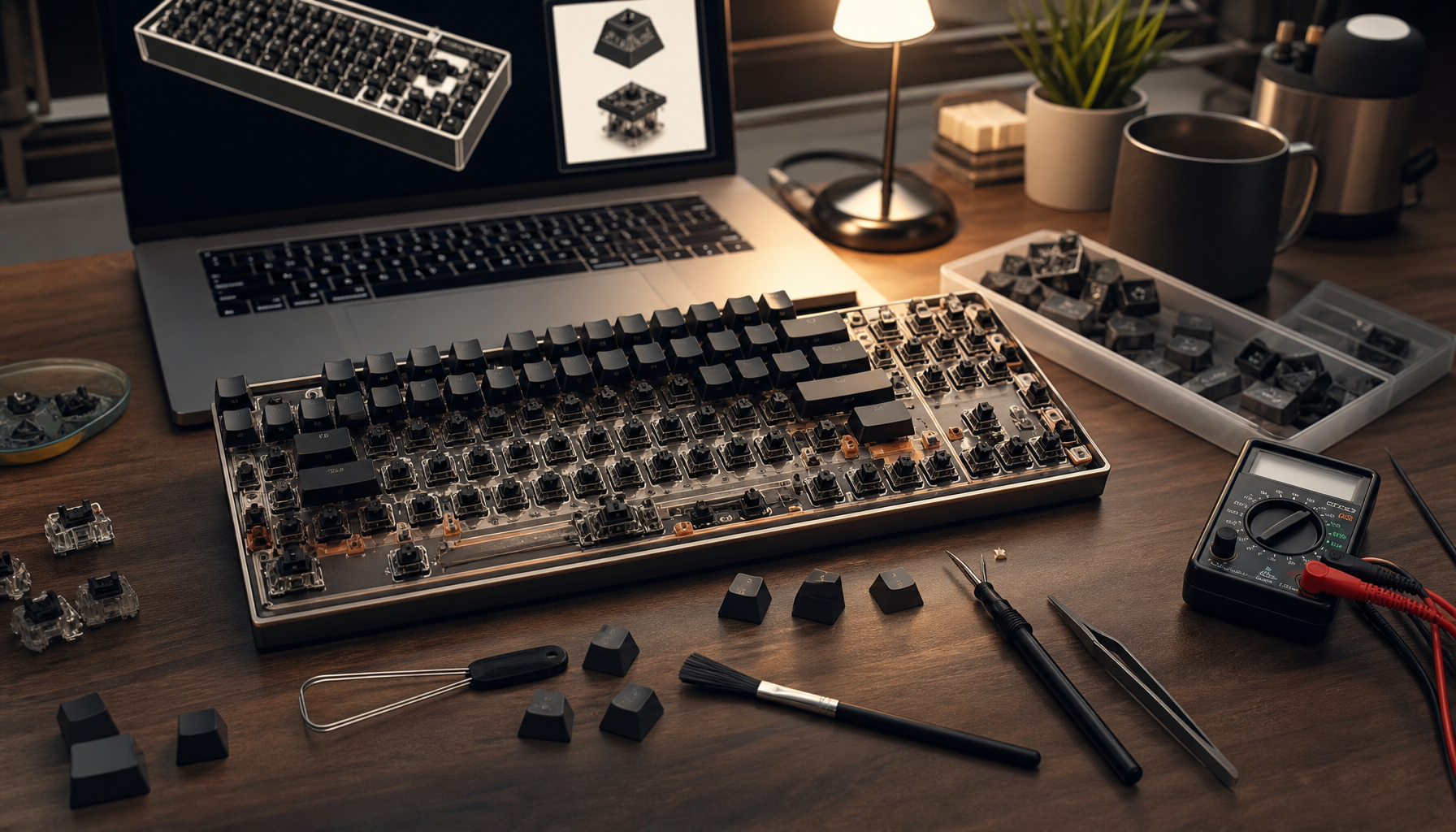
Mechanical keyboards are celebrated for their tactile feedback and longevity, yet they occasionally encounter issues that require troubleshooting. Understanding mechanical keyboard troubleshooting can save time and prevent headaches. Whether you face unresponsive keys or connectivity issues, this guide provides practical solutions to resolve these problems effectively.
📌 Key Takeaways
- Identify common mechanical keyboard issues and their causes.
- Learn step-by-step solutions for resolving keyboard problems.
- Understand preventative maintenance to avoid future issues.
📋 Table of Contents
15 Sections
Common Mechanical Keyboard Problems
Mechanical keyboards, while robust, can present a variety of issues. Identifying the problem is the first step towards a solution.
Keys Not Responding
Non-responsive keys can be frustrating, especially during critical tasks. The causes range from simple to complex:
- Dust and Debris: Over time, dust and debris can accumulate beneath the keys, obstructing their movement.
- Switch Failure: Mechanical switches, like Cherry MX, can fail due to wear and tear. Refer to a [Cherry MX switches troubleshooting](https://support.cherrymx.de/en) guide for switch-specific insights.
- Firmware Issues: Occasionally, a firmware glitch or outdated software can cause keys to stop functioning.
Connectivity Issues
Connectivity problems can occur in both wired and wireless keyboards:
- Loose Cable: For wired keyboards, ensure the cable is securely connected to both the keyboard and the computer.
- Bluetooth Pairing: Wireless keyboards may face Bluetooth connectivity issues. Re-pairing the device often resolves the problem.
- USB Port Malfunction: A faulty USB port can prevent your keyboard from connecting. Test it with different ports.
Step-by-Step Troubleshooting Guide
Before diving into advanced repairs, follow these initial diagnostics to identify the problem.
Initial Diagnostics
- Restart Your Computer: A simple reboot can resolve many software-related issues.
- Check the Connection: Ensure the keyboard is properly connected. For wireless, check that the batteries are charged.
- Test on Another Device: Connect the keyboard to another computer to rule out the possibility of a hardware failure.
Advanced Troubleshooting
If initial diagnostics don’t solve the problem, consider these advanced techniques:
- Update Firmware and Drivers: Visit the manufacturer’s website for the latest firmware and driver updates.
- Internal Inspection: Carefully open the keyboard case to inspect for any internal damage or loose connections.
- Switch Testing: Use a multimeter to test the continuity of individual switches. For detailed steps, consult a [mechanical keyboard maintenance guide](https://www.daskeyboard.com/blog/mechanical-keyboard-maintenance-guide/).
Fixing Specific Keyboard Issues
Some issues require targeted solutions. Here’s how to tackle sticky keys and switch replacements.
Sticky or Malfunctioning Keys
Sticky keys are often due to spills or debris:
- Remove the Keycap: Use a keycap puller to gently remove the affected keycap.
- Clean the Area: Use isopropyl alcohol and a cotton swab to clean the switch and surrounding area.
- Reassemble: Allow the area to dry completely before replacing the keycap.
Switch Replacement
If a switch fails, replacement might be necessary:
- Desolder the Old Switch: Use a soldering iron to carefully remove the solder from the switch pins.
- Install the New Switch: Insert the new switch into the PCB and solder the pins in place.
- Test the Switch: Ensure the new switch functions correctly before reassembling the keyboard.
Preventative Maintenance Tips
Preventing issues before they occur can save time and extend your keyboard’s life.
Regular Cleaning
- Weekly Dusting: Use a can of compressed air to remove dust from the keyboard surface and between the keys.
- Monthly Deep Clean: Remove keycaps and clean the keyboard base with a damp cloth.
Proper Storage
- Avoid Extreme Conditions: Keep the keyboard away from extreme temperatures and humidity.
- Use a Dust Cover: When not in use, cover your keyboard to prevent dust accumulation.
When to Seek Professional Help
Certain issues may require professional assistance. Knowing when to seek help is crucial.
Identifying Unfixable Issues
- Complex Electrical Failures: If the keyboard has widespread electrical issues, professional repair is advisable.
- Physical Damage: Significant physical damage, such as a cracked PCB, often needs expert attention.
Choosing a Repair Service
- Reputation Matters: Choose a service with positive reviews and experience with mechanical keyboards.
- Warranty Coverage: Check if the repair is covered under warranty to avoid unnecessary expenses.
By following this mechanical keyboard troubleshooting guide, you can address and resolve common issues effectively. Regular maintenance and timely repairs will ensure your keyboard remains in optimal condition for years to come.
Frequently Asked Questions
Why are my mechanical keyboard keys not responding?
Non-responsive keys can be due to dust, debris, or switch failure.
How do I fix sticky keys on my mechanical keyboard?
Clean the keys and switches carefully to resolve stickiness.
What should I do if my keyboard is not connecting?
Check the cable, USB port, and try reconnecting the keyboard.